Review and Audit Sessions with Session History
Session History is where JumpCloud Privileged Access Management (PAM) keeps every session as it happens. In one table, administrators can see who connected to which resource, with which credential and when, filter the sessions, and watch what the user did.
In Session History you can:
- See the sessions of Privileged Websites, Servers, and Databases in one place.
- Search and filter by date, user, resource, Jump Server, and more.
- Watch the recording of a session and review what the user typed.
- Download recordings and play them offline.
- Export the data of the table to a CSV file.
PAM keeps the session recordings of Session History for 1 year from the date of the session.
Opening Session History
- In the JumpCloud Admin Portal, go to Access > PAM > Session History.
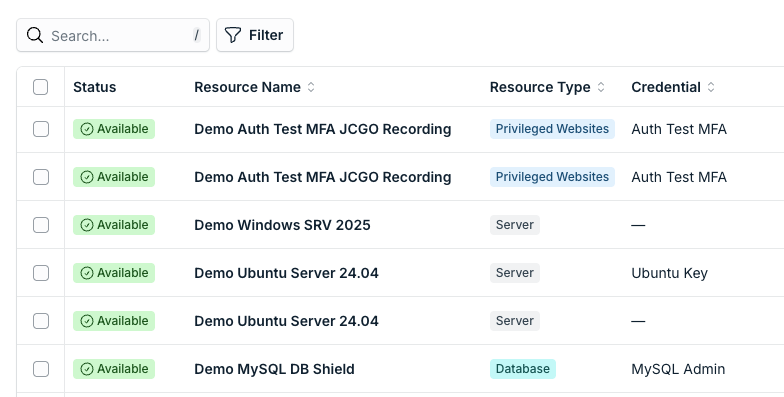
The table shows these columns:
| Column | What it shows |
|---|---|
| Status | Whether the recording is Available, Not Available, or Uploading. See Session Status. |
| Resource Name | The Privileged Resource that the user connected to. |
| Resource Type | Privileged Websites, Server, or Database. |
| Credential | The credential that PAM used to sign in to the resource. |
| User | The user who started the session. |
| Start Date and End Date | When the session started and ended. An open session has no end date yet. |
| Jump Server | The Jump Server that the session used. It is empty for website sessions recorded by JumpCloud Go™, because they do not use a Jump Server. |
| Session ID | The unique identifier of the session. |
| Actions | View recording and download. |
Session Status
The Status column tells you if you can open the recording of the session.
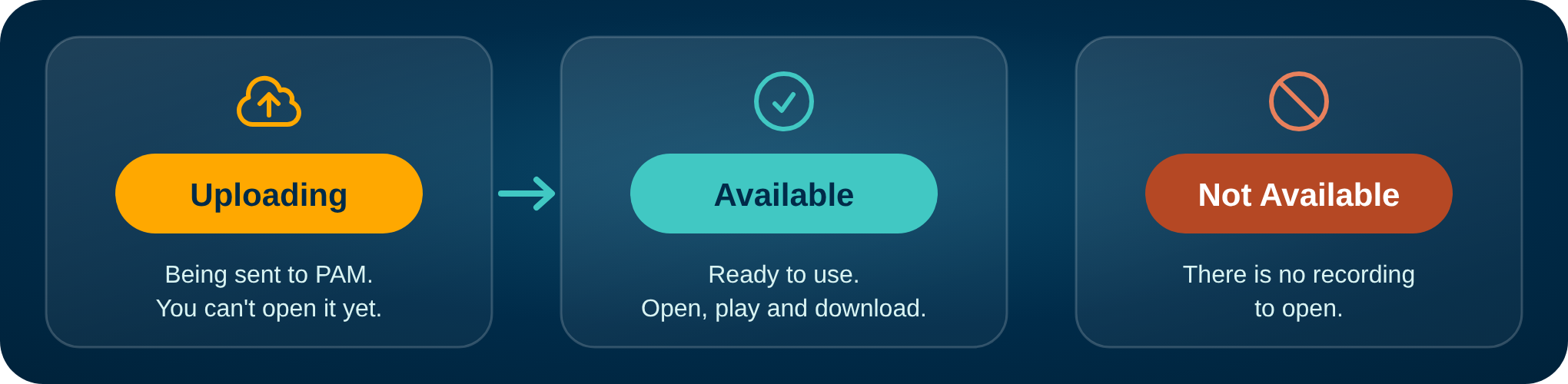
You can open a session only when its status is Available.
The time to upload depends on the length of the session. A session of several hours can take longer to become available.
Searching and Filtering the Sessions
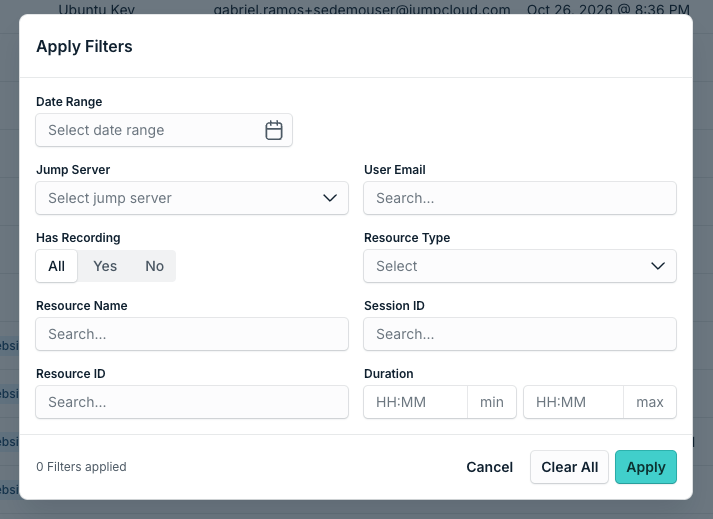
Use the search box to find a session. For a more precise search, select Filter, choose the filters, and select Apply. Use Clear All to remove all the filters.
| Filter | Use it to find |
|---|---|
| Date Range | Sessions that started in a period. |
| Jump Server | Sessions that used a specific Jump Server. |
| User Email | Sessions of a user. |
| Has Recording | Only the sessions with a recording (Yes), only the sessions without a recording (No), or all (All). |
| Resource Type | Sessions of a type of resource. |
| Resource Name | Sessions of a specific resource. |
| Session ID | A specific session. |
| Resource ID | Sessions of a resource, by its ID. |
| Duration | Sessions that lasted between a minimum and a maximum time, in HH:MM. |
Watching a Session
To see what a user did during a session, open the session in one of these ways:
- Click the row of the session.
- Click the name of the resource.
- Click the View recording icon in the Actions column.

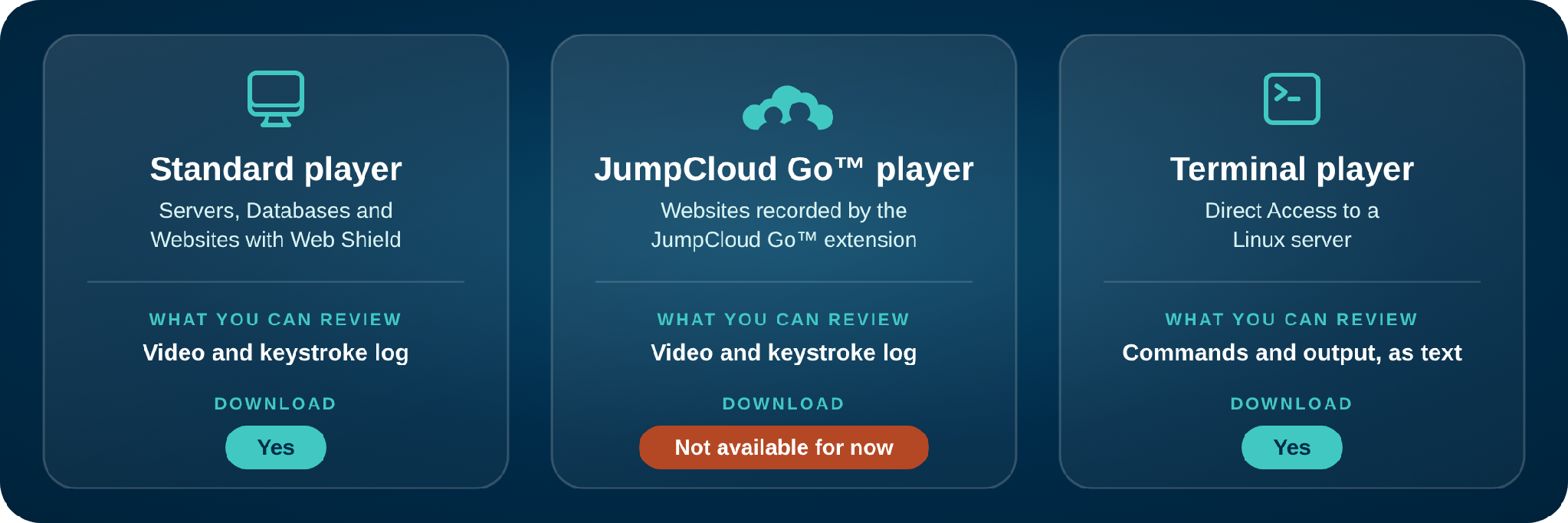
The player depends on how the session was recorded.
Sessions in the Browser
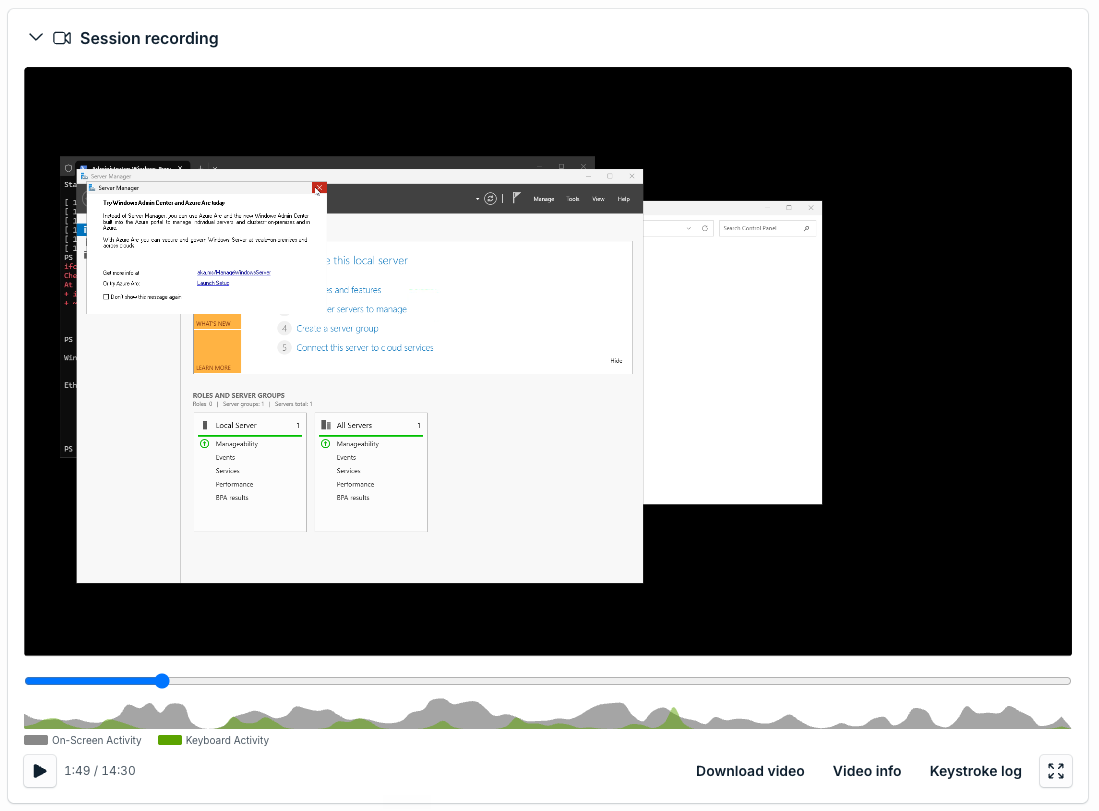
This is the player of the sessions that a user starts from the User Portal with Connect: Servers, Databases with DB Shield, and Privileged Websites with Web Shield.
At the top, Session details shows the information of the session: the resource, the credential, the user, the address of the resource, the Jump Server, the start and end dates, and the session ID.
Below it, Session recording has these tools:
- Video: play the session as the user saw it.
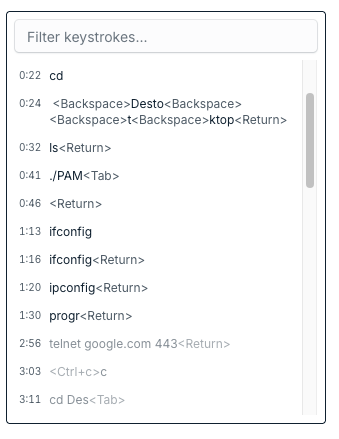
- Keystroke log: the list of what the user typed, with the time of each entry. Select a time to go to that moment of the video. Use Filter keystrokes to find a command or a text.
- On-Screen Activity and Keyboard Activity: a graph below the video that shows when there was activity on the screen and on the keyboard. Use it to find the important moments.
- Video info: information about the recording: the IP, the resource, the user, and the file.
- Download video: downloads the recording. See Downloading Recordings.
- Hide keystroke log: hides the list to give more space to the video.
Websites Recorded with JumpCloud Go™
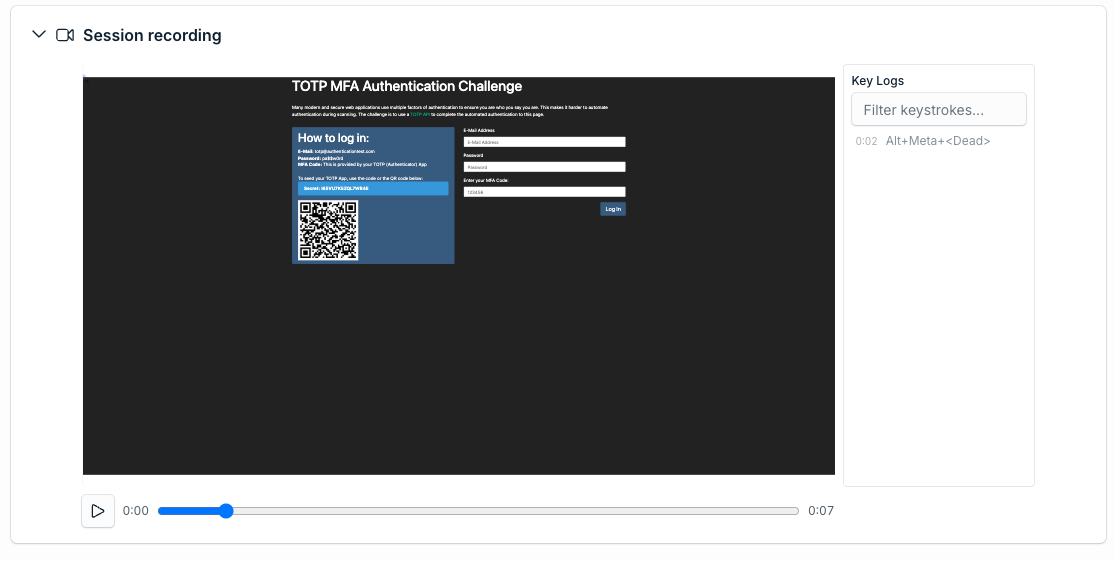
When a Privileged Website is recorded by the JumpCloud Go™ extension, the session has its own player. The goal is the same: you watch the video and you review the keys typed. The panel is called Key Logs, and you can filter it.
The recording does not use a Jump Server, so the Jump Server field of the session is empty.
You cannot download the recordings made by JumpCloud Go™. The other recordings can be downloaded.
Direct Access to a Linux Server
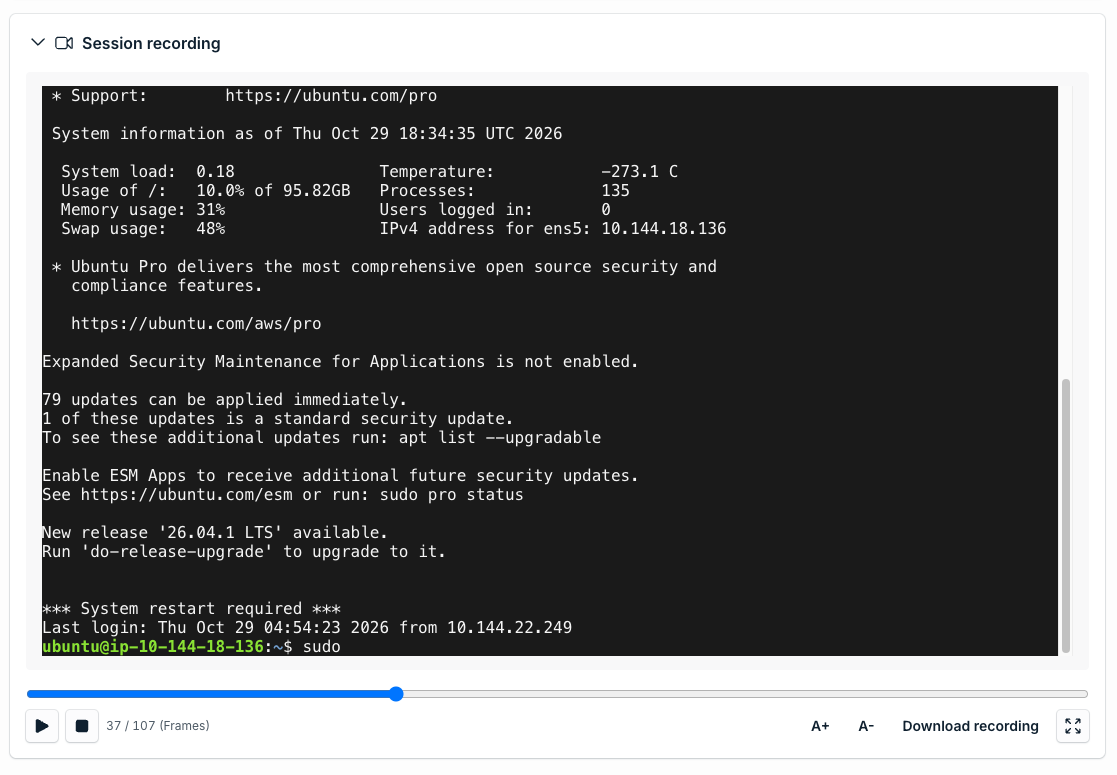
The recording of a Direct Access session to a Linux server is a text recording of the terminal. It has no keystroke log. PAM records the commands that the user typed and what the terminal showed, as frames. You can select and copy the text.
Because PAM records only what happens in the terminal, a long session with little activity has few frames.
- Use the play and stop buttons to play the session by frames.
- Use A+ and A- to change the size of the text.
- Use Download recording to download the session.
Downloading Recordings
You can download a recording to keep it or to review it outside the portal.
- In Session History, select the download icon in the Actions column of the session. In the player, select Download video or Download recording.
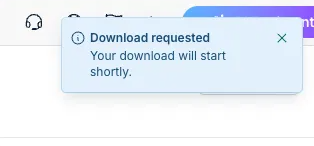
- PAM shows Download requested. The download starts shortly.
To download several sessions at the same time, select the checkbox of each session and select Download in the bar that appears.
The recording is downloaded as a .rec file. It does not open in a regular video player. Use the Offline Player of PAM.
Playing a Recording Offline
- In the header of PAM, select Settings.
- Open the Offline Player.
- Select the downloaded file to play it.
Exporting Session History
You can export the data of the table to a CSV file. The export contains the data of the table. It does not contain the recordings.
- In Session History, select the export icon at the top right of the table.
- In Export Session History, select the information that you want. You can select Select all.
- Select Export.
- PAM sends the CSV file by email. In the email, select the link to download the file.
| Group | Information you can export |
|---|---|
| Session | Resource Name, Resource Type, Credential, Jump Server, User, Start Date, and End Date. |
| Identifiers | Resource ID, Credential ID, and Session ID. |
The link expires in 10 minutes. Download the file before it expires. If it expires, export the data again.
Auditing Other PAM Activity with Directory Insights
Session History is about the sessions. The events of the administration of PAM and of the activity of the users are recorded in Directory Insights, together with the events of the other JumpCloud services.
For example, when someone views the MFA code of a credential, PAM records the event in Directory Insights. For more information, see Directory Insights.
Was this information helpful?