Register Third-Party Managed Devices for Device Trust and Conditional Access Policies
Admins can enable device trust and configure conditional access policies to allow non-JumpCloud managed devices (third party managed devices) so they can access JumpCloud resources. This enables users to use JumpCloud Go on their mobile devices, even when their organization manages devices with non-JumpCloud MDM.
An Admin can register mobile devices managed by 3rd-party MDMs so that they can enforce conditional access policies based on device trust without JumpCloud being the primary MDM.
Prerequisites
- JumpCloud Registered Mobile Devices enabled in Admin Portal.
- JumpCloud Go is enabled for the org.
- JumpCloud Protect is deployed to target devices (App Store / managed app).
- Users must have completed the first JumpCloud Go sign-in on the device.
- Devices must be managed by Third-party MDM (Jamf, Kandji, Google Workspace EMM, etc.) — not JumpCloud MDM.
Generating Shared Secret
To Generate the shared secret:
-
Log in to the JumpCloud Admin Portal.
-
Go to Security > Device Trust > Third-Party MDM Device Trust.
-
Turn on the toggle button for Allow Registered Mobile Devices.
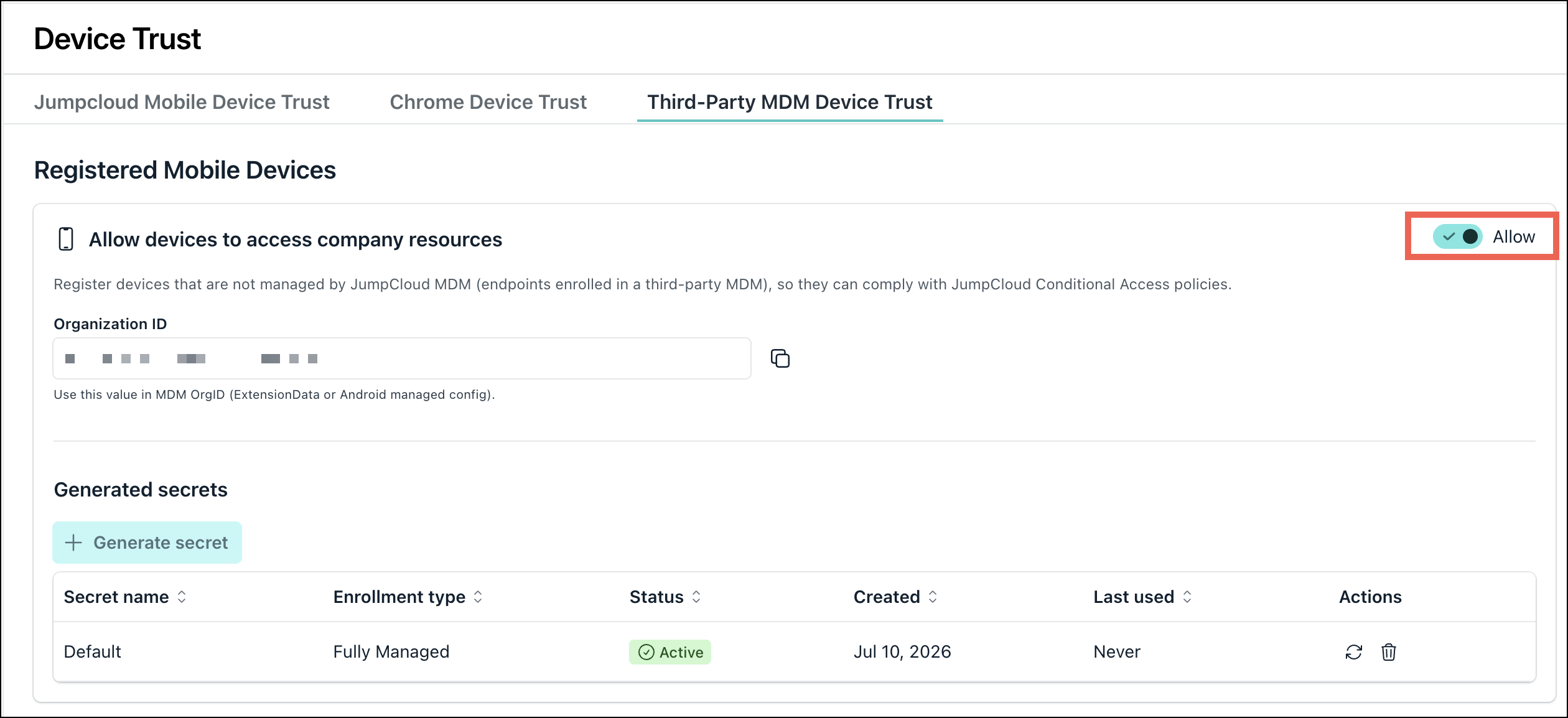
When you turn on the toggle button for the first time, the secret is auto-generated.
- Click Generate Secret.
- Add a Label, click Generate, and copy the secret value. It is shown once.
Also, copy the Organization ID mentioned. You can also copy this ID from Settings > Organization Profile.
Configuring SSO Extension Profile in Non-JumpCloud MDM
To create a new iOS / iPadOS Configuration Profile with a Single Sign-On Extensions payload in your third party MDM, enter these values in the appropriate fields:
| Field | Value |
|---|---|
| Payload Type | Redirect |
| Extension Identifier | com.jumpcloud.JumpCloud-Protect.ssoe |
| URLs | https://console.jumpcloud.com/login |
| https://console.eu.jumpcloud.com/login | |
| https://console.in.jumpcloud.com/login |
Add to Custom Data (the ExtensionData dictionary):
| Key | Value |
|---|---|
| OrgID | Your JumpCloud Organization ID |
| RegisteredSecret | The shared secret from Step 1 |
Apply these settings to the devices you want to register, and deploy.
Creating a Conditional Access Policy
- Go to Security > Conditional Access Policies.
- Click the Add button and select the appropriate resource.
- Under Conditions, configure the new condition:
| Condition | Description |
|---|---|
| Device Management | JumpCloud Managed. This allows the registered mobile devices to satisfy the Device Management condition. |
| OS | iOS |
- Apply the policy to the relevant user groups.
- Select the appropriate actions under the Action tab, then click Save.
Now, these trusted non-JumpCloud managed devices can access JumpCloud resources.
Was this information helpful?