Promoting Users to Administrator Role in the Enterprise (Preview)
The Enterprise Portal lets you promote existing users to the Administrator role and assign predefined roles across one or more organizations. This article describes who can create Administrators, which permissions control role and Enterprise access, how landing behavior differs by permission, API access options, and common use case scenarios.
During Administrator creation, only predefined roles are visible. Administrators can assign one predefined role across all selected organizations in a single action.
Terminology:
- Enterprise Portal: Portal where Enterprise Admins manage settings for multiple organizations under one Enterprise Configuration. Differs from the JumpCloud Admin Portal, which is for one organization
- Enterprise (formerly Enterprise Configuration): Centralized hub for all the organizations' objects in the Enterprise Portal. Items can be created and shared for organizations in the Enterprise Portal from this hub
- Organizations: A division of the enterprise (for example a region or a country) that maintains its own users, devices, and resources
- Enterprise Administrator: Admin who has full access to all orgs and enterprise resources
- Organization Administrator: Admin whose access is limited to explicitly granted orgs
Prerequisites:
- You must be signed in to the JumpCloud Enterprise Portal with Billing permission to create (promote) a new Administrator or assign predefined roles.
- To assign Enterprise access during Administrator creation, you must also have Enterprise (EP) permission.
- The user you promote must already exist in JumpCloud. Direct Administrator creation without an existing user account is not supported.
Considerations:
- Single role across organizations: When you select multiple organizations, the same predefined role applies to all of them. You cannot assign different roles per organization.
- Enterprise access and role selection: If you select any role other than Enterprise, the Enable Enterprise access option stays disabled by default.
Permissions and Role Assignment
Permission requirements differ depending on whether you are creating Administrators, assigning predefined roles, or granting Enterprise access.
Administrator with Billing permission (default role)
Only Administrators with Billing permission can:
- Create (promote) new Administrators
- Assign predefined roles
Enterprise (EP) permission
Only Administrators with Enterprise (EP) permission can:
- Assign Enterprise access during Administrator creation.
Enable Enterprise access
When you select Enable Enterprise Access checkbox during Administrator access assignment:
- The promoted user becomes an Enterprise Admin.
When you select any predefined role other than Enterprise:
- The Enable Enterprise Access option remains disabled by default.
Common Use Case Scenarios
Single-Organization Admin
When the promoting Administrator has access to only one organization:
- That organization is preselected by default.
- The organization selection is non-editable.
Multi-Organization Admin
When the promoting Administrator has access to multiple organizations:
- You can promote a user to Administrator across multiple organizations at once.
- The same predefined role applies to all selected organizations.
- This removes the need to repeat Administrator creation for each organization separately.
Enterprise-Level Admin
Only Administrators with Enterprise (EP) and Billing permissions can:
- Promote a user to an Enterprise Admin.
If any predefined role other than Enterprise is selected:
- The Enterprise option is disabled.
Creating an Administrator
Note: You cannot create an Administrator directly, you have to promote an existing user to an admin.
Promoting a User to an Administrator Role
- Log in to the JumpCloud Enterprise Portal.
- Go to the Identity Management > Users page.
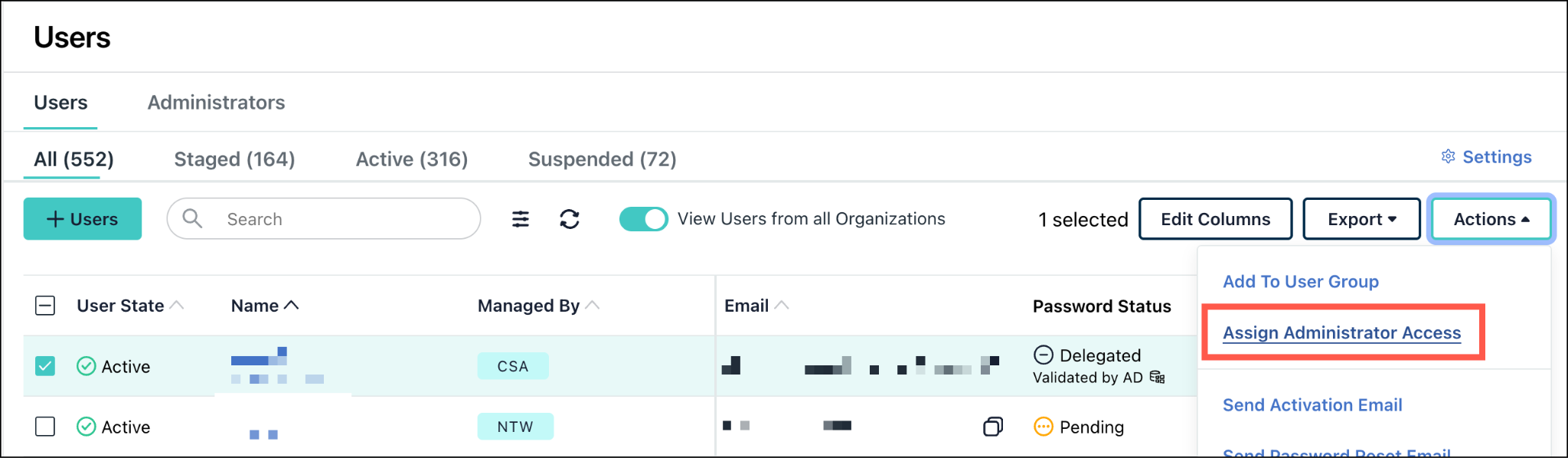
- Select the checkbox next to an existing user to promote.
- Click the Actions dropdown, then click Assign Administrator Access.
- In the Assign to Administrator popup, choose a predefined role and organizations to assign to the user.
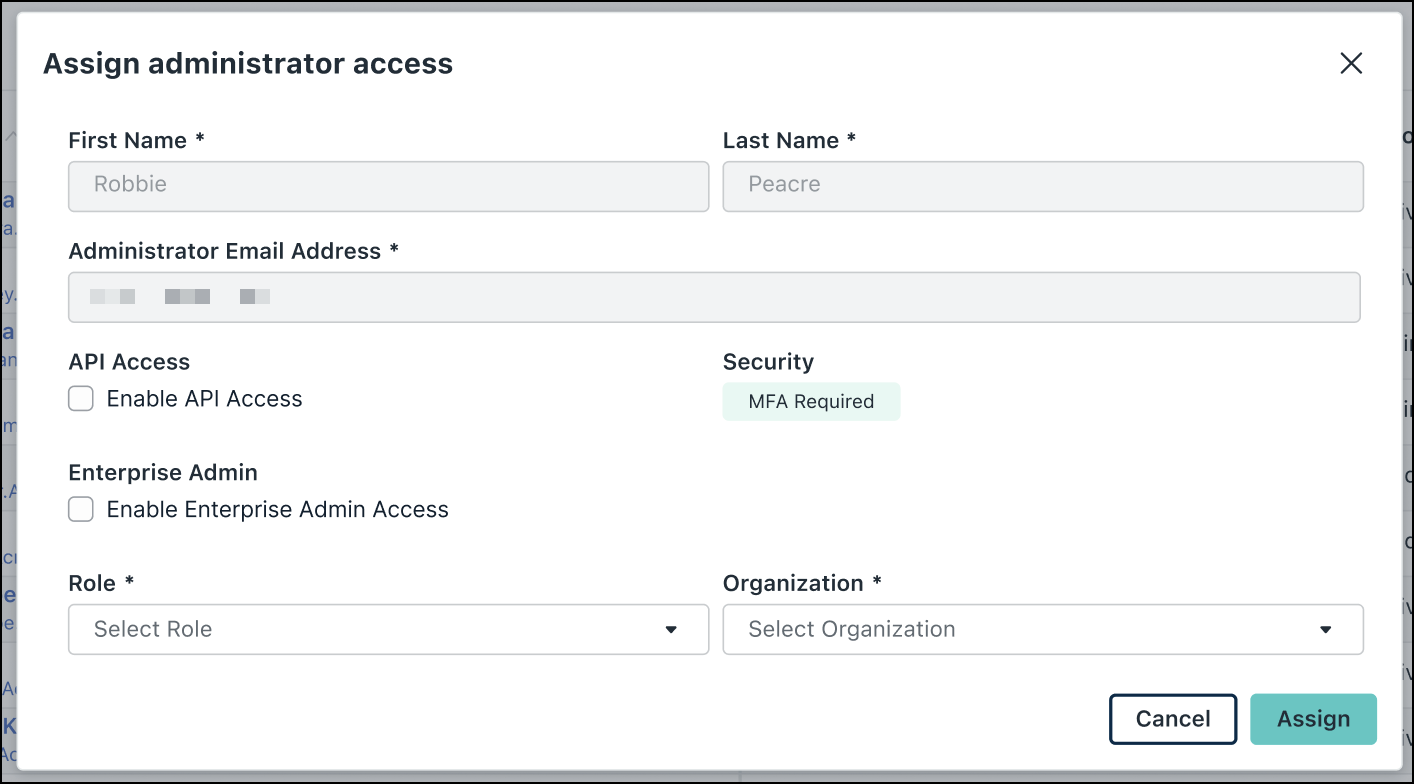
- (Optional) Enable Enterprise Admin Access or API access when your permissions and the selected role allow it.
- Select the Role you want to assign and Organization for this Admin. You can select multiple organizations.
Select the All Organizations checkbox to give access to all the organizations in the enterprise.
- Click Assign to elevate this user to Administrator role.
This user’s details appear on the Administrators tab as well.
Removing Administrator Access
From the Administrator Tab
To remove Administrator access from an Administrator:
- Go to the Identity Management > Users > Administrators tab.
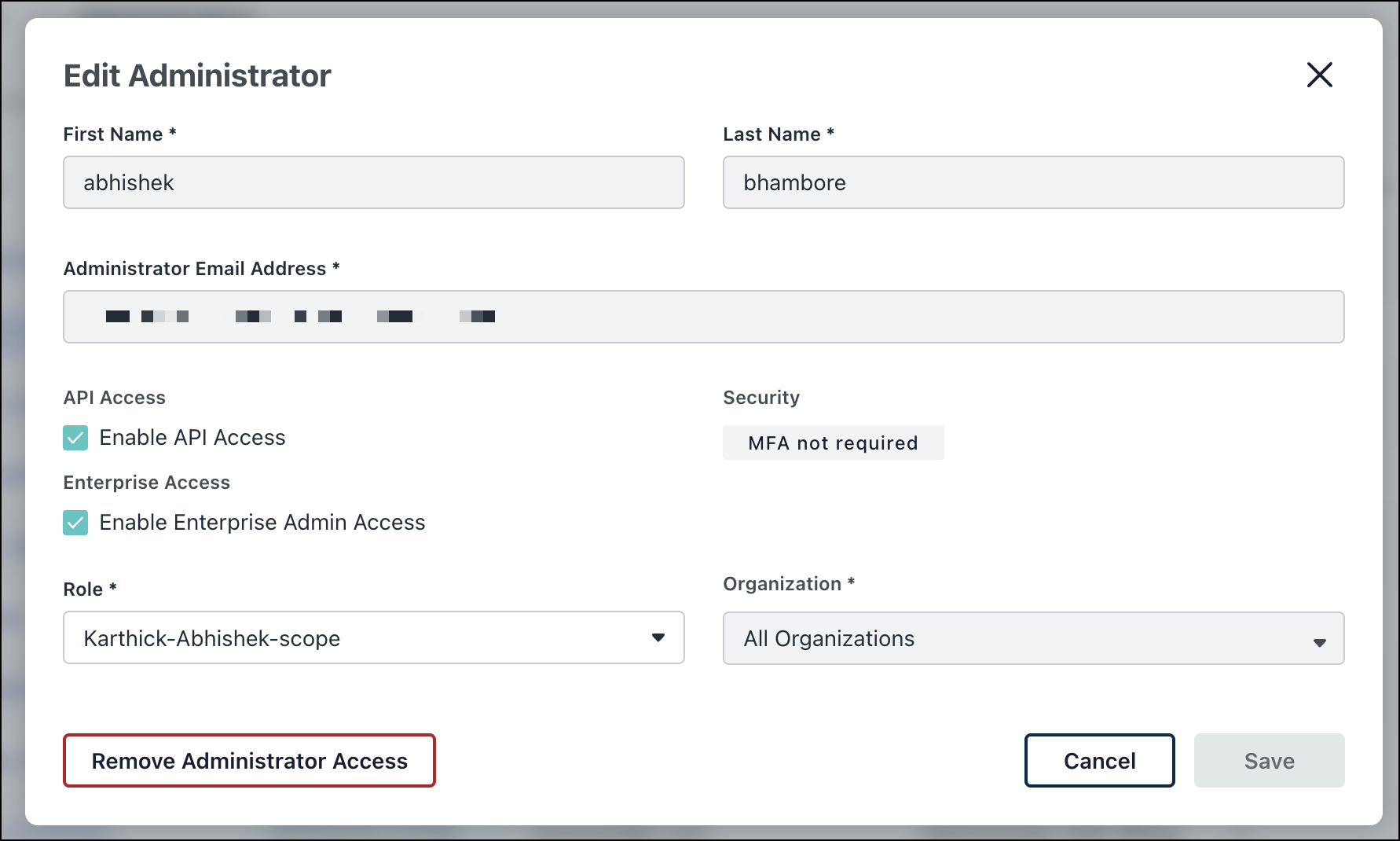
- Click the name of any Administrator.
- In the Edit Administrator dialog, click Remove Administrator Access.
A Remove Admin Role dialog is displayed warning the Administrator.
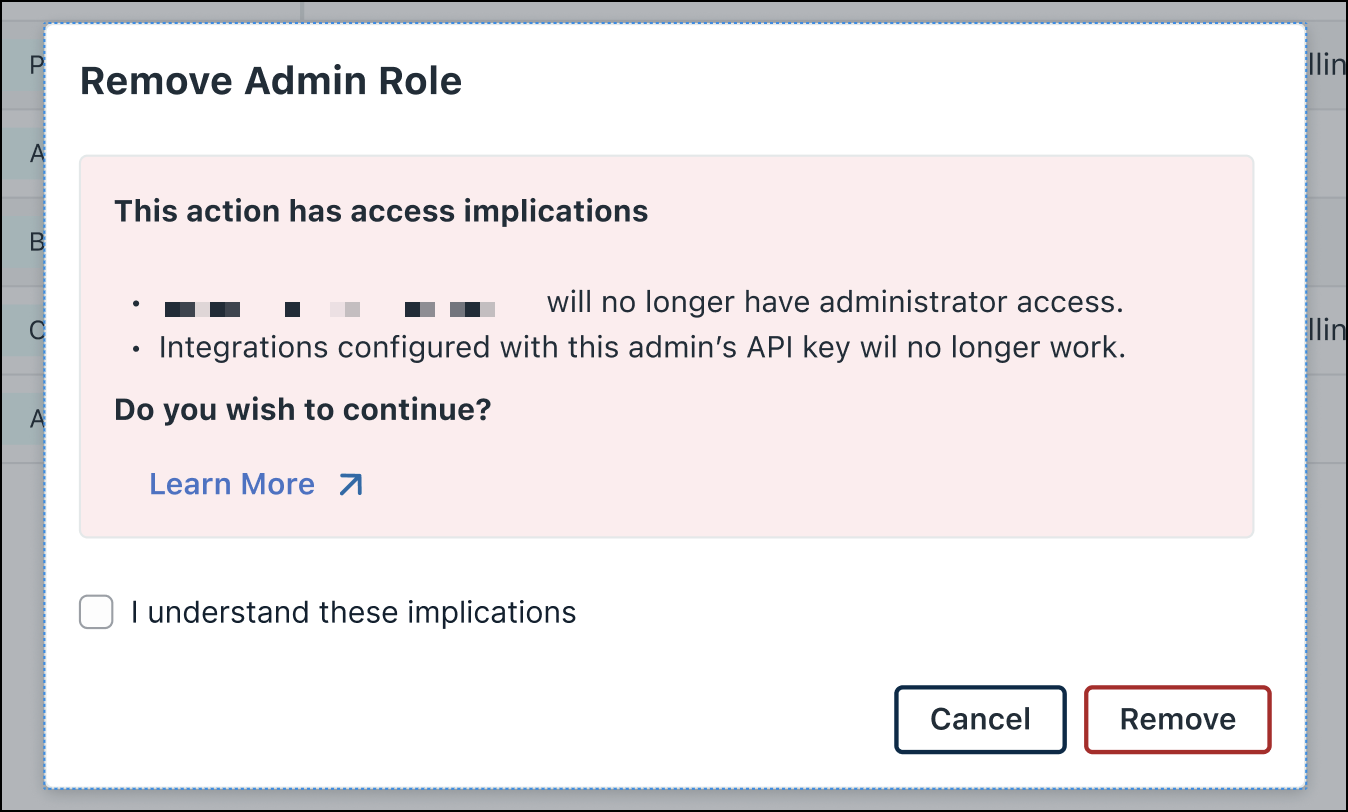
- Select the checkbox and click Remove.
You have successfully removed the Administrator access for the selected Administrator.
From the Users page
To remove Administrator access from the Users page:
- Go to the Identity Management > Users page.
- Select the checkbox next to an Administrator.
- From the Actions dropdown, click Remove Administrator Access.
The Remove Admin Role dialog is displayed warning the Administrator.
- Select the checkbox and click Remove.
You have successfully removed the Administrator access for the selected Administrator.
Was this information helpful?