Policies in the Enterprise Portal (Preview)
JumpCloud’s Enterprise Portal (EP) centralizes the control and management of Organizations from one dashboard. This enables admins to control all of their organizations efficiently, from a single, browser-based portal. EP Admins can view top-level data for all of their managed orgs at-a-glance. They can also securely manage policies in any organization they administer, directly from the EP.
Definitions:
- Enterprise Portal: The portal where you manage settings for multiple organizations under one Enterprise Configuration. Differs from the JumpCloud Admin Portal, which is for one organization.
- Enterprise Configuration: Centralized hub for all the organizations' objects in the Enterprise Portal. Items can be created and shared for organizations in the Enterprise Portal from this hub.
- For example: Manage the Apple APNs certificate or configuring Android EMM registration.
- Organizations: These are the managed sub-organizations.
Admins can create policies in the EP to remotely manage devices, customizing managed devices and keeping them secure and in compliance.
User Roles
Only Administrator and Administrator With Billing roles can view, manage, and resolve policies.
Custom Roles
For custom roles, make sure you have the following permissions added.
- Go to Settings > Custom Roles. See Custom Roles to learn more about adding a new role, and setting up permissions.
- Click on a role to open the details. Under the Permission Category section:
- In Associations > Associations, provide Full Access if you want the user to be able to complete all tasks.
- In Device Management > Devices, provide Full Access if you want users to be able to configure and run policies on devices and device groups**.**
Policies can be created and managed at both Enterprise and Organization level.
- Enterprise Policies: These are global policies that are available across all organizations and can be managed at the Enterprise Level.
- Organization Policies: These are local policies available only for a specific organization.
You can create and manage policies in the EP from the Policy Management dashboard.
To access the Policy Management dashboard:
- Log in to your Enterprise Portal.
- Go to Device Management > Policy Management.
You can view the Policy Management dashboard with all Enterprise and Organization level policies.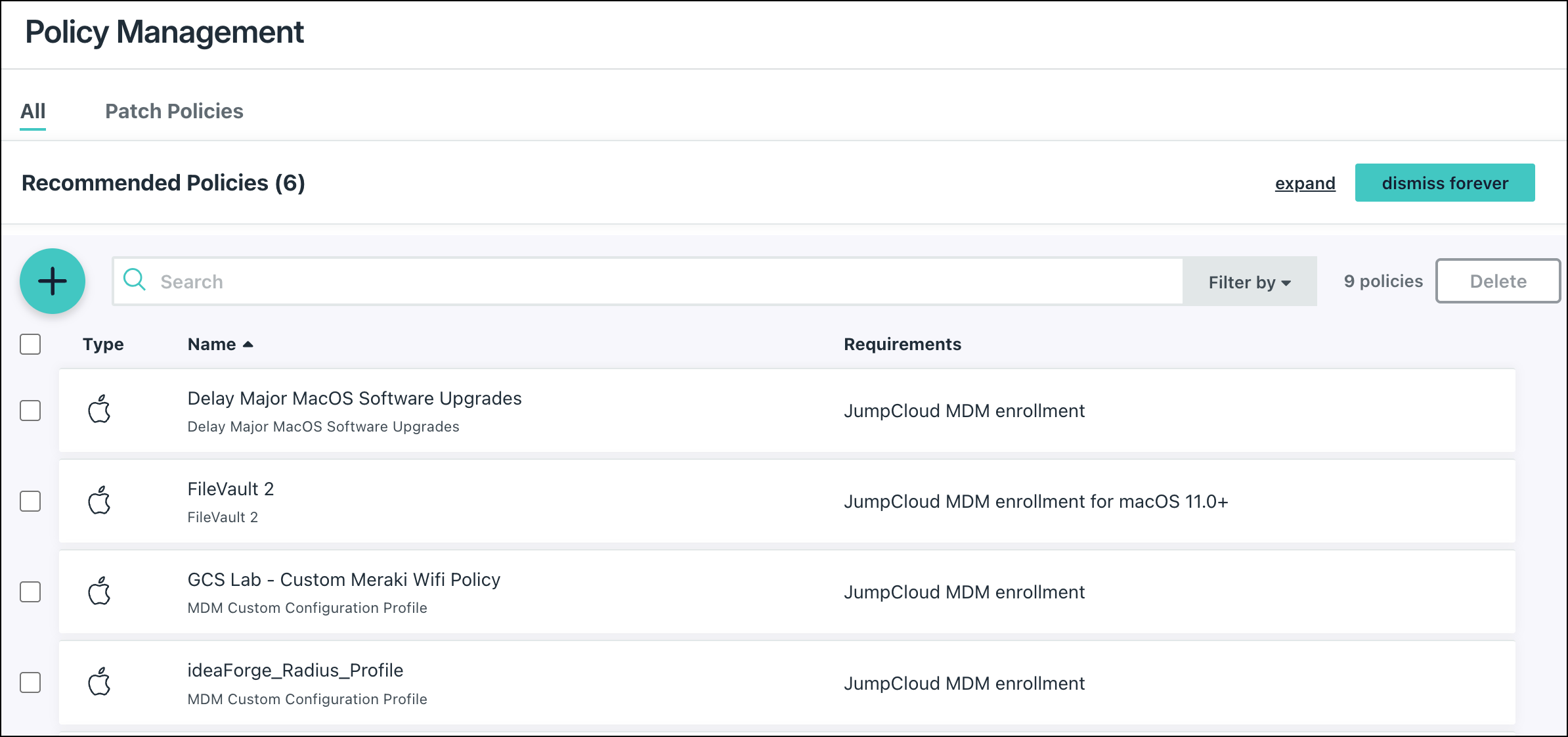
Enterprise policies contain a global icon in the Logo. Look for the Organization label to find organization level policies. You can find the org name in the Organization column. This column is empty for Enterprise policies.
You can create and edit all policies in this Policy Management dashboard.
Filter your policy list by Enterprise, Organization, and Device OS.
Creating a Policy
You can create policies in the EP, and deploy them to devices across organizations.
To create a new enterprise policy:
- Log in to your Enterprise Portal.
- Go to Device Management > Policy Management.
- Click Add Policy and follow the steps 3 onwards as listed in Creating a Policy.
Once you save the policy, the policy is added to the Policy Management dashboard, and available for all organizations.
Modifying a Policy
You can modify policy details, such as the name, description, and specific settings, within the Policy Management dashboard.
Device, Device Group, and Policy Group associations must be managed at the organization level.
To modify the details of a policy:
- In the Policy Management dashboard, click the Policy name to view its details.
- Edit the details as required.
- Once done, click Save.
Deleting Policies
To delete one or more policies:
- In the Policy Management dashboard, select the checkbox next to the policies that you want to delete.
- Click the Delete button and then:
- For a single policy, click Delete when prompted.
- For multiple policies, enter the number of policies that you want to delete and then click Delete when prompted.
The policies are deleted and all associations are removed.
Creating a New Organization Policy
You can also create policies to be used locally for a specific organization.
To create a new enterprise policy:
- Log in to your Enterprise Portal.
- Do one of the following:
- Click Organizations, then click on the managed org you want to access.
- Click the Enterprise Portal dropdown menu in the top right corner, then click a managed org's name. The selected org redirects in your current browser window.
- Go to Device Management > Policy Management.
- You can view the Policy Management dashboard with all Enterprise and Organization policies available. Click Add Policy and follow the instructions starting from Step 3 in Creating a Policy.
Once saved, the policy is available in the local organization's Policy Management dashboard. You can manage and associate the policy with policy groups, device groups, and devices within that specific organization directly from the Enterprise-level dashboard without impacting other organizations.
You can also edit and delete Organization policies from a specific organization’s Policy Management dashboard.
Enterprise policies are read-only at the organization level. While you cannot modify the policy settings, you can still associate them with local policy groups, device groups, and devices.
Was this information helpful?