Sharing Websites and Credentials
JumpCloud Password Vault’s Sharing Preferences manage who can access your credentials and websites.
- Flexible Sharing: Share resources individually or through shared folders.
- Organization: Group credentials into personal (private) or shared (organizational) folders.
- Access Rules: A resource can only exist in one folder at a time. It must be shared either individually or via a shared folder, never both.
Prerequisites & Considerations
- Password Vault and User Groups must be enabled and enrolled.
- When sharing with a group, add both the website and the linked credential so users can autofill.
- Admins cannot access a user's personal credentials.
- Admins can take ownership (Manage permission) of non-personal credentials and shared folders via the Admin Portal.
Sharing Websites with Multiple Linked Credentials
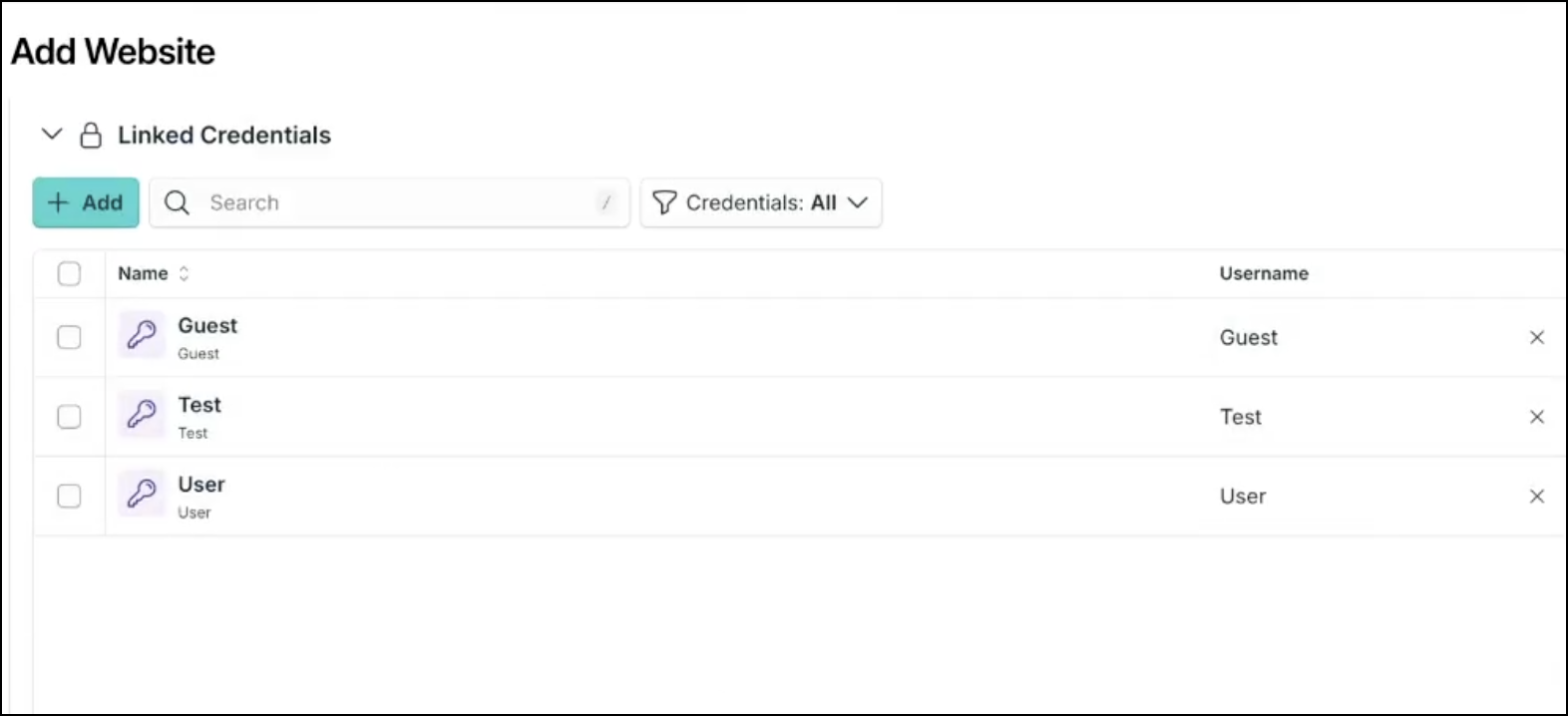
You can attach multiple credentials to a single non-SSO website and share specific credentials with different users.
Use Case:
If a website has 10 linked credentials, you can share 3 specific credentials with User A and all 10 with User B, simplifying access without creating multiple folders.
To add and share a website
- Open Password Vault from the User Portal or the Admin Portal.
- Under Credentials, click Add Credential.
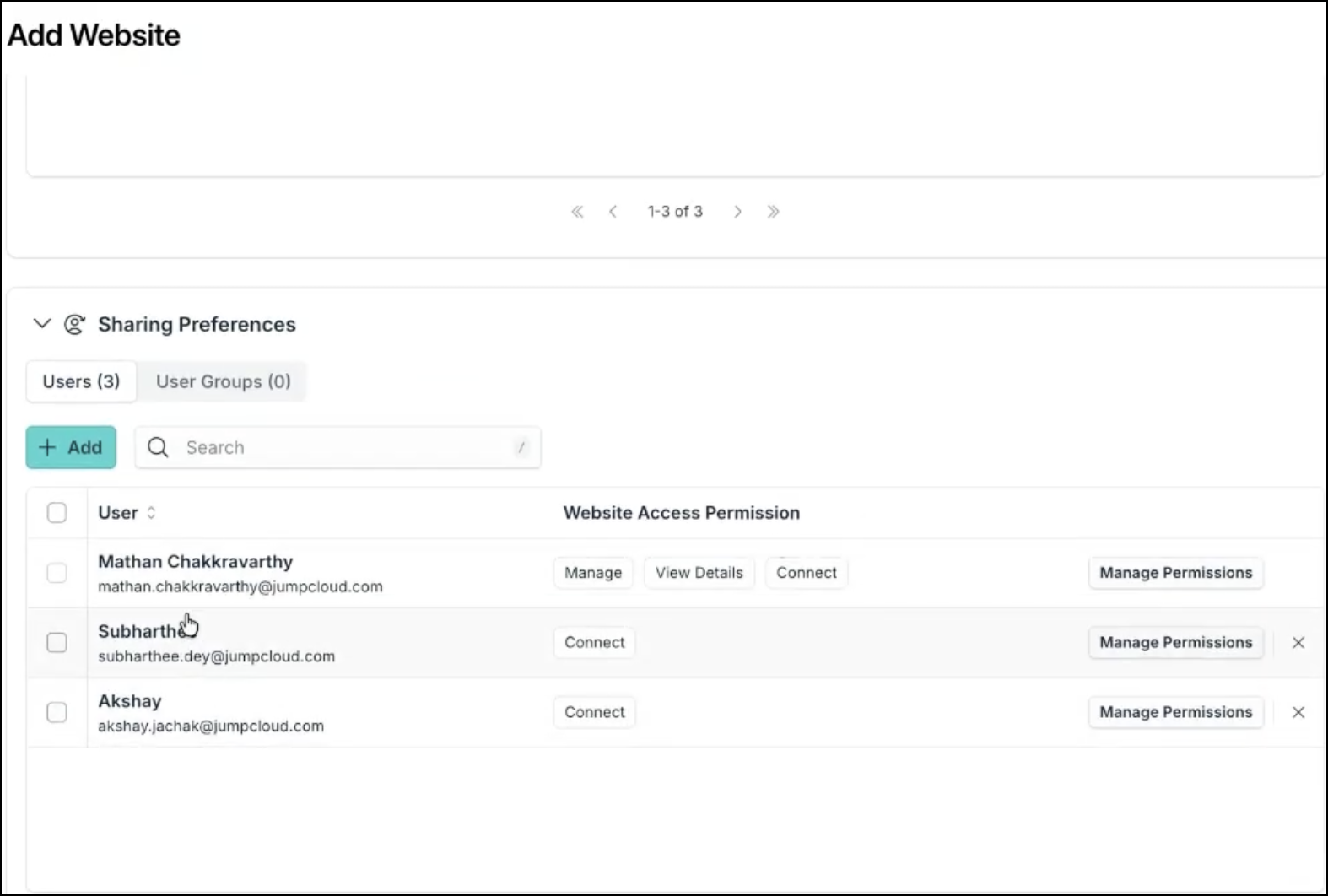
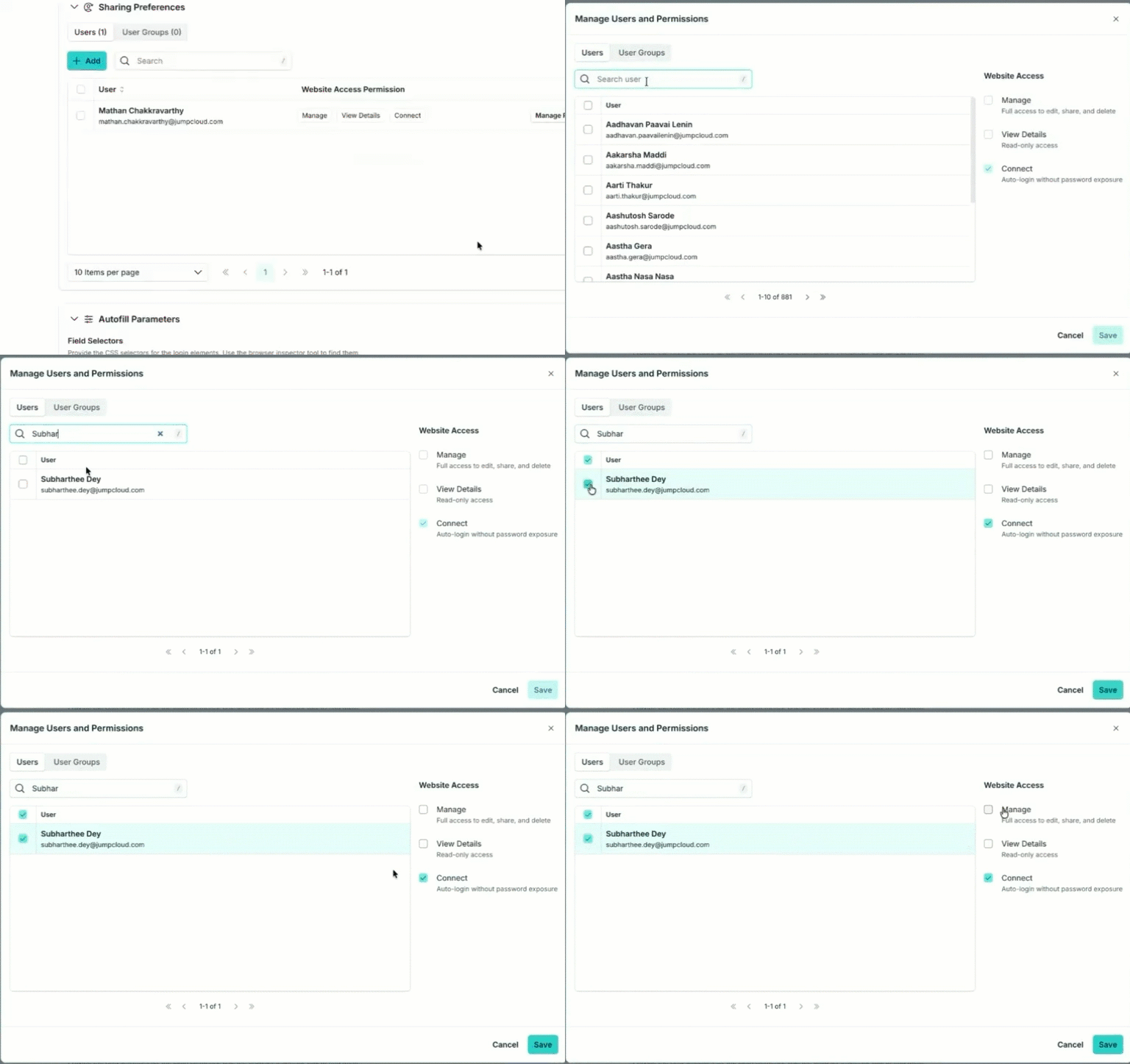
- Under Sharing Preferences, add the desired users or groups.
- Assign a website access permission: Manage, View Detail, or Connect.
- Assign credential-level permissions. The default is Connect. To change this, click Manage Permissions.
- (Optional) Set autofill parameters.
- Click Save.
Users with only Connect access to a website cannot accidentally attach their own personal credentials to it.
Website Access Permissions
| Permission | Description |
|---|---|
| Manage | Full ownership. The user can edit, share, delete the website, and link new credentials. |
| View Detail | Read-only access to website metadata. Cannot connect/autofill. |
| Connect | Auto-login capability without exposing the password. |
Sharing Individual Credentials
Individual sharing primarily applies to secure notes, keys, and 2FA (passwords are usually shared via websites). To share a password linked to a website, go to Access > Password Vault > Websites.
To add and share a credential
- Log in to the JumpCloud Admin Portal.
- Go to Access > Password Vault > Credentials.
- Click Add and enter the credential details.
- Toggle Personal credential if this is private.
- Select applicable Tags, Shared Folders, and Linked Websites.
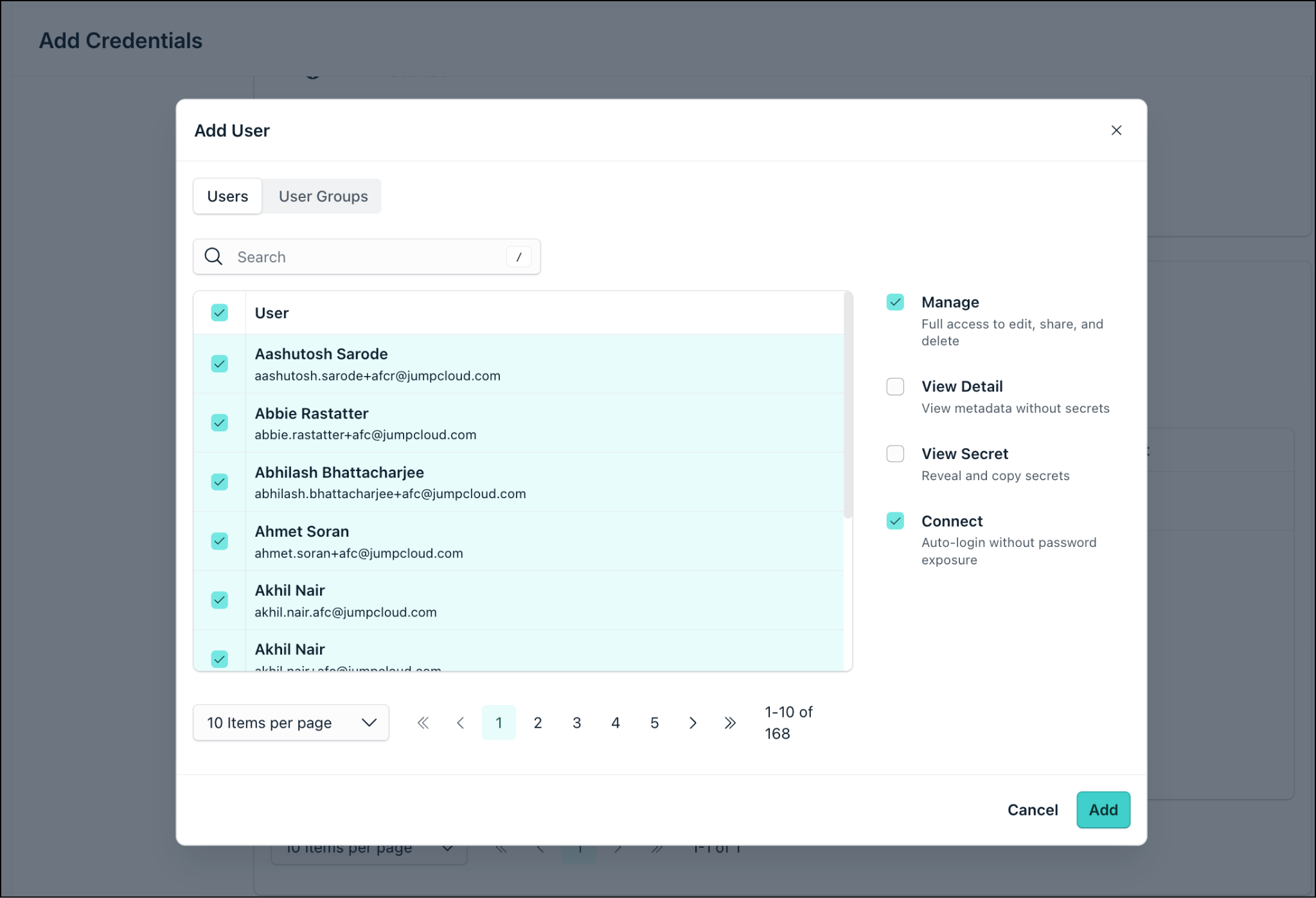
- Under Sharing Preferences, click Add to share with users. Select permissions (Connect is default).
- Click Create.
Credential Access Permissions
| Permission | Description |
|---|---|
| Manage | Full ownership. The user can edit, share, and delete the credential. |
| View Detail | View metadata (ID, creation date, etc.). |
| View Secret | View the actual credential/password. |
| Connect | Auto-fill the credential without exposing the secret. |
Sharing Personal Credentials
Shared personal credentials can only be shared individually (not via folders). They remain hidden from Org Admins and are deleted if the user leaves the organization.
Automatic Sharing During User Onboarding
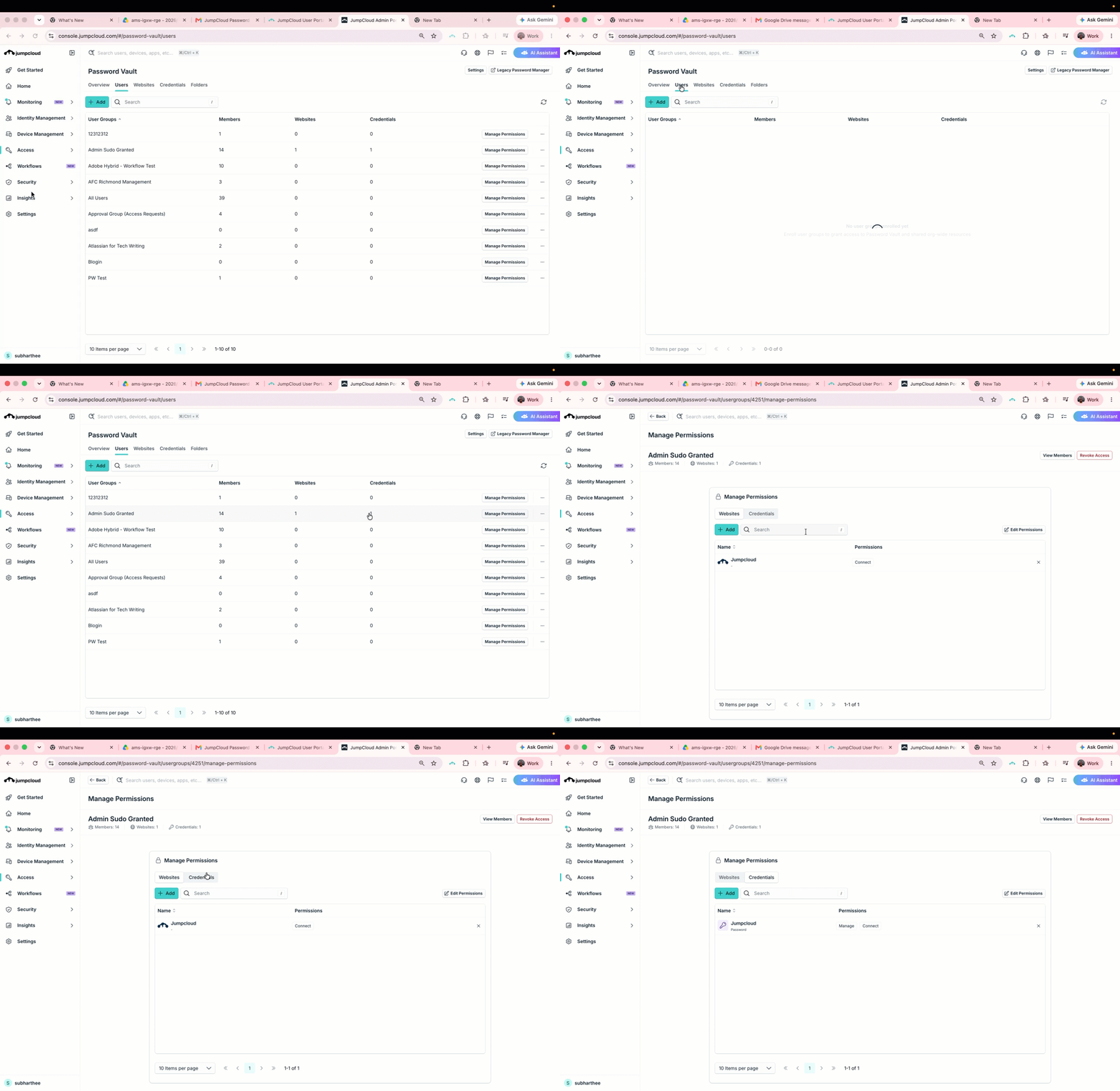
Admins can automate access by managing permissions at the user group level. Example: When a new hire is added to the "Tech Writing" user group, they instantly receive access to the group's shared resources (like Google or Facebook accounts) upon logging in.
To share resources with a group
- Go to Access > Password Vault and select the Users tab.
- Click Manage Permissions next to the target user group.
- Select the websites and linked credentials to share, and assign access levels (Manage, View Detail, View Secret, Connect).
- Click Save.
Sharing Using Folders
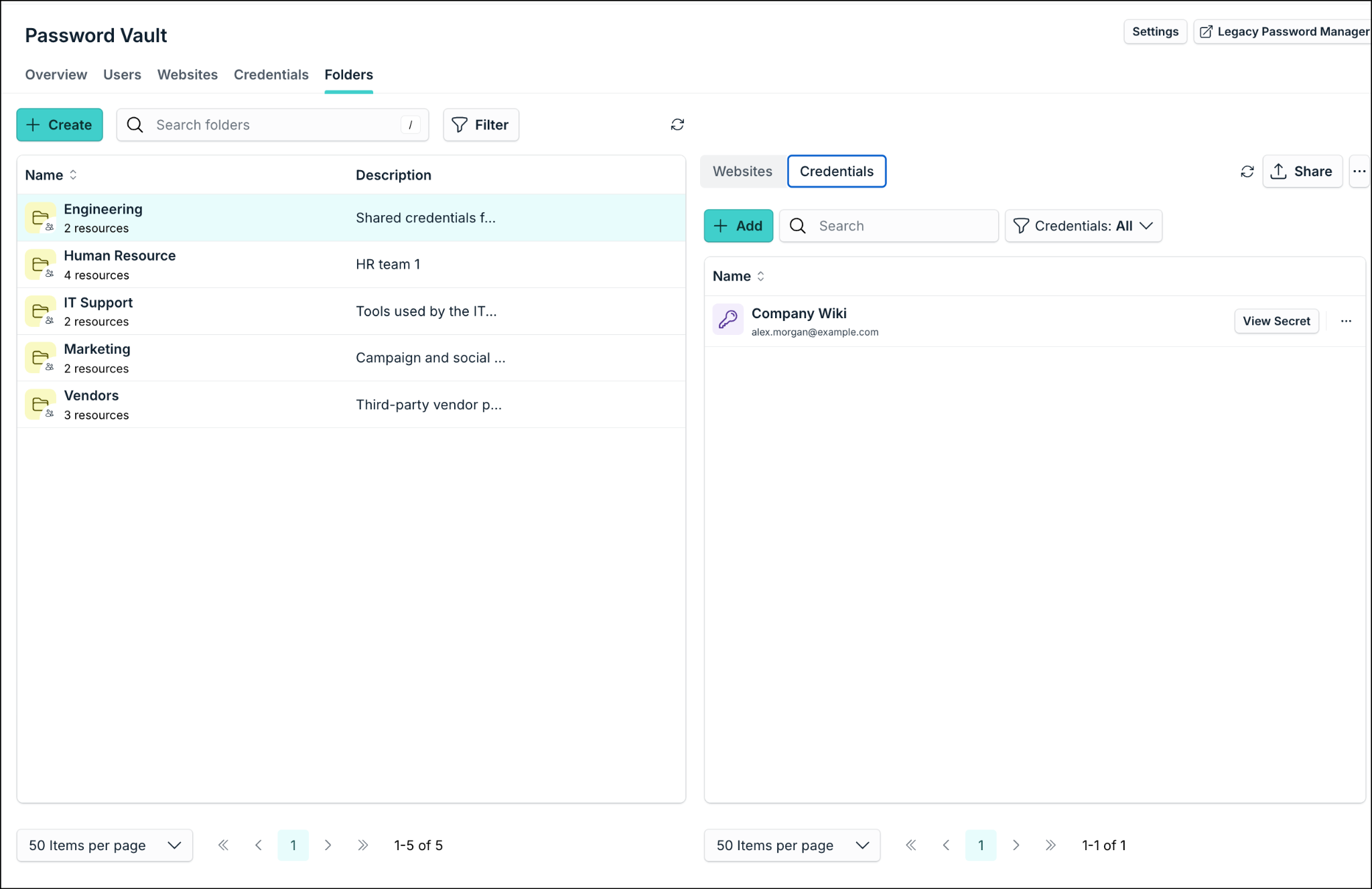
- Shared Folders: Used to organize and securely distribute collections of resources to users and groups. Admins can take ownership of shared folders via the Admin Portal, becoming a Manager with full access.
- Personal Folders: Used strictly to organize personal credentials. They cannot be shared.
Folder Access Permissions
| Permission | Description |
|---|---|
| Manage | Complete ownership. Users can view, edit, share, and delete resources and the folder itself. |
| Edit | Users can add, edit, or delete resources in the folder, view secrets, and autofill forms. |
| View Secret | Users can view the secret and autofill forms. |
| Connect | Users can only auto-login without exposing credentials. |
Sharing During Import
When importing via CSV/Excel, users can automatically bulk-share credentials or assign them to a folder.
- Go to Credentials > Import.
- Upload your file and map the data columns.
- Select desired sharing preferences (users/groups) or a shared folder.
- Click Import. The resources will be shared automatically.
Was this information helpful?