Password Vault in JumpCloud Protect App
The JumpCloud Protect® mobile app (available on Android and iOS) provides an integrated experience that combines user Multi-Factor Authentication (MFA) and Password Vault. Users can retrieve Password Vault credentials in the Protect app and autofill those credentials into other mobile applications.
This article explains how Admins enable mobile access to Password Vault and how Users sign in, browse folders and credential tiles, and view credential details in JumpCloud Protect.
Prerequisites
- Password Vault is enabled for your organization. See Get Started: Password Vault to learn more.
- Users are enrolled in Password Vault through a user group. See Get Started: Password Vault.
- Mobile App Access is enabled under Access > Password Vault > Settings > Platform Access.
- The JumpCloud Protect app is installed on the user's Android or iOS device.
Enabling Mobile App Access
Admins control whether Users can access Password Vault credentials and websites through the JumpCloud Protect mobile app.
- Log in to the JumpCloud Admin Portal.
- Go to Access > Password Vault > Settings.
- Under Platform Access, toggle on Mobile App Access.
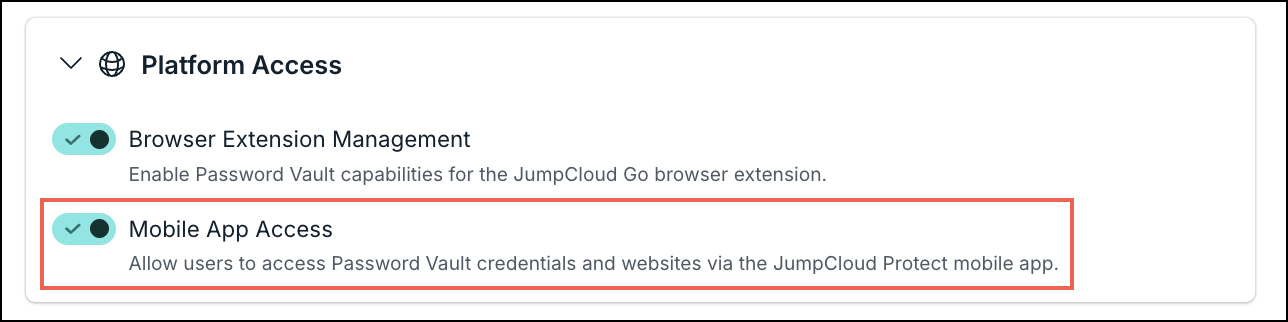
Mobile App Access allows users to access Password Vault credentials and websites via the JumpCloud Protect mobile app. Turn the Mobile App Access toggle button off to stop mobile access through Protect.
Understanding Password Vault in JumpCloud Protect App
Users can use the Password Vault tab in JumpCloud Protect app to:
- Sign in to JumpCloud from the Protect app.
- Browse credential-type tiles and item counts for credentials stored in Password Vault.
- Filter tiles by folder using the All Folders dropdown.
- Open a credential and view its details.
- Reveal masked sensitive information by clicking the eye icon.
- Retrieve and autofill Password Vault credentials into other mobile applications.
Password Vault Tab
The Password Vault tab is where Users access vault credentials in JumpCloud Protect. Before sign-in, the tab prompts the User to log in to JumpCloud. After signing in, the tab shows tiles for each credential type the user has stored in the Password Vault, along with the number of items in each type.
| Element | Description |
|---|---|
| Password Vault tab | Opens Password Vault inside JumpCloud Protect. |
| Login to JumpCloud | Starts the sign-in flow so the User can access Password Vault credentials in the app. |
| All Folders drop-down | Filters the tiles to items in a selected folder. Selecting a folder updates the tiles to show items in that folder. |
| Credential-type tiles (for example, Passwords) | Each tile represents a credential type and shows how many items of that type are available. Click a tile to list the items. |
| Credential details | After the User opens a credential, the app shows all details for that credential. Sensitive values are masked until the User clicks the eye icon. |
Setting Up Password Vault in the JumpCloud Protect App
Use this procedure after Password Vault is enabled, the User is enrolled, Mobile App Access is on, and JumpCloud Protect is installed.
- Open the JumpCloud Protect app.
- Go to the Password Vault tab.
- Click Login to JumpCloud.
- Enter your credentials.
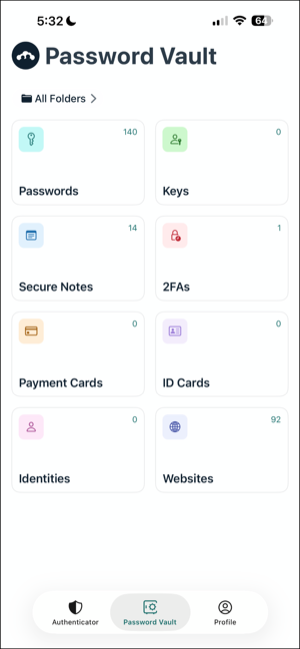
After you sign in, you see a tile for each credential type you have stored in the Password Vault, along with the number of items in each.
- Click the All Folders drop-down at the top and select a folder to open it. The tiles update to show the items in that folder.
- Click a tile, such as Passwords, to see the items in it.
- Click a credential to open its details.
Sensitive information is masked. Click the eye icon to view the masked values.
Users can retrieve and autofill Password Vault credentials into other mobile applications using JumpCloud Protect.
Viewing Credential Details and Secrets
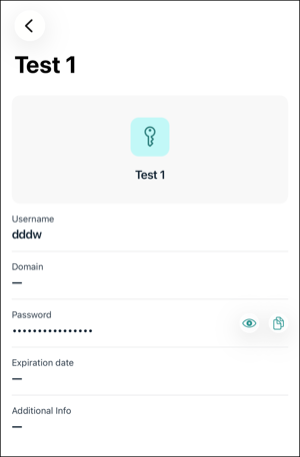
When you open a credential from a tile:
- All details for that credential are displayed.
- Sensitive information remains masked by default. Click the eye icon to show the sensitive values.
Filtering Credentials by Folder
Folders group websites and credentials in Password Vault. In JumpCloud Protect, the All Folders drop-down controls which folder's items appear in the credential-type tiles.
- On the Password Vault tab, click All Folders.
- Select the folder you want to open.
- Review the updated tiles for that folder.
- Click a tile to list the items in the selected folder.
For folder types and permissions in the User Portal, see Password Vault: Users to learn more.
Learn More
Was this information helpful?