Password Vault in JumpCloud Go Browser Extension
Password Vault autofill is available through the JumpCloud Go™ browser extension. The extension provides browser autofill and quick access to Password Vault websites and credentials so users can select a stored credential on a login form and fill username and password fields without typing them manually.
JumpCloud Go also supports SaaS management, JumpCloud Go authentication, and single sign-on (SSO) access. These features are independent of each other.
Password management through the extension does not require JumpCloud Go device registration.
Prerequisites
- Password Vault is enabled for your organization. See Get Started: Password Vault to learn more.
- Users are enrolled in Password Vault through a user group.
- Browser Extension Management is enabled under Access > Password Vault > Settings > Platform Access.
- The JumpCloud Go browser extension is installed on the user's browser (deployed by an Admin or installed manually).
Considerations
- Password Vault credentials are stored in the cloud. Users cannot access credentials offline and must be able to sign in to the User Portal.
- If Browser Extension Management or Password Vault is disabled, JumpCloud Go redirects users to the user portal.
- To add or edit websites and credentials from the extension flow, JumpCloud Go redirects Users to the Password Vault in User Portal. The extension can capture passwords during login, update, or sign-up.
- JumpCloud Go also allows users to copy the username, secret or 2FA directly from the Extension without opening the User Portal.
Enabling Browser Extension Management
Admins control whether Password Vault capabilities such as autofill and username/password capture are available through JumpCloud Go.
- Log in to the JumpCloud Admin Portal.
- Go to Access > Password Vault > Settings.
- Under Platform Access, turn on the Browser Extension Management toggle button.
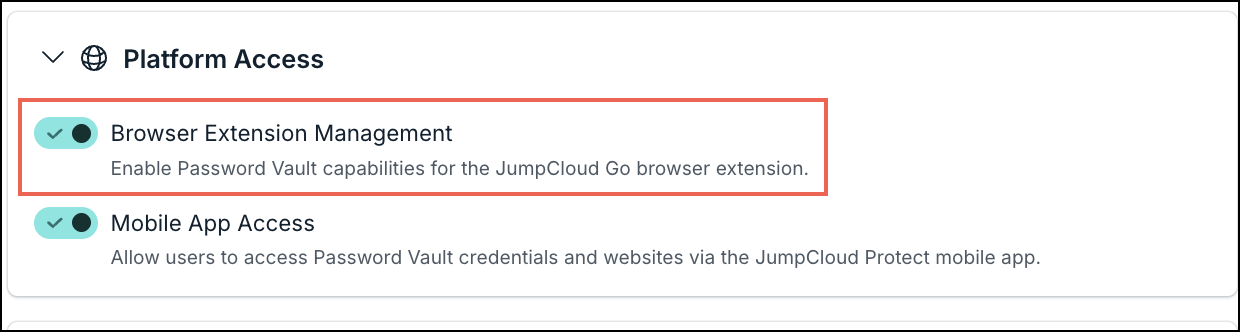
To disable Password Vault features in the extension, turn off the Browser Extension Management toggle button. JumpCloud Go then redirects users to the User Portal and does not show the autofill icon in the extension.
Understanding Password Vault in JumpCloud Go
The JumpCloud Go browser extension is required for Password Vault autofill capabilities in the browser. After the extension is installed and Browser Extension Management is enabled, Users can:
- Detect login fields on websites and open a credential picker by clicking the inline JumpCloud Go icon.
- Search and select a Password Vault credential to autofill the credentials.
- Capture passwords during login or sign-up. Update the passwords when required.
- Autofill without exposing the secret when the User has Connect permission on the credential.
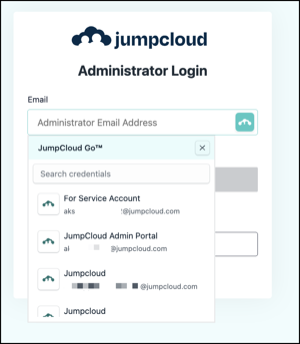
When a User clicks a username or email field on a login page, the textbox is autofilled with the selected username or email field. The same icon appears in the password field after a credential is selected.
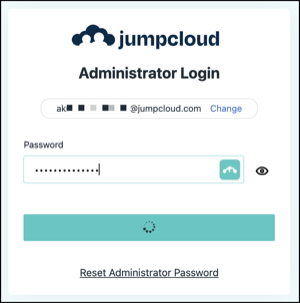
JumpCloud Go also suggests saving passwords for websites that you didn't save yet in your Password Vault. After accessing a website and inserting a credential, JumpCloud Go will display a pop-up suggesting you save that credential in your Password Vault and link to that website.
If you don't want to save this credential in your Password Vault, you can close the pop-up. This pop-up is visible every time you access this website (till you save the credential). If you don't wish to save this credential, click Exclude Website.
Learn More
Was this information helpful?