Monitor Mode lets you apply a Conditional Access Policy (CAP) in an ‘audit-only’ state. This allows you to observe how a policy behaves against real-world user sign-ins and assess its overall impact before going live.
Instead of enforcing the policy immediately, you can safely:
- Evaluate policies against real organization traffic: Test a new deny or step-up MFA policy first. Review exactly who would be affected, and fix gaps like missing enrollment or untrusted devices before turning it on.
- Troubleshoot misconfigurations with zero user impact: See precisely which policies would have been applied versus skipped and why. You can easily tweak your scope, conditions, or exclusions before enforcing the policy.
You can review the real-time impact of these policies on a dedicated dashboard in the Impact Analytics tab, allowing you to confidently enforce a fully validated policy.
Configure and apply a Policy in Monitor mode
To configure and apply a policy in Monitor mode:
-
Log in to the JumpCloud Admin Portal.
-
Go to Security > Conditional Access Policies.
-
Create a new policy or edit an existing conditional access policy.
-
Select Monitor Mode.
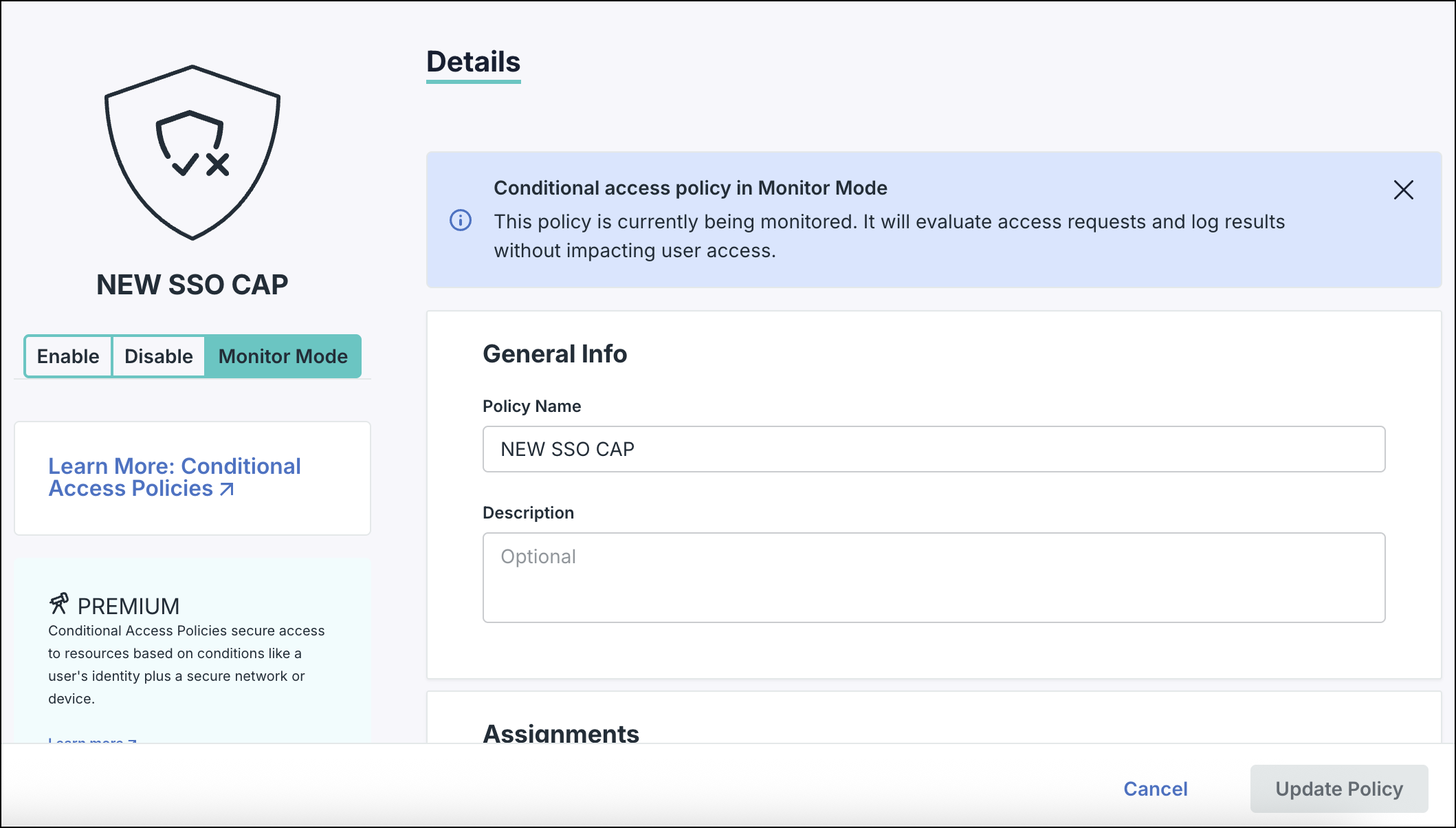
-
Configure the policy conditions and controls as needed.
-
Save the changes and apply/ update the policy.
After the policy status is changed to Monitor Mode, the policy status icon is updated. Under Actions, click View Analytics to view the impact of such policies on the Impact Analytics tab.
Impact Analytics
Impact Analytics provides a high-level, aggregated view of all policies currently running in monitor mode. By default, the page displays the analytics for all the existing policies (whether in monitor mode or enabled).
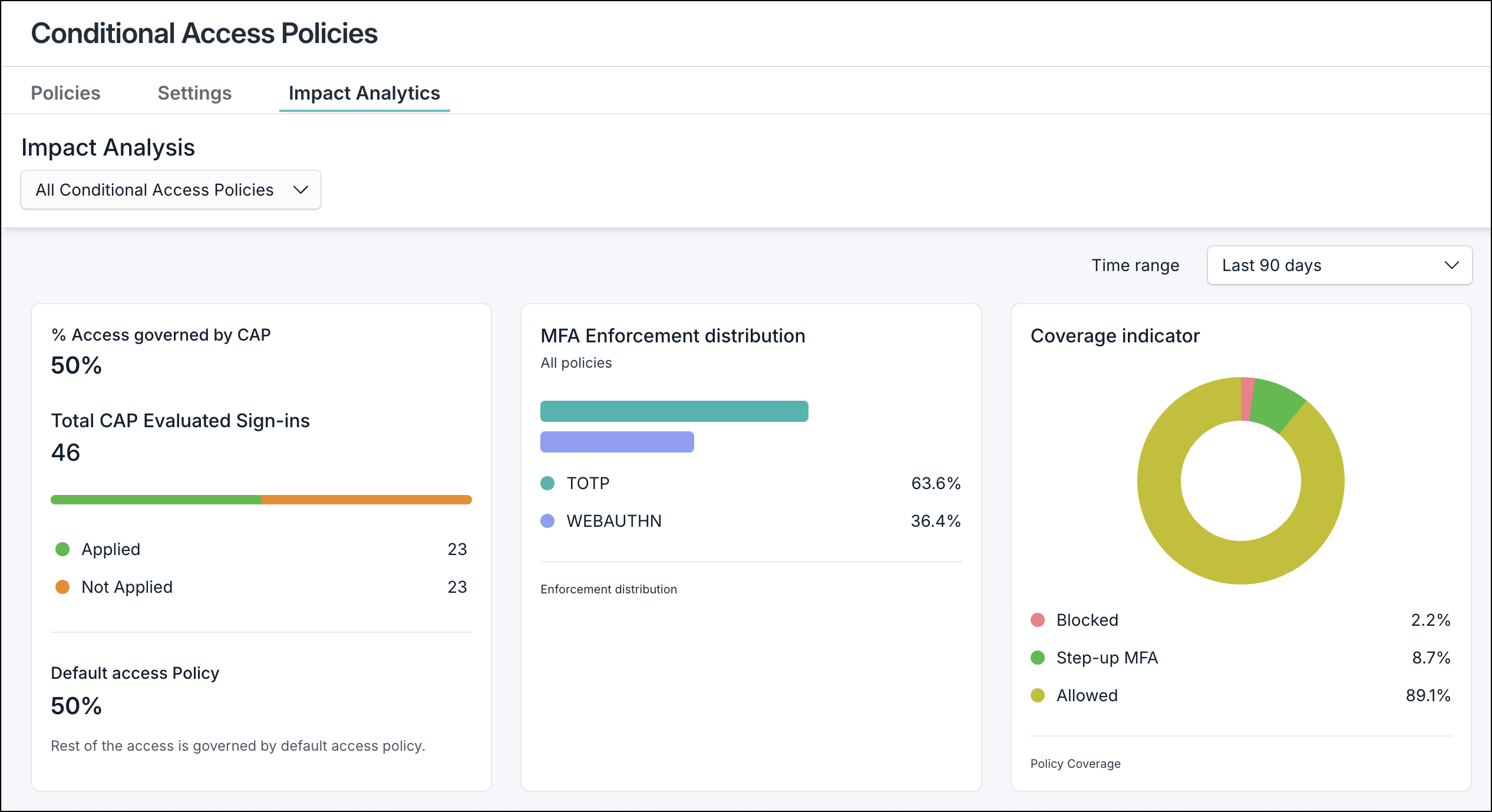
The following information is displayed on this page for the selected policy from the dropdown:
- % Access governed: percentage of sign-ins governed by the policy.
- MFA Enforcement distribution: If the selected CAP policy has Password+MFA action selected, it shows the percentage of devices for which MFA is active.
- Coverage indicator: Shows the percentage of devices allowed (Password or password+MFA) and denied across all CAP policies. This is visible only when the All CAPs option is selected in the dropdown at the top.
- Impact Overview: Impact of the policy on various user groups.
Impact Overview
This section lists the events that would be governed by the selected policy (whether in monitor mode or not). The policies in monitor mode can be identified by the flask icon next to them.
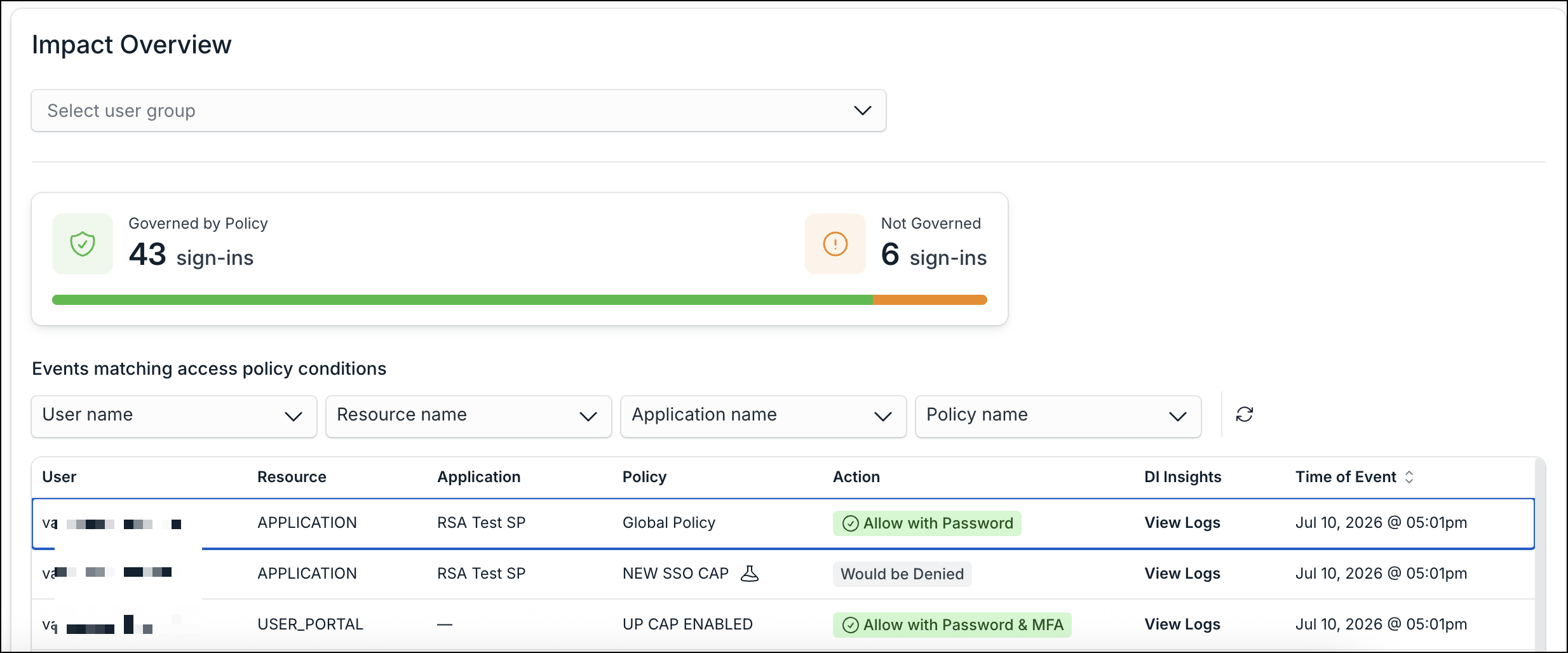
An infographic displays the number of sign-in attempts governed and not governed by this policy. You can also view the individual events matching the access policy conditions. Select various values for users, resources, applications, and policies from the available dropdowns to see required data. Following details are displayed for each event:
- User
- Resource
- Application
- Policy
- Action
- DI Insights (View logs)
- Time of Event
When in monitor mode, policies are evaluated so Admins can validate the logic. However, the actions won't be applied. They'll see messages such as 'Would be denied', 'Would be allowed with password' etc. The same can be viewed in DI events as well. See Get Started: Directory Insights to learn more.
If a policy is enabled, the analytics for such a policy are still displayed on the Impact Analytics page if the policy is selected in the dropdown at the top of the page.
Was this information helpful?