Monitor Jump Server Health
After you install a Jump Server on a host, it collects data about the machine that runs it. Health Check shows this data in the JumpCloud Admin Portal so you can confirm the host is healthy and the Jump Server has what it needs.
Health Check has data only after Jump Server installation is complete. The first data appears about 15 minutes after installation.
Open Health Check
- In the JumpCloud Admin Portal, go to Access > PAM > Jump Servers.
- In the Actions column of the Jump Server, click the chart icon, Health Check.

If the Jump Server is not installed yet, the page shows only its details and the message Health metrics unavailable. Install the Jump Server to start collecting metrics.
Read the Health Check
The page starts with the Jump Server Details card: Name, Version, Subdomain, IP address, and Jump server ID. Below it, use Start Date and End Date to choose the period the charts show.
Each tab shows one type of data about the host. Hover over a chart to see the exact values at that time.
| Tab | What it shows |
|---|---|
| Network | Latency and Jitter, in milliseconds. |
| Disk | Total disk space and used disk space, in GB. |
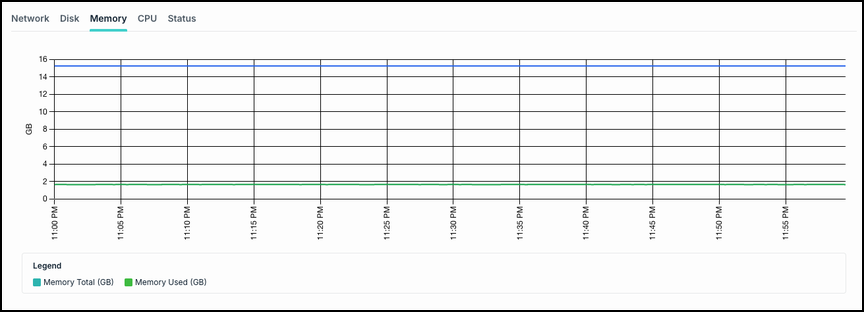
| Memory | Total memory and used memory, in GB. |
| CPU | CPU usage, in percentage. |
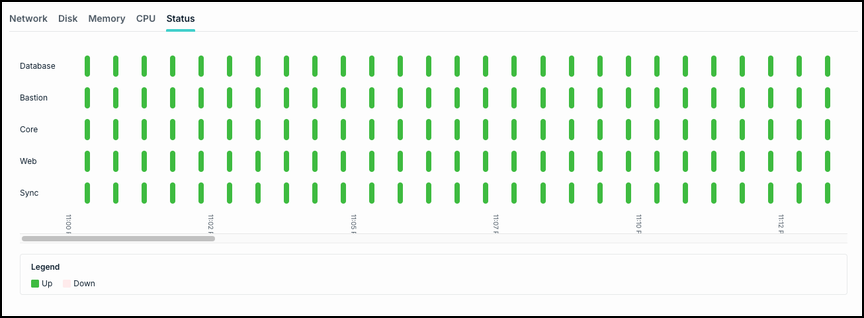
| Status | Whether each Jump Server container is up or down over time: Database, Bastion, Core, Web, and Sync. |
The Status tab is the quickest way to confirm that the containers the Jump Server needs are running. In the legend, Up means the container was running and Down means it was not.
Was this information helpful?