Manage User Group Permissions and Share Resources in Bulk
When you register resources, you often need to share many of them with the same user group. Instead of opening each resource and adding the group, you can do it from the group. The Manage Permissions section of a user group shows all the resources that are shared with the group, by type. From there you can share new resources, change the permissions, and remove resources, in bulk.
A change applies to all members of the group.
This article is for administrators who share Privileged Access Management (PAM) resources with user groups.
Prerequisites
- The user group must be enrolled in PAM. For the steps, see Get Started: Enroll a User Group in PAM.
Opening the Permissions of a Group
-
In the Admin Portal, go to Access > PAM > User Groups.
-
Select the row of the group, or select Manage Permissions in its row.
The page of the group shows the number of members, websites, servers, databases, and credentials. In Manage Permissions, the tabs Privileged Websites, Servers, Databases, and Privileged Credentials list the resources that are shared with the group and the permission of the group on each one.
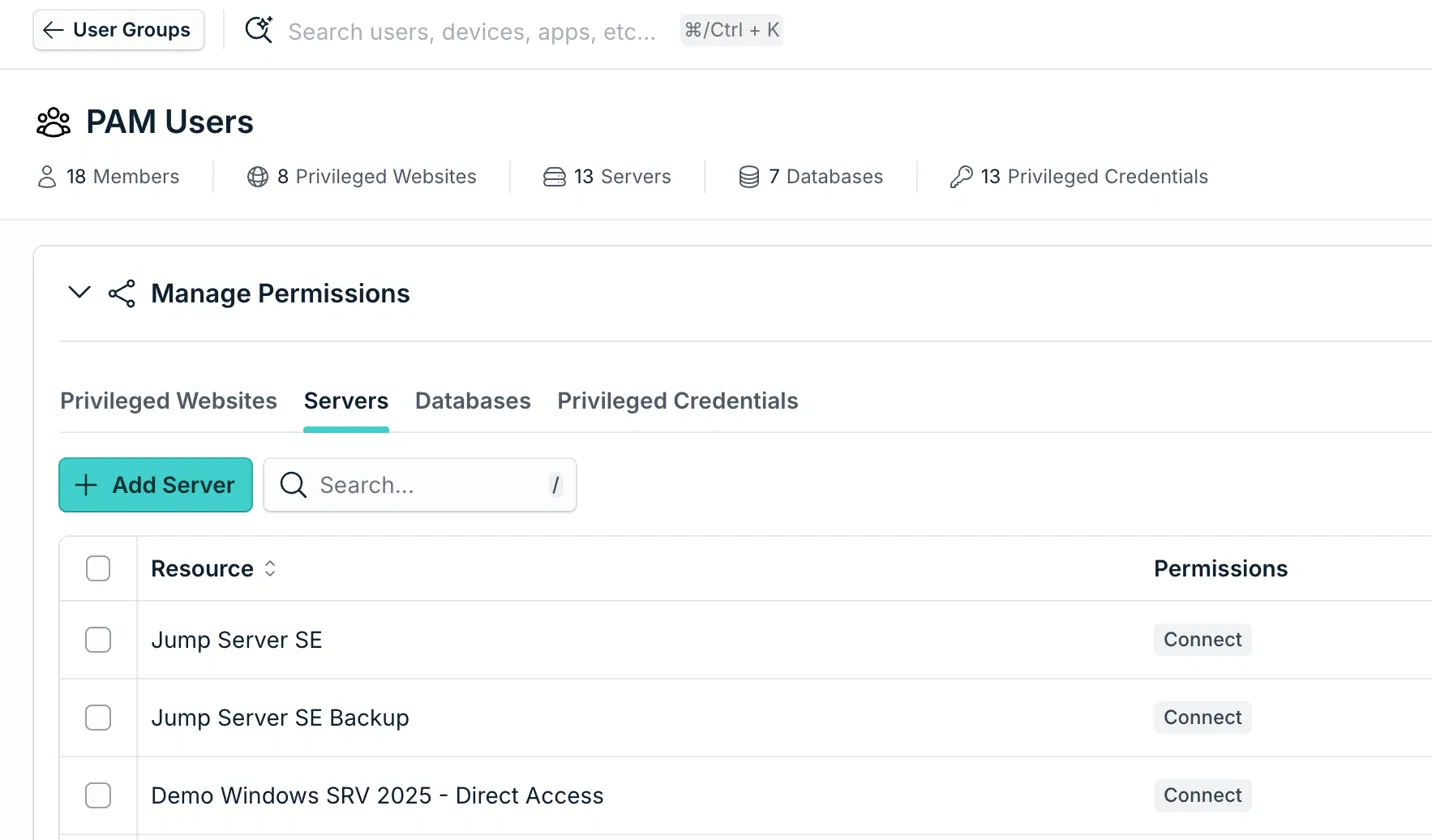
Sharing More Resources with the Group
-
Select the tab of the type of resource.
-
Select the add button of the tab, for example Add Server or Add Database.
-
Select the resources to share and the permissions, and then save.
The resources appear in the list of the tab and become available to all members of the group in the User Portal.
Editing the Permissions
-
Select the tab of the type of resource.
-
Select Edit Permissions.
-
Select the resources to change, choose the permissions, and then save.
For example, in Privileged Credentials, a group has Connect by default. You can also select View Secret so the group can see the stored secret.
| Permission | What the group can do |
|---|---|
| Connect | Use the resource or the credential to connect. |
| View Secret | Available on credentials. View the stored secret of the credential. |
Removing Resources from the Group
To stop sharing a resource, select the X in the Actions column of the resource. The members of the group no longer see it in the User Portal.
Best Practices
-
Share in bulk, review in one place. Use this page when many resources go to the same group. It also lets you review what a group can reach before you give it more access.
-
Grant the minimum. Keep Connect as the permission for credentials, and add View Secret only for groups that must see the secret.
-
Check the group before you use it for temporary access. If the group is used in an access request, every resource listed here is available to the requester. For details, see Grant Temporary Access to PAM Resources with Access Requests.
Was this information helpful?