Manage Email Subscriptions
Manage the JumpCloud admin emails that make up most of your notification volume. Subscribe to or unsubscribe from User Account Locked and New Device Online so you only get the alerts that matter to your work.
These preferences apply only to your account. Other admins manage their own email subscriptions.
Managing Email Subscriptions
You can manage the following admin notification emails from your profile menu in the Admin Portal:
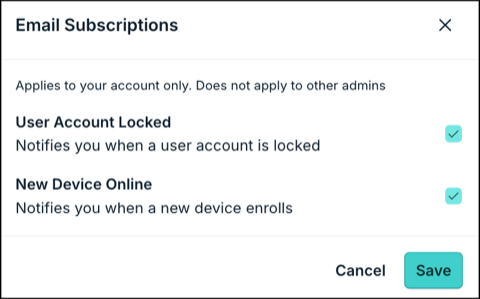
- User Account Locked: Notifies you when a user account is locked.
- New Device Online: Notifies you when a new device enrolls.
To manage your email subscriptions:
- Log in to the JumpCloud Admin Portal.
If your data is stored outside of the US, check which login URL you should be using depending on your region. If your organization uses LDAP, RADIUS, or requires firewall allow list configuration, the Fully Qualified Domain Names (FQDNs) will also be region specific. See JumpCloud Data Centers for the URLs, FQDNs, and IP addresses.
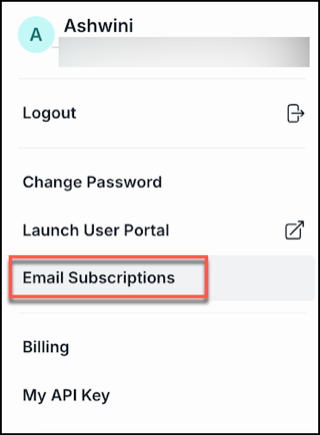
- In the bottom left, click your account name, then click Email Subscriptions.
- In the Email Subscriptions dialog, select the checkboxes for the emails you want to receive. Clear the checkboxes for the emails you no longer want to receive.
- If you unsubscribe from an email type, you stop receiving those emails immediately. You cannot retrieve emails from any unsubscribed period.
- If you subscribe again later, you only receive emails from that point forward.
- Click Save and then confirm by clicking Save again. A success message appears confirming that your email subscriptions were updated.
Was this information helpful?