Manage Alerts in the Enterprise Portal (Preview)
Alerts in the Enterprise Portal let IT Admins view and investigate alerts across authorized organizations in one place. You can also view single-org alert rules across multiple or all authorized organizations, and create or modify single-org alert rules directly from the Enterprise Portal (EP), while preserving organization scoping and the existing organization alert experience.
This article covers visibility of alerts, multi-org and single-org visibility of alert rules, and creation and modification of single-org alert rules. Shared alert rules cannot be created or managed in this release.
Prerequisites:
- Access to the Enterprise Portal with authorization to the organizations whose alerts and alert rules you need to view or manage.
Understanding Alerts in the Enterprise Portal
As an Enterprise Admin or Organization Admin, you can:
- Create a new organization-specific alert rule from the Enterprise Portal, scoped to the currently selected organization.
- View alerts from all organizations you are authorized to access when the Global Selector dropdown is set to Enterprise (Enterprise Admin) or a specific organization (Organization Admin).
- View organization-specific alert rules across multiple or all authorized organizations in aggregate.
- When a specific organization is selected, view only that organization’s alerts and organization-specific alert rules.
- Open an alert and follow its Directory Insights (DI) event link without manually switching organizations or opening another organization’s data.
Personas and Global Selector
| Persona | Definition |
|---|---|
| Enterprise Admin | Admin with the Enterprise Configuration scope. This scope grants access to all organizations. |
| Organization Admin | Admin without the Enterprise Configuration scope. Sees and works only within the organizations they have been explicitly granted access to. |
| Selector context | Alerts and single-org alert rules behavior |
|---|---|
| Enterprise | Aggregate alerts from all authorized organizations. Aggregate view of single-org alert rules across all authorized organizations. Available to Enterprise Admins. |
| View All | Aggregate alerts and single-org alert rules from all organizations that the Organization Admin is authorized to access. |
| Specific organization | Show alerts and single-org alert rules belonging to the selected organization. Allow creation and editing of single-org alert rules for that organization. |
Accessing Alerts
To access alerts in the Enterprise Portal:
- Log in to the JumpCloud Enterprise Portal.
- Go to Monitoring > Alerts.
- In the upper-right corner, click the selector dropdown to select Enterprise, View All, or a specific organization.
Reviewing the Alerts List
Admins can view alerts in the Enterprise Portal depending on the selected configuration in the organization dropdown. Results include only alerts from organizations that the signed-in Admin is authorized to access. Every alert result includes the originating organization ID and organization display name.
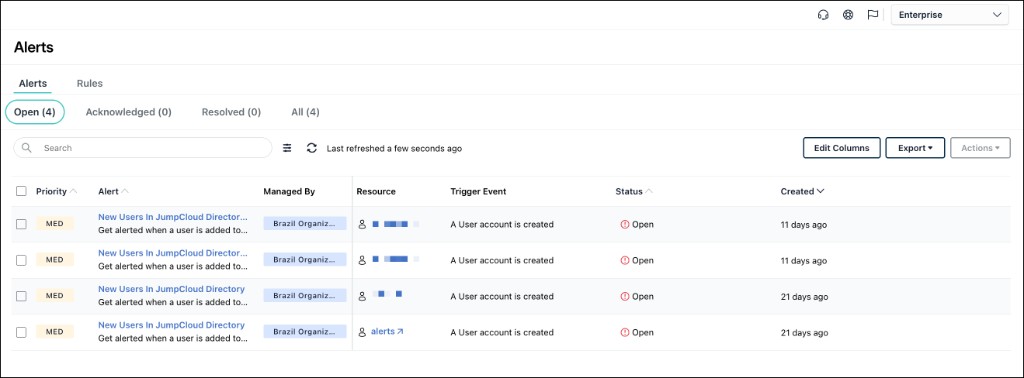
The newest triggered alert is displayed first. Admins can take permitted actions only on alerts from organizations they are authorized to administer.
In Enterprise configuration, the Alerts page shows the following information:
| Column | Description |
|---|---|
| Priority | Existing severity or priority value. |
| Alert | Existing alert title and summary. Clicking this opens alert details. |
| Managed By | The organization where the alert originated. Shown only when the Enterprise configuration is selected in the global selector dropdown. |
| Resource | Affected resources, when available. |
| Trigger Event | The event type. |
| Status | Existing alert status. |
| Created | Details when the alert was triggered. |
You can select more columns to customize this view by clicking the Edit Columns dropdown.
The following filters are available for alerts:
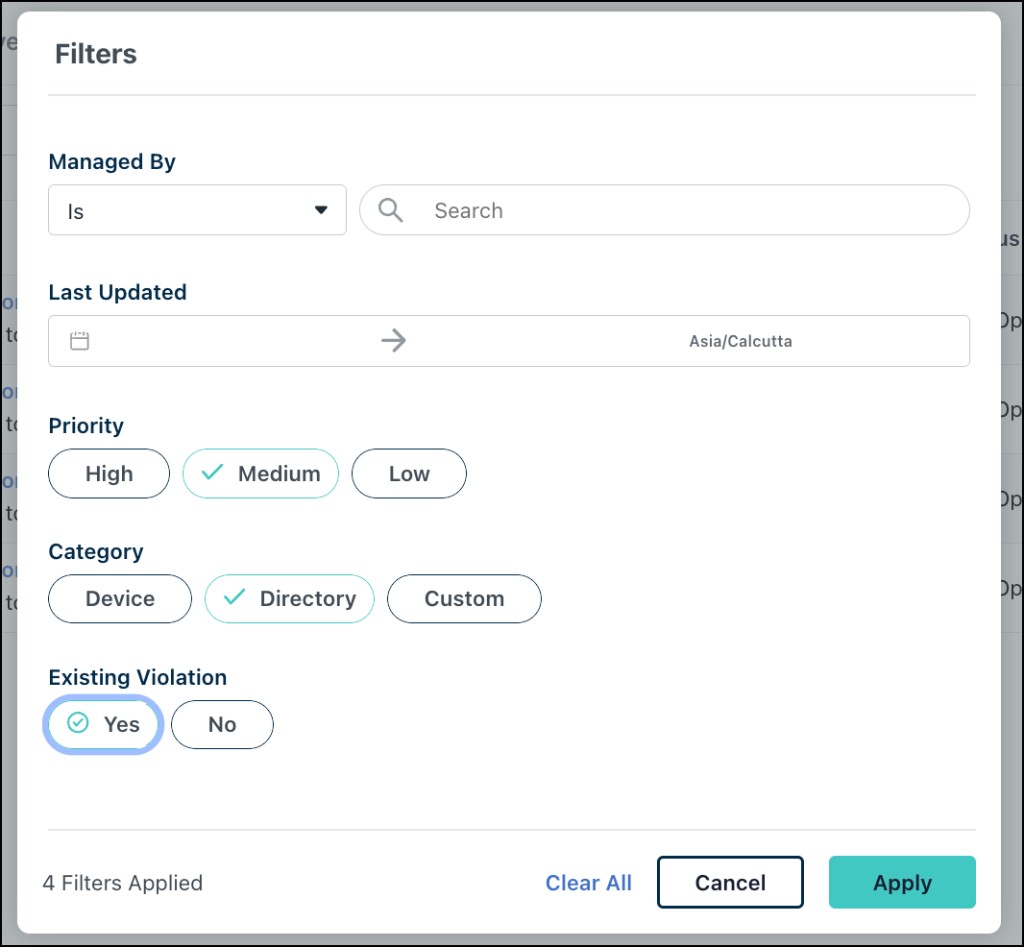
- Managed By
- Last Updated
- Priority
- Category
- Existing Violation
Reviewing Alert Details and Directory Insights Links
Click an alert to view details about the triggered alert. Alert Details and Directory Insights (DI) event links route directly to the alert’s originating organization.
The Alerts tab displays alerts from the organizations included in the selected Global Selector dropdown.
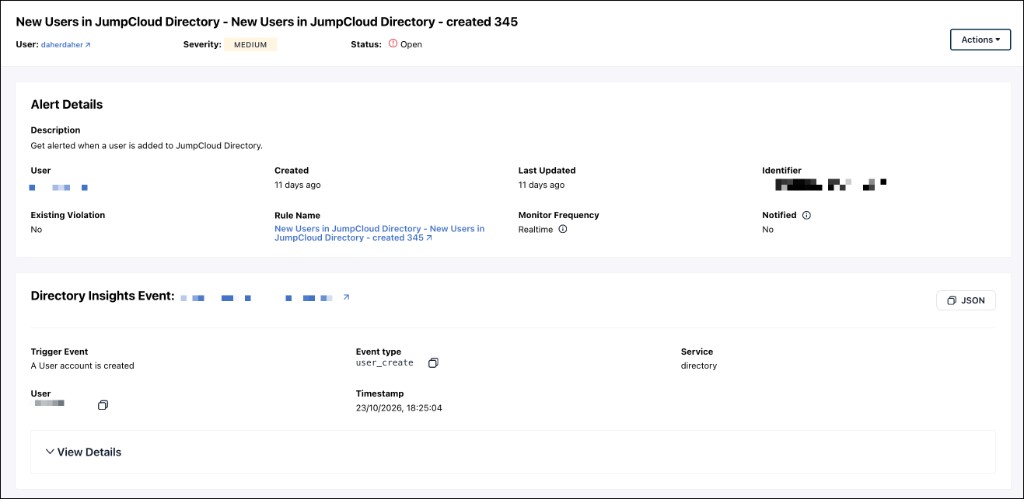
The alert details view displays the following information:
| Field | Description |
|---|---|
| Alert Rule name | Display name of the alert rule. |
| User | The user for whom this alert was generated. |
| Severity | Configured severity level. |
| Status | Enabled or disabled state. |
| Alert Details | Alert description, user for whom the alert is generated, alert creation and last updated date, identifier, existing violation status, rule name, monitoring frequency, and notification status. |
| Directory Insights Event Details | Trigger event, Event type, Service, User, Timestamp, and related fields. |
| Actions dropdown | Mark the alert as acknowledged or resolved. You can also delete the alert. |
Click the DI event link to see more details on the Directory Insights page.
Reviewing Alert Rules
- In Enterprise configuration, the Alerts page shows a list of single-org alert rules across all authorized organizations.
- Organization Admins can select View All to see alerts and single-organization alert rules from all organizations they are authorized to administer.
- When Admins select a specific organization, the page shows single-org alert rules for that selected organization.
Creating an Alert Rule
You can create a new organization-specific alert rule when a specific organization is selected. The organization scope is pre-populated and set to the selected organization.
To create an alert rule:
- Log in to the JumpCloud Enterprise Portal.
- In the upper-right corner, select a specific organization in the Organization Selector.
- Go to Monitoring > Alerts > Rules.
- Click the + Rule button to add a new rule.
- Configure the alert rule by selecting the template and other rule details. See Understand Rule Templates for Alerts to learn more.
- Save the alert rule.
Editing an Alert Rule
You can edit an existing organization-specific alert rule in the Enterprise Portal. Organization scope remains immutable during edit. Edits are audited with organization, rule ID, actor, and changed fields.
To edit an alert rule:
- In the Enterprise Portal, select the specific organization for which the rule was created in the upper-right Organization Selector.
- Go to Monitoring > Alerts > Rules.
- Locate and click the required alert rule to edit.
- Edit the alert rule details as required.
- Click Save to apply the changes.
Was this information helpful?