Manage Admins in the Enterprise Portal (Preview)
You can manage Enterprise Portal Administrator accounts in each of your managed organizations within the JumpCloud Enterprise Portal. After you add a user and assign them an Administrator role, you can view their details.
Terminology:
- Enterprise: The enterprise organization. This is where you manage the settings for all organizations. Some of the settings configured for Enterprise takes precedence over the organizational settings.
- Organizations: These are the managed sub-organizations.
Considerations:
- All Admins in your Enterprise Portal have access to all of the managed organizations in that Enterprise Portal.
- The Enterprise Portal supports granular permissions; you can restrict access to specific organizations per Enterprise Portal Administrator account.
- Admins added to an org's Enterprise Portal are automatically given access to organizations created in the Enterprise Portal.
- When creating a new Admin, API access will be disabled by default.
- Only Super Admins (Admins with Billing or equivalent) can enable this. See Manage Administrator Roles and Access in the Enterprise Portal to learn more.
Adding an Admin
Administrators are created only from the Users page under Identity Management. You cannot create an Administrator directly without promoting an existing user.
Promoting a User to Administrator Role
- Log in to the JumpCloud Enterprise Portal.
- Go to the Identity Management > Users page.
- Select the checkbox next to an existing user to promote.
- Click the Actions dropdown, then click Assign Administrator Access.
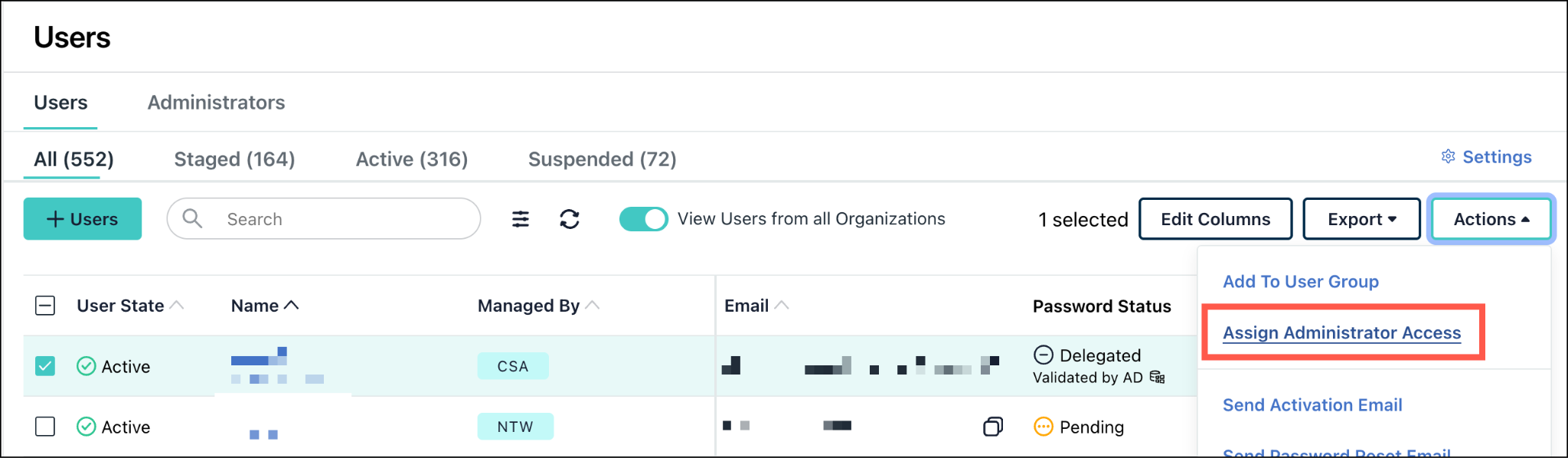
- In the Assign to Administrator popup, choose a predefined role and organizations to assign to the user.
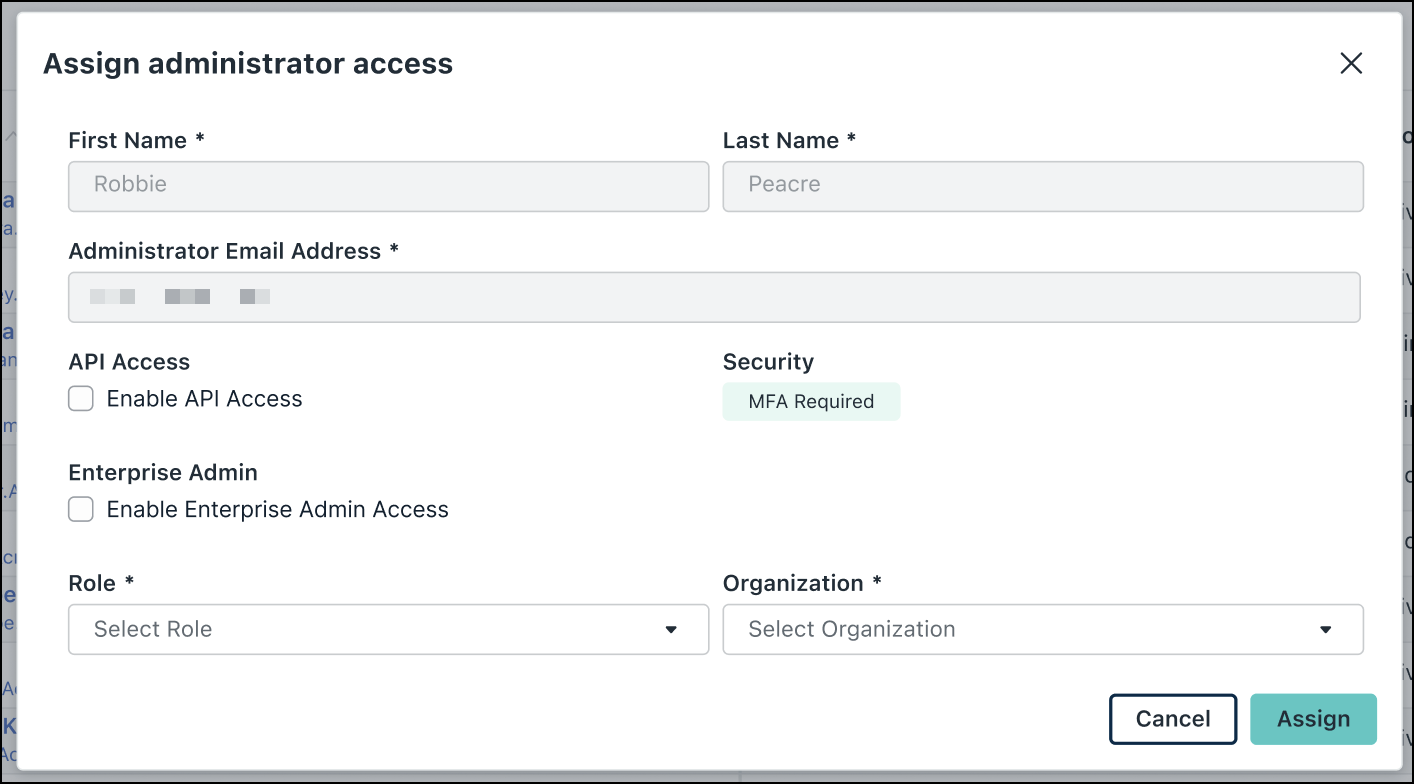
- Optional) Enable Enterprise Admin Access or API access when your permissions and the selected role allow it.
- Select the Role you want to assign and Organization for this Admin. You can select multiple organizations.
Select the All Organizations checkbox to give access to all the organizations in the enterprise.
- Click Assign to elevate this user to Administrator role.
This user’s details appear on the Administrators tab as well.
Viewing Details for Your Enterprise Portal Admins
To view details for Enterprise Portal Admins:
- Log in to the Enterprise Portal.
- Go to Identity Management > Users > Administrators tab.
- The following details are shown for each Administrator:
- Name - The Admin’s first and last name.
- Managed By: Name of the organization to which the Administrator belongs.
- Email - The Admin’s account email address.
- Role - The Admin's role/permission level.
- Status: Whether the Administrator is active or staged.
- Organizations - The number of organizations the Administrator can access.
- API Key Access: Whether API access is enabled or disabled for the Administrator.
Editing Admins
To edit an Admin:
- Log in to the Enterprise Portal.
- Go to Identity Management > Users > Administrators tab.
- Click on the Administrator’s Name in the list. The Edit Administrator popup appears.
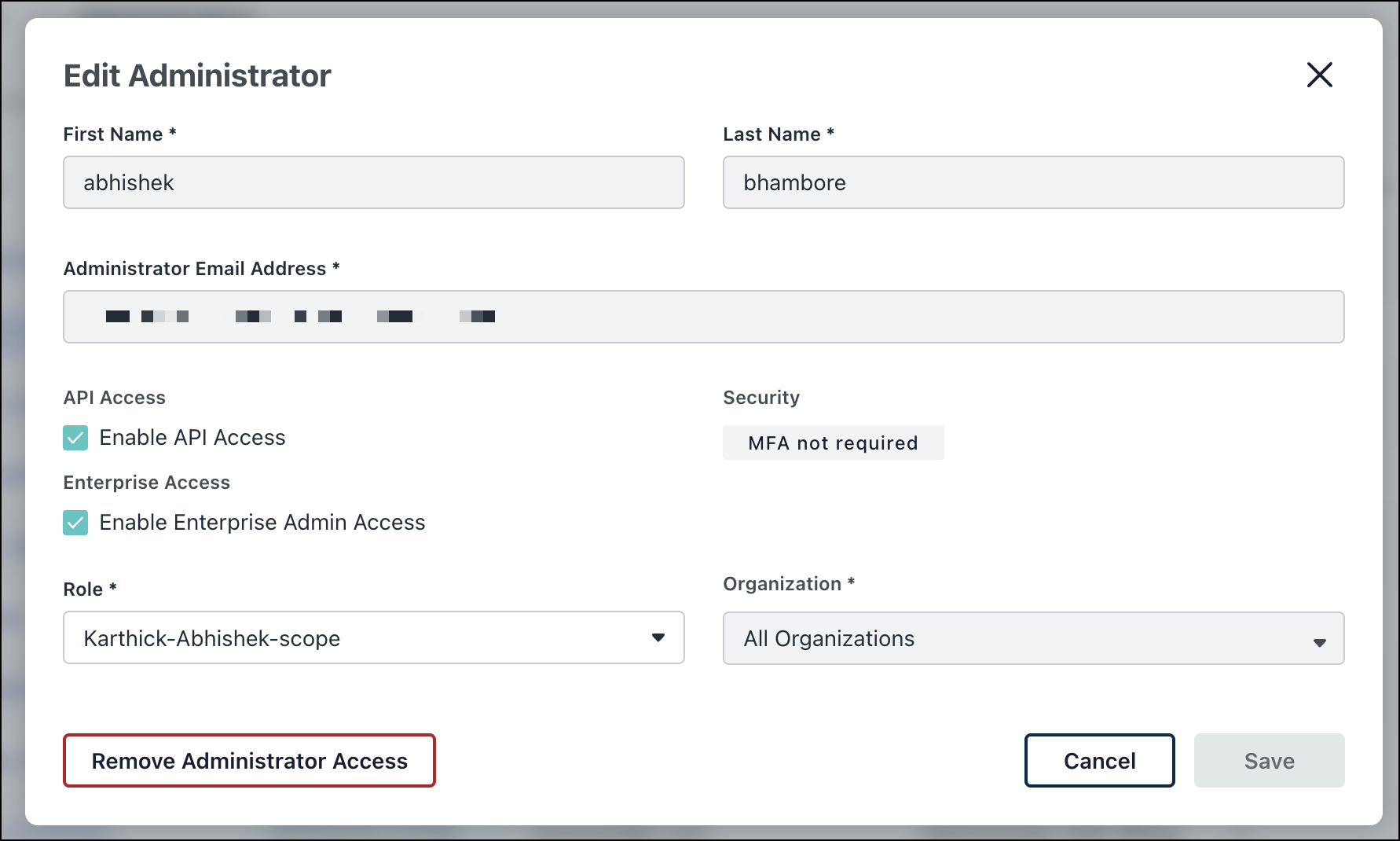
- Modify the Administrator’s information:
- First Name - The Admin's first name.
- Last Name - The Admin's first name.
- Administrator Email Address - The Admin's email address. This field is required.
- If you want to give the Administrator API access, select the checkbox next to Enable API access. If it's enabled and the Administrator has generated a key, you'll see the first four characters of the Admin’s API key, and the date it was created as well. See JumpCloud API’s to learn more.
- If the Administrator has Enterprise access, clear the Enterprise Access checkbox if needed.
- Edit the Role and Organization of the Administrator from the respective drop-down. The Organization dropdown displays only the organizations the Administrator has access to.
You can assign up to 5 custom roles to an Admin. If Administrator with Billing role is assigned to an Admin, no other custom roles can be assigned.
- Click Remove Administrator Access to remove their access to all organizations they have access to.
- Once done, click Save.
Requiring MFA for Admins
JumpCloud requires an MFA for all Admins. The non-editable Global MFA Requirement setting can be viewed in the Admin Portal under Settings > Account.
Removing Administrator Access
To remove Administrator access of an existing Administrator:
- Go to the Identity Management > Users > Administrators tab.
- Click the name of any Administrator.
- In the Edit Administrator dialog, then click Remove Administrator Access.
A Remove Admin Role dialog is displayed warning the Administrator.
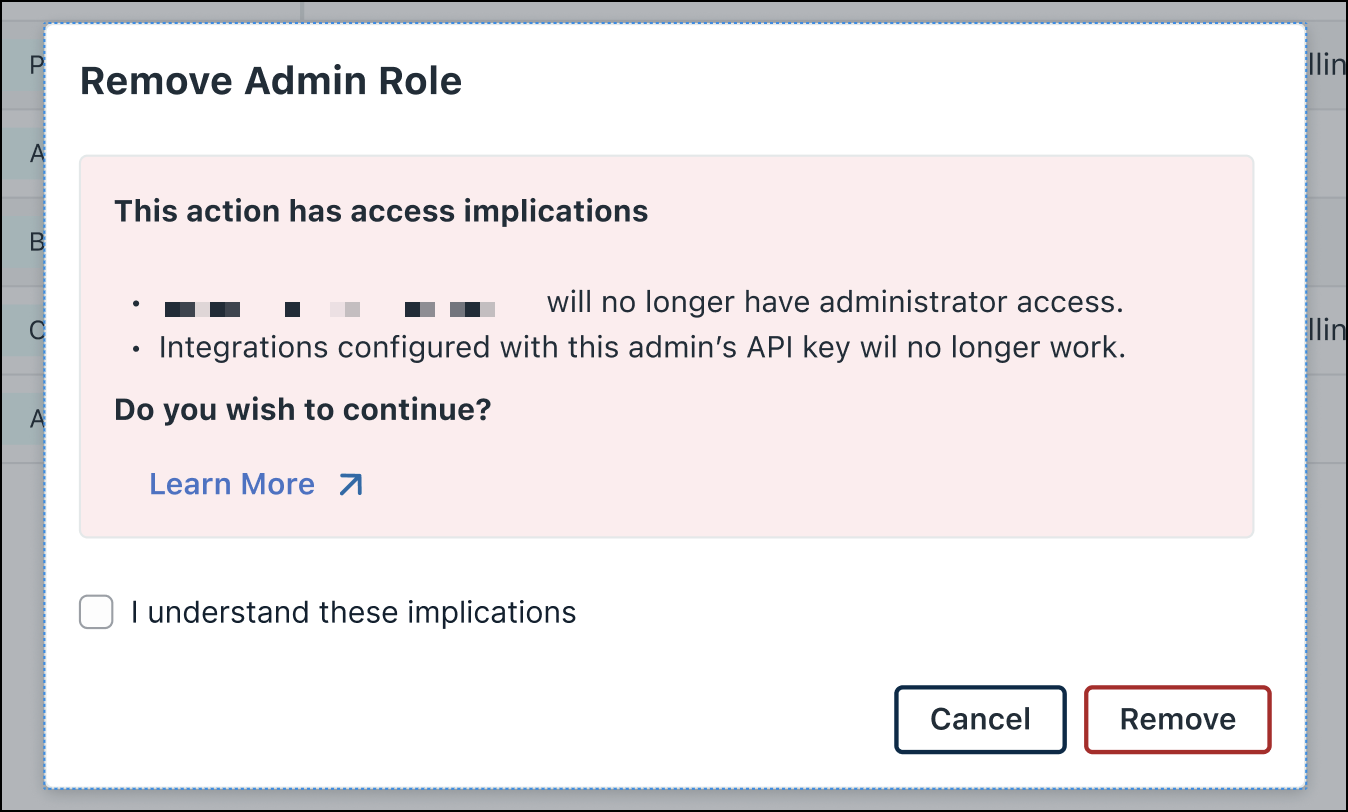
- Select the checkbox and click Remove.
You have successfully removed the Administrator access for the selected Administrator.
Suspending Administrator Accounts in the Enterprise Portal
Before suspending an Administrator account, see Suspend and Reactivate User Accounts to learn more.
To suspend an Administrator account:
-
Log in to the Enterprise Portal.
-
Go to Identity Management > Users.
-
Find or search for the Administrator in the list and select the checkbox next to their name.
-
Click the Actions dropdown menu and click Suspend Users.
This immediately removes the Admin's access to the Enterprise Portal while maintaining their date and configuration records.
- Confirm that you want to suspend the selected account, then click Suspend.
- Click Save. The account appears as suspended in the Admins list.
To restore a suspended Administrator account:
-
Log in to the Enterprise Portal.
-
Go to Identity Management > Users.
-
Select the checkbox next to a suspended Administrator from the list.
-
From the Actions dropdown, click Activate. You can either schedule the activation, or click Activate Now > Activate User.
-
Click Save. The account appears as Active in the Admins list.
Was this information helpful?