Install the Password Rotation Script on a Linux Server
Password rotation changes the password of a user on a Linux server and stores the new password in the Privileged Credential in JumpCloud PAM. The change is done by a shell script that you install on the server. Users never need to know the password.
The password changes only when the script runs. Run the script manually, or schedule it on the server to rotate the password periodically.
Prerequisites
- Password rotation is enabled on the Privileged Credential, and the Linux server is selected on it.
- The user of the credential exists on the Linux server.
- You have root or sudo access to the Linux server. The user of the credential does not need these permissions.
- The Linux server has curl and openssl installed.
- The Linux server uses TLS 1.2 or 1.3. Password rotation does not work on older versions.
- The Linux server can reach the PAM API on port 443.
Download the Script and Generate the Key
- In the JumpCloud Admin Portal, go to Access > PAM > Privileged Resources > Privileged Credentials.
- Find the credential and, in the Actions column, open the three-dot menu.
- Select Password Rotation.
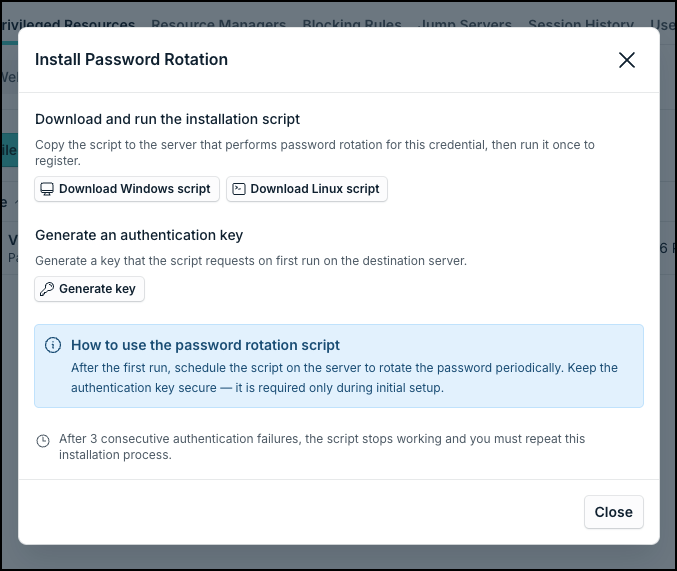
- In the Install Password Rotation window, click Download Linux script. The script is saved on your computer.
- Click Generate key and copy the authentication key. The script asks for it the first time it runs.
Keep the authentication key secure. It is needed only during the initial setup. Each credential has its own script and its own key.
Copy the Script to the Linux Server
The script must run on the server where the password is rotated. Copy the file you downloaded to that server with the method you normally use, for example scp.
Run the Script
- On the Linux server, go to the folder where the script is.
- Make the script executable:
chmod +x PAM_PasswordRotationInstaller.sh
- Run the script with root privileges:
sudo ./PAM_PasswordRotationInstaller.sh
- When the script asks for the key, paste the authentication key you copied from the Install Password Rotation window and press Enter.
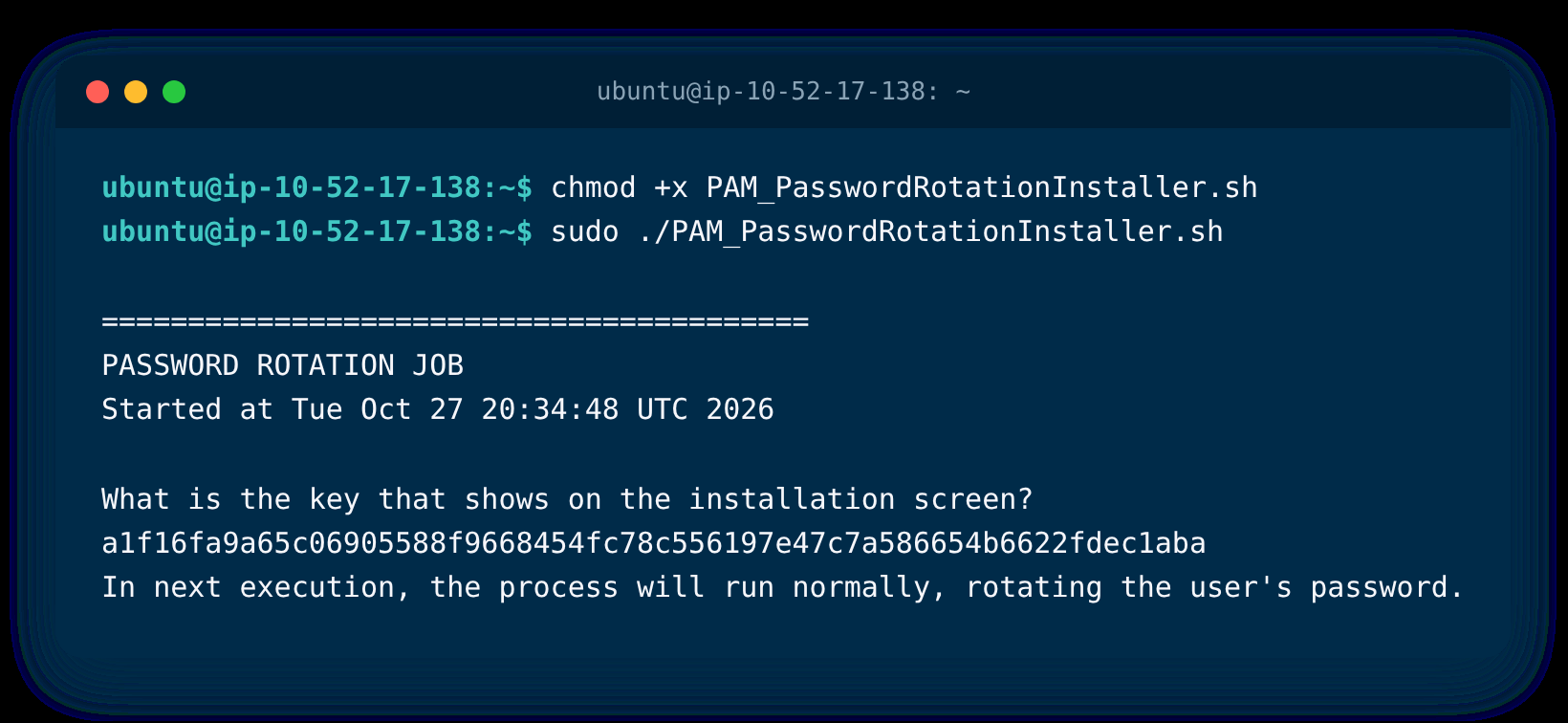
This first run only registers the script with the Privileged Credential. The password has not changed yet.
Rotate the Password
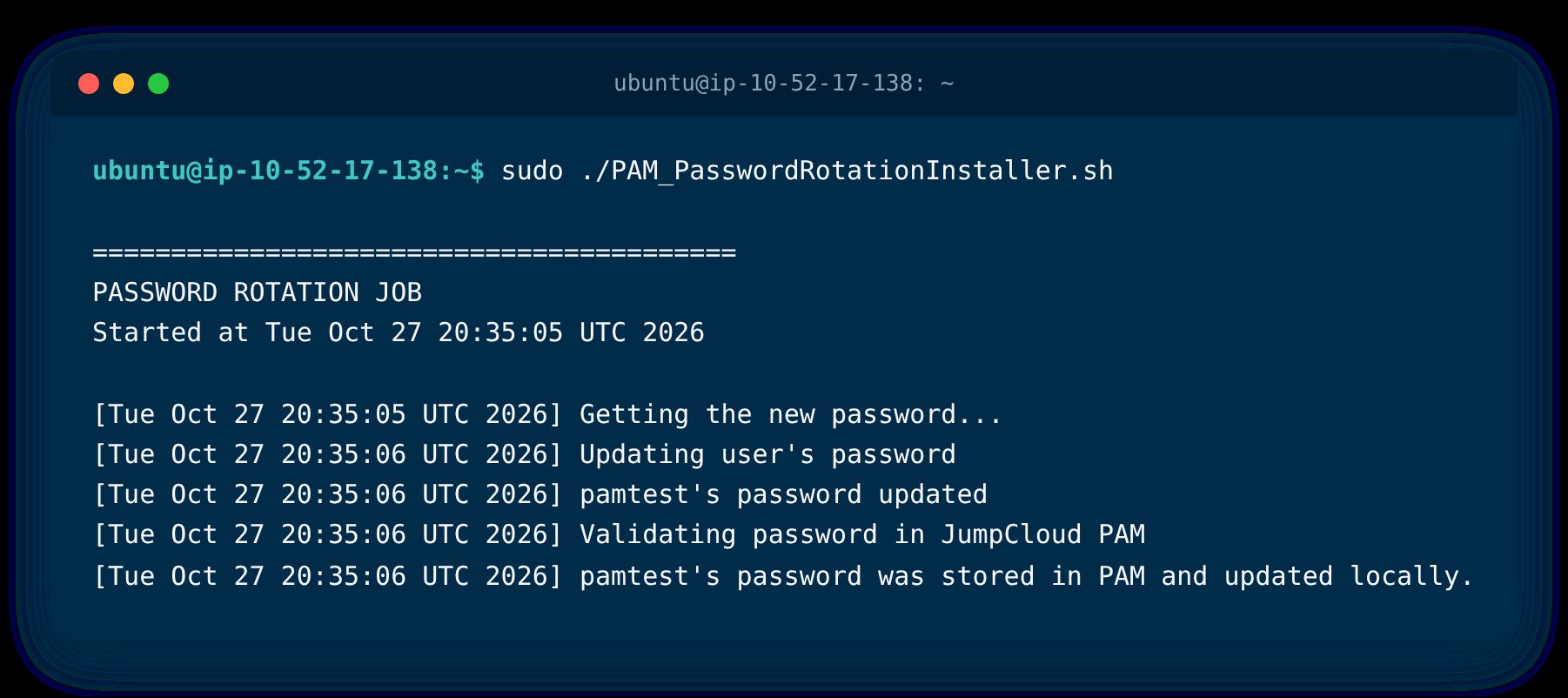
Run the script again. This time it generates a new password, changes it on the server and stores it in the Privileged Credential.
sudo ./PAM_PasswordRotationInstaller.sh
Check the Rotation
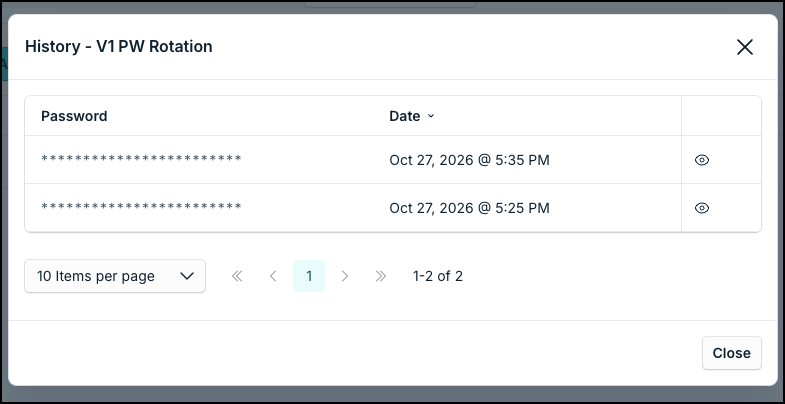
- In the credential’s Actions column, open the three-dot menu and select History.
- Confirm that the list has a new entry with the date of the rotation. To see a password, click the eye icon.
Rotate the Password on a Schedule
PAM does not schedule the script. To rotate the password periodically, schedule the script on the server with a tool of your choice, such as cron. The schedule and its frequency are defined by you.
Run the script for the first time in the same way and with the same user that the schedule will use.
After 3 consecutive authentication failures, the script stops working. To use it again, repeat the process in this article, with a new key.
Troubleshooting
The script does not run, or shows Please run as root.
The script needs root privileges to change the password of a user. Run it with sudo, or as root. If the error is not in the sudoers file, the user that you are using does not have sudo permission. Use a user with sudo permission, or run the script as root.
Was this information helpful?