Get Started: Understand the PAM Overview Page
The Overview tab is the first page you see when you open Privileged Access Management (PAM). It gives you a quick view of what is configured in PAM, the health of your Jump Servers, and which resources are used the most and the least. This article is for administrators who manage PAM.
Accessing the PAM Overview Page
- Log in to the JumpCloud Admin Portal.
- Go to Access > PAM.
- Select the Overview tab.
Summary Cards
The cards at the top of the page show how many items you have in each area of PAM. Each card also shows the change in the total compared with last month.
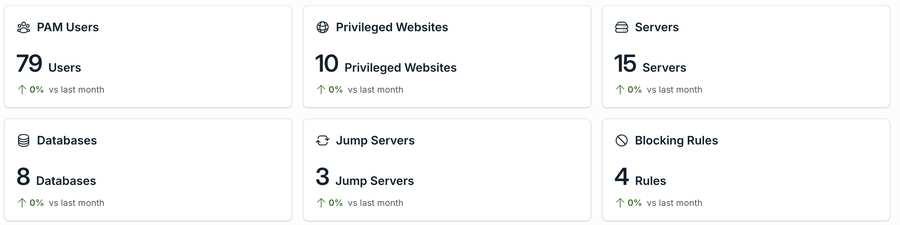
| Card | What it shows |
|---|---|
| PAM Users | The number of users who have access to PAM. |
| Privileged Websites | The number of websites added as Privileged Resources. |
| Servers | The number of servers added as Privileged Resources. |
| Databases | The number of databases added as Privileged Resources. |
| Jump Servers | The number of Jump Servers installed to connect your users to the resources. |
| Blocking Rules | The number of Blocking Rules created in PAM. |
The percentage at the bottom of each card shows how the total changed since last month.
Jump Servers Health
This table shows the status of each Jump Server so you can quickly find the ones that need your attention.
| Column | What it shows |
|---|---|
| Name | The name of the Jump Server. |
| Status | The current status of the Jump Server: Online, Offline, Warning, or Not installed. |
| Associated Resources | The number of resources that use this Jump Server. |
The Jump Servers that need attention appear first, and the healthy ones appear last:
- Offline: appears first.
- Warning: appears at the top of the list when at least one Jump Server has this status.
- Not installed: appears at the top of the list when at least one Jump Server has this status.
- Online: appears last.
If all your Jump Servers are Online, the table shows only Online Jump Servers. If you see a different status, check that Jump Server first, because users cannot connect to the resources that depend on it. Select View All to see the full list of your Jump Servers.
Most Connected and Least Connected Privileged Resources
These two tables show which Privileged Resources your users connect to the most and the least. Use them to understand how your resources are used, and to find resources that nobody uses.
| Column | What it shows |
|---|---|
| Resource Name | The name of the Privileged Resource. |
| Type | The type of the resource: Privileged Website, Server, or Database. |
| Sessions | The number of sessions started on the resource. |
| Last Session | The date and time of the most recent session on the resource. |
- Most Connected Privileged Resources: the resources with the most sessions.
- Least Connected Privileged Resources: the resources with the fewest sessions.
To see every session and who started it, go to the Session History tab.
Was this information helpful?