Get Started: Self Service App Catalog
The Self Service App Catalog gives users direct access to the applications they need without giving up admin control. Save time and reduce friction by letting users manage their assigned software directly on their devices. This feature extends the existing JumpCloud App Catalog for macOS and Windows. By configuring the App Delivery Method setting in Software Management, you can choose to either force install an application automatically, or make it available for self service. Once an application is configured for self service and assigned to a device, users can browse, install, update, and remove approved software without waiting for IT intervention. Users access the catalog from the JumpCloud macOS Menu Bar App or the JumpCloud Windows Tray App.
During the initial general availability (GA) rollout, Self Service App Catalog availability is delayed for some organizations based on their current JumpCloud Windows Tray App/macOS Menu Bar App and Device Password Sync configurations. JumpCloud will contact impacted customers directly.
Prerequisites:
- Devices must run a supported version of macOS or Windows and have the JumpCloud Agent v2.153.5 installed. See JumpCloud Agent Compatibility, System Requirements, and Impacts.
- Applications must be created from the JumpCloud App Catalog for macOS or Windows. See Use the JumpCloud App Catalog for macOS and Use the JumpCloud App Catalog for Windows.
Considerations:
- Users access the Self Service App Catalog on their devices from the JumpCloud macOS Menu Bar App and the Windows Tray App. Device Password Sync is not required for these apps to appear.
- To hide the JumpCloud Menu Bar App or Windows App entirely, use JumpCloud App Controls. See Create a Device Level macOS JumpCloud App Controls Policy and Hide Windows App Using a Policy.
- By default, the Self Service App Catalog is shown for users on macOS and Windows even if you have not assigned any apps. To hide it on selected devices, apply the following policies depending on your OS: Create a Device Level Windows Self Service App Catalog Policy and Create a Device Level macOS Self Service App Catalog Policy.
- To use both Auto and SelfService delivery for the same application, create two apps in Software Management with different App Delivery Method settings, then assign each app to separate device groups or devices.
Features and Benefits
The Self Service App Catalog simplifies and streamlines application management, saving you time. You approve and assign apps once, and users perform many of the actions that previously required an admin, such as installing apps and managing their updates, directly on their devices.
Use the Self Service App Catalog to:
- Let users discover and install IT-approved JumpCloud App Catalog applications on their own Mac computers and Windows and devices.
- Choose per application whether JumpCloud force installs the app (Auto) or makes it available for user-driven install (Self Service).
- Keep approved applications patched by enabling Auto-Update, which includes updates users can apply from the catalog.
- Let users uninstall applications you made available for self service.
- Control which devices can open the catalog from the JumpCloud Menu Bar App or Windows App by applying a policy.
Understanding the Workflow
Admin Configuration
To deploy self service software, configure a JumpCloud App Catalog application in the Admin Portal, set the App Delivery Method to Self Service, and assign the application to your target devices or device groups.
For full configuration steps, including patching, removal behavior, associations, unbinding, and deleting apps, see:
User Access
After you assign a self service application, users manage apps in the catalog on their device.
- On Windows, click the JumpCloud icon in the system tray. Under Self Service, click App Catalog.
- On macOS, click the JumpCloud icon in the menu bar. Under Self Service, click App Catalog.
From the catalog, users can browse All Apps, view Available and Installed applications, search by name, install and uninstall applications, apply updates from Updates, and view real-time status such as Not Installed, Pending, Installing, Reinstalling, Uninstalling, Installed, and Failed.
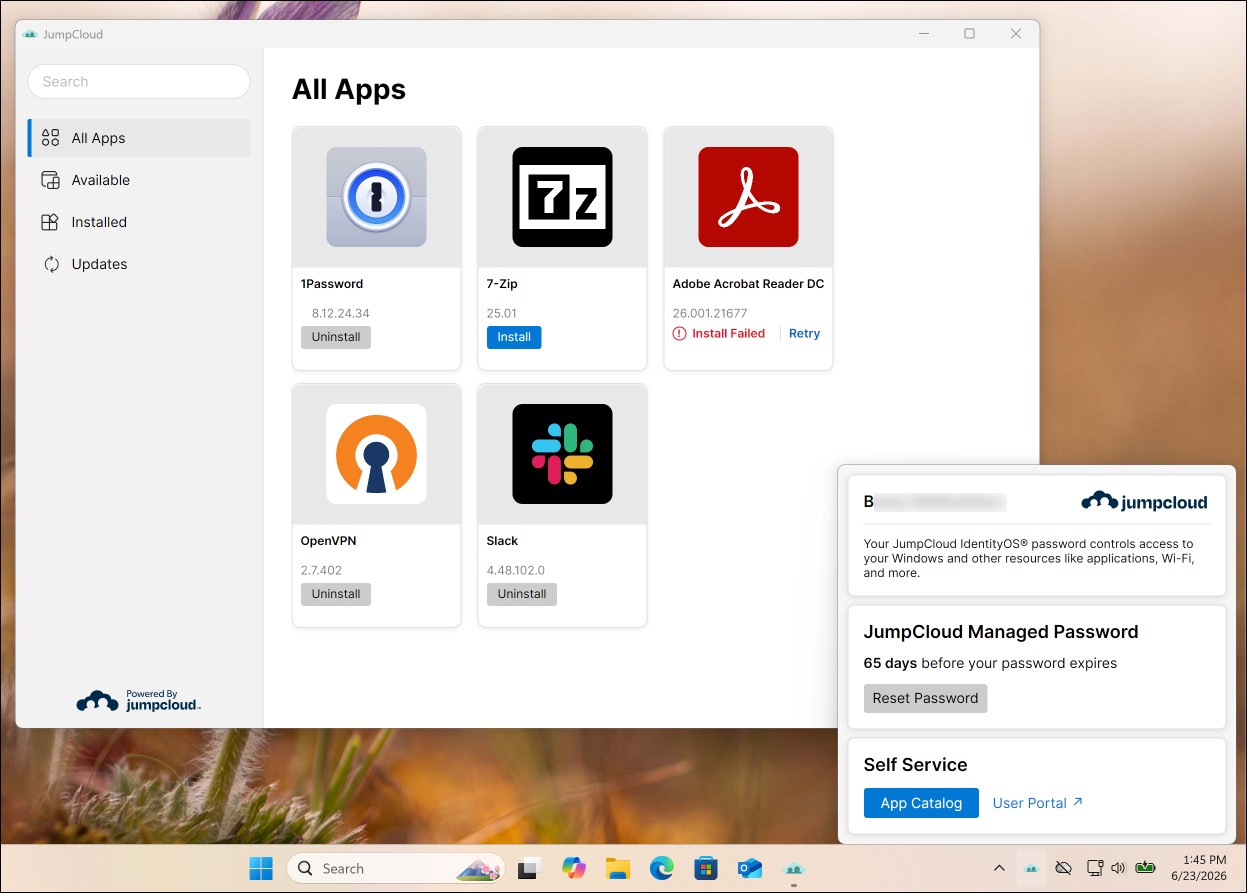
Applications labeled On Demand are configured for Self Service. Applications labeled Required are configured for Auto install.
For instructions you can share with your users, see Users: Manage Apps Using the Self Service App Catalog.
Also see:
Controlling Catalog Visibility
By default, the Self Service App Catalog is shown in the JumpCloud Menu Bar App and Windows App. To hide the catalog on specific devices or device groups, create and apply a policy:
- Create a Device Level Windows Self Service App Catalog Policy
- Create a Device Level macOS Self Service App Catalog Policy
Hiding the entire JumpCloud Menu Bar App or Windows App with JumpCloud App Controls also prevents users from opening the catalog. See Create a Device Level macOS JumpCloud App Controls Policy and Hide Windows App Using a Policy.
Related Software Management Options
If Self Service App Catalog is not the right fit for an application, review the other Software Management options for Windows and macOS in Get Started: Software Management. Examples include Microsoft Store, Chocolatey, Apple Volume Purchase Program (VPP), self-hosted packages, and the JumpCloud private repository.
Was this information helpful?