Get Started: JumpCloud Access Posture
JumpCloud Access Posture helps you identify and reduce identity and access security risks across your JumpCloud environment.
Access Posture continuously evaluates supported JumpCloud identity, authentication, privilege, credential, application, device, and service account data and surfaces prioritized security findings. These findings help IT and security teams identify risky configurations, excessive privilege, weak authentication, unused access, and other conditions that may increase identity-related risk.
Access Posture is also useful for security, compliance, risk, and audit teams that need ongoing visibility into controls such as least privilege, strong authentication, privileged access, and access lifecycle management.
Prerequisites
To use Access Posture:
- Your org must have Access Posture enabled.
- You must be a JumpCloud administrator with permission to open Access Posture.
- Some remediation actions may require additional permissions for the underlying JumpCloud resource.
Considerations
- Access Posture Milestone 1 evaluates JumpCloud-native data. It doesn't inspect roles, entitlements, or permissions inside third-party applications such as AWS, Salesforce, GitHub, or Google Workspace.
- Access Posture evaluates posture on a scheduled basis rather than immediately after every configuration change.
- The first evaluation can take up to approximately 6 hours after Access Posture is enabled.
- Findings represent standing identity and access posture. For behavioral and authentication anomalies, see Get Started: Access Risk Detection to learn more.
- Remediation is administrator initiated. Access Posture doesn't automatically change access when a finding is detected.
Accessing Access Posture
- Log in to the JumpCloud Admin Portal.
- Go to Security > Access Posture.
The Access Posture dashboard displays the latest posture evaluation for your organization.
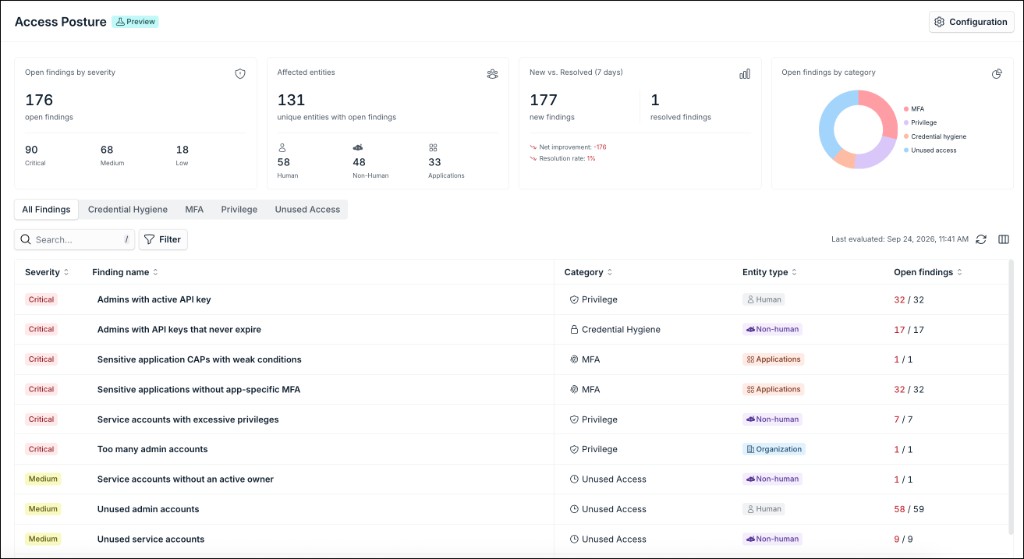
The dashboard provides:
- Open findings grouped by severity
- Affected human identities, non-human identities, and applications
- New and resolved findings
- Findings grouped by category
- The time Access Posture was last evaluated
- A list of finding types currently affecting your organization
Use Search and Filter to focus on specific findings, severities, categories, or entity types.
Understanding Access Posture Findings
Access Posture identifies security conditions and assigns a severity based on the risk of the condition and the privilege of the affected identity or resource.
For example, the same type of security weakness can be more significant when it affects an administrator than when it affects a standard user.
Findings can have the following severity levels:
- Critical
- High
- Medium
- Low
Access Posture Milestone 1 focuses on four primary categories.
| Category | What it identifies |
|---|---|
| MFA | Gaps that could allow identities or sensitive applications to be accessed without appropriate MFA enforcement. |
| Privilege | Excessive or risky administrative privileges for users and service accounts. |
| Credential hygiene | Risky administrative credentials, such as API keys without expiration. |
| Unused access | Privileged accounts, service accounts, or application access that has not been used for an extended period. |
Supported Findings
Depending on your organization's configuration and available data, Access Posture can identify findings such as:
| Category | Finding |
|---|---|
| Unused access | Unused admin accounts |
| Privilege | Too many admin accounts |
| Privilege | Admins with active API key |
| Credential hygiene | Admins with API keys that never expire |
| Unused access | Service accounts without an active owner |
| Privilege | Service accounts with excessive privileges |
| Unused access | Unused service accounts |
| Unused access | Users with unused application access |
| Privilege | Users with excessive local admin privileges on managed devices |
| MFA | User Portal default policy allows access without MFA |
| MFA | Users whose profiles allow User Portal access without MFA |
| MFA | User Portal CAPs permit password-only access |
| MFA | User Portal CAPs with weak conditions |
| MFA | Sensitive application CAPs with incomplete MFA coverage |
| MFA | Sensitive application CAPs with weak conditions |
| MFA | Sensitive applications without app-specific MFA |
Available findings can change as Access Posture evolves. Some findings also depend on the data available in your JumpCloud environment.
Reviewing a Finding
The main Access Posture page groups affected entities by finding type.
To investigate a finding:
- Go to Security > Access Posture.
- Select a finding type.
The finding details page displays the affected entities and their current state.
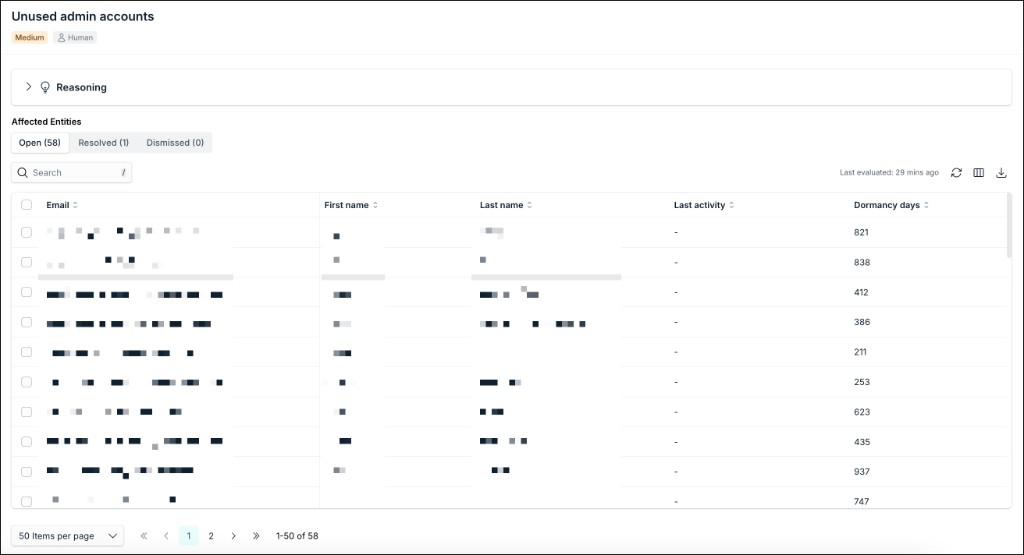
Use the following tabs to review findings:
- Open — The security condition currently exists.
- Resolved — The underlying condition no longer exists.
- Dismissed — An administrator has reviewed and dismissed the finding.
For identity-based findings, the table can include information such as the user's email, name, last access, and when the finding was first detected.
Select an affected entity to open its details.
Investigate Finding Details
Click any finding to open the Information tab. It provides the context needed to determine why the finding was generated and what action to take.
Depending on the finding, you can see information such as:
- Number of risks
- The risk factors
- The affected identity, service account, application, or configuration
- When the finding was first detected and last evaluated
- The condition that caused the finding
- Relevant authentication or activity information
- Administrative role or privilege information
- Applications, devices, groups, or other relevant access context
- Recommended remediation
Review Privilege Information
For applicable identities, use the Privileges section or tab to understand the access that contributes to the finding.
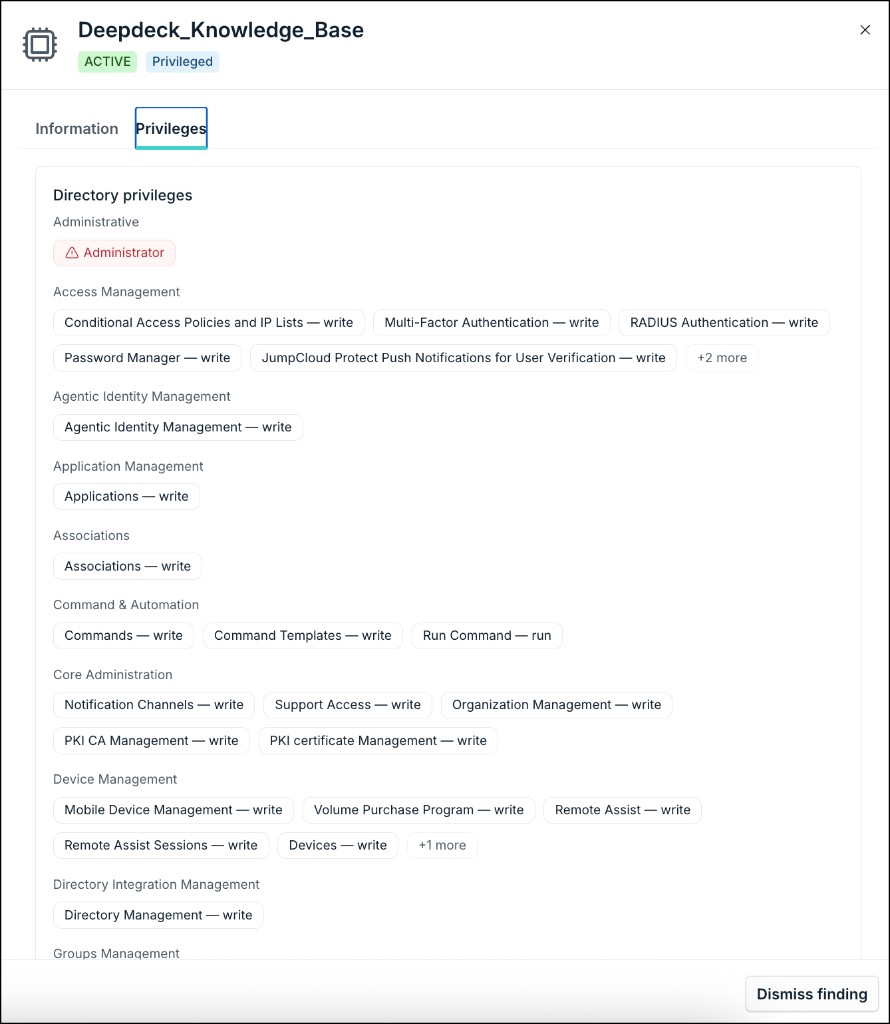
For example, a service account finding can show the administrative role or write-capable permissions that caused JumpCloud to classify the account as excessively privileged.
Review Reasoning
Where available, expand Reasoning to understand:
- What JumpCloud detected
- Why the condition creates security risk
- Why the displayed severity was assigned
This provides context to help you decide whether to remediate or dismiss the finding.
Remediate a Finding
Some findings support a remediation action directly from Access Posture.
To remediate a supported finding:
- Open the affected finding.
- Review the finding details and impact.
- Click the available remediation action.
- Review any confirmation or impact message.
- Confirm the action.
Some actions can make significant changes, such as revoking or replacing credentials. Access Posture prompts you to confirm these actions before they're performed.
After remediation, the finding can remain open until the next posture evaluation confirms that the underlying condition no longer exists. It then moves to Resolved.
If direct remediation isn't available, Access Posture provides guidance for correcting the condition through the appropriate JumpCloud configuration.
Dismiss a Finding
You can dismiss a finding when you have reviewed the condition and don't want it included in the current open findings.
To dismiss a finding:
- Open the finding.
- Click Dismiss.
- Select the appropriate reason and enter the required justification in Comments.
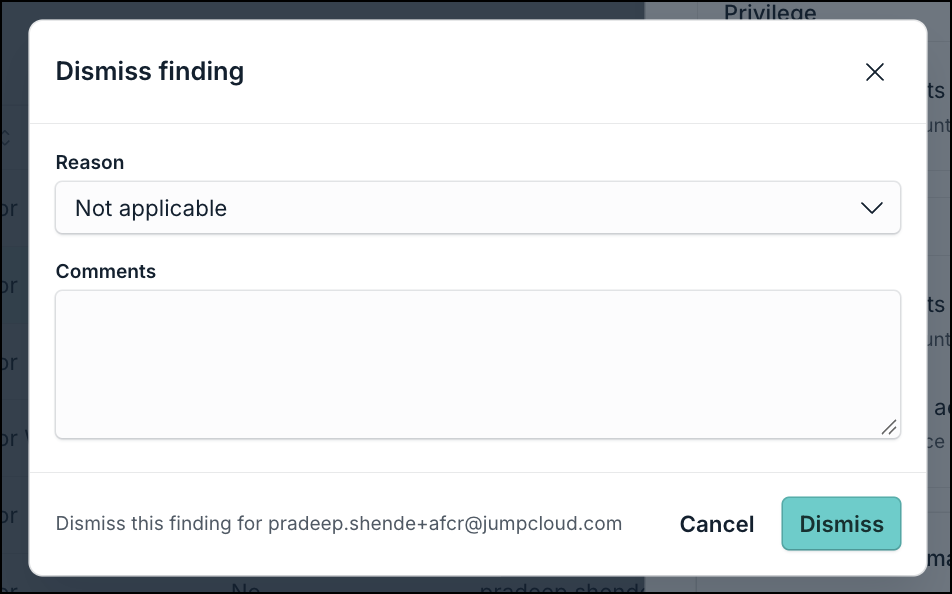
- Click Dismiss to confirm the dismissal.
Depending on the finding workflow, dismissal options can include:
- Risk Accepted: You understand the risk and have chosen to accept it temporarily.
- False Positive / Not Applicable: The finding doesn't represent a meaningful risk for the affected entity or environment.
Dismissed findings remain available in the Dismissed tab so you can retain a record of the decision and its justification.
Risk Accepted Findings
A finding dismissed as Risk Accepted can return to the Open state if the risk acceptance period expires and the underlying condition still exists. If the condition is corrected before that time, the finding is resolved normally.
False Positive Findings
A finding identified as a false positive remains suppressed for the applicable finding and entity unless it is reopened or the applicable lifecycle behavior changes.
Resolving Findings
Access Posture automatically reconciles findings during posture evaluations.
A finding moves from Open to Resolved when JumpCloud determines that the underlying condition no longer exists.
For example:
- Access Posture identifies an administrator who isn't sufficiently protected by MFA.
- An administrator updates the relevant authentication policy.
- The next Access Posture evaluation checks the policy again.
- If the risky condition has been removed, the finding is marked Resolved.
If the same condition occurs again later, Access Posture can reopen the existing finding rather than creating unnecessary duplicate history.
Configuring Access Posture
You can control which Access Posture detections are evaluated for your organization.
To configure Access Posture:
- Go to Security > Access Posture.
- Open Configuration.
- Enable Access Posture monitoring.
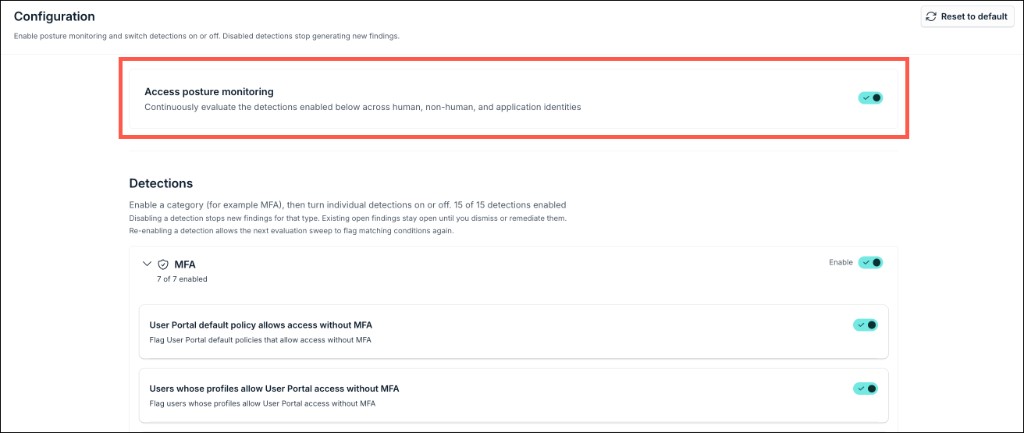
- Review the available finding categories and detection types.
- Enable or disable the detections you want Access Posture to evaluate.
- Save your changes.
You can configure detections in categories including:
- MFA
- Privilege
- Credential hygiene
- Unused access
Disabling a detection prevents it from generating new findings during subsequent evaluations.
Existing open findings aren't automatically considered resolved simply because their detection type is disabled.
Access Posture and Compliance
Access Posture can help organizations continuously identify and address identity and access conditions related to security and compliance controls such as:
- Least-privilege access
- Privileged account management
- MFA enforcement
- Removal of stale or unnecessary access
- Service account governance
- Identity lifecycle management
- Periodic review of access rights
These capabilities can support controls found in regulations and frameworks such as PCI DSS, DORA, NIS2, and NIST-based security programs.
Access Posture doesn't by itself certify compliance with any regulation or framework. Organizations remain responsible for determining which controls and requirements apply to their environment.
Access Posture vs. Access Risk Detection
Access Posture and Access Risk Detection address different types of identity security risk.
| Access Posture | Access Risk Detection |
|---|---|
| Evaluates standing identity, privilege, credential, and access conditions | Evaluates authentication events and behavioral anomalies |
| Identifies conditions such as excessive privilege, weak MFA configuration, or unused access | Identifies conditions such as unusual locations, devices, applications, or impossible travel |
| Primarily configuration and access-state based | Primarily runtime and behavioral |
| Helps reduce persistent identity exposure | Helps identify potentially suspicious authentication activity |
The capabilities are complementary and can be used together as part of your identity security program.
Frequently Asked Questions
How often is Access Posture evaluated?
Access Posture evaluates enabled finding types on a scheduled basis. In Milestone 1, an organization-wide evaluation can occur approximately every six hours.
The Last evaluated field shows when your organization's posture was most recently evaluated.
Why hasn't a remediated finding disappeared immediately?
A finding remains open until Access Posture evaluates the underlying condition again and confirms that it has been corrected.
Does Access Posture scan permissions inside SaaS or cloud applications?
Not in Milestone 1. Access Posture uses data natively available to JumpCloud. Deep entitlement analysis inside third-party applications is not included in this release.
Does Access Posture include service accounts?
Yes. Access Posture includes supported service account findings such as unused service accounts, accounts without an active owner, and service accounts with excessive privileges.
Does Access Posture automatically remove risky access?
No. Remediation is administrator initiated. Where direct remediation is supported, you choose whether to perform the action.
Is Access Posture the same as an access certification?
No. Access Posture continuously identifies security conditions based on identity and access state. Access Certifications are structured reviews in which designated reviewers attest whether specific users should continue to have specific access.
Was this information helpful?