Get Started: Enroll a User Group in PAM
Not everyone in your company needs to use privileged resources. In Privileged Access Management (PAM), you choose which JumpCloud user groups can use it. This is called enrolling a group, and it is one of the first steps in any PAM setup.
When you enroll a group, its members see the PAM resources in their User Portal. After that, you can share resources with the group, and the members can connect to them. A group that is not enrolled cannot be selected to share resources.
This article is for administrators who set up PAM.
Enrolling a User Group
-
In the Admin Portal, go to Access > PAM > User Groups.
-
Select Add User Group. The User Group window lists all the user groups of your JumpCloud organization, with the Enrollment Status of each one.
-
Select the groups that must have access to PAM. To find a group, use the search field. To see the groups that are already enrolled, select Show bound user groups.
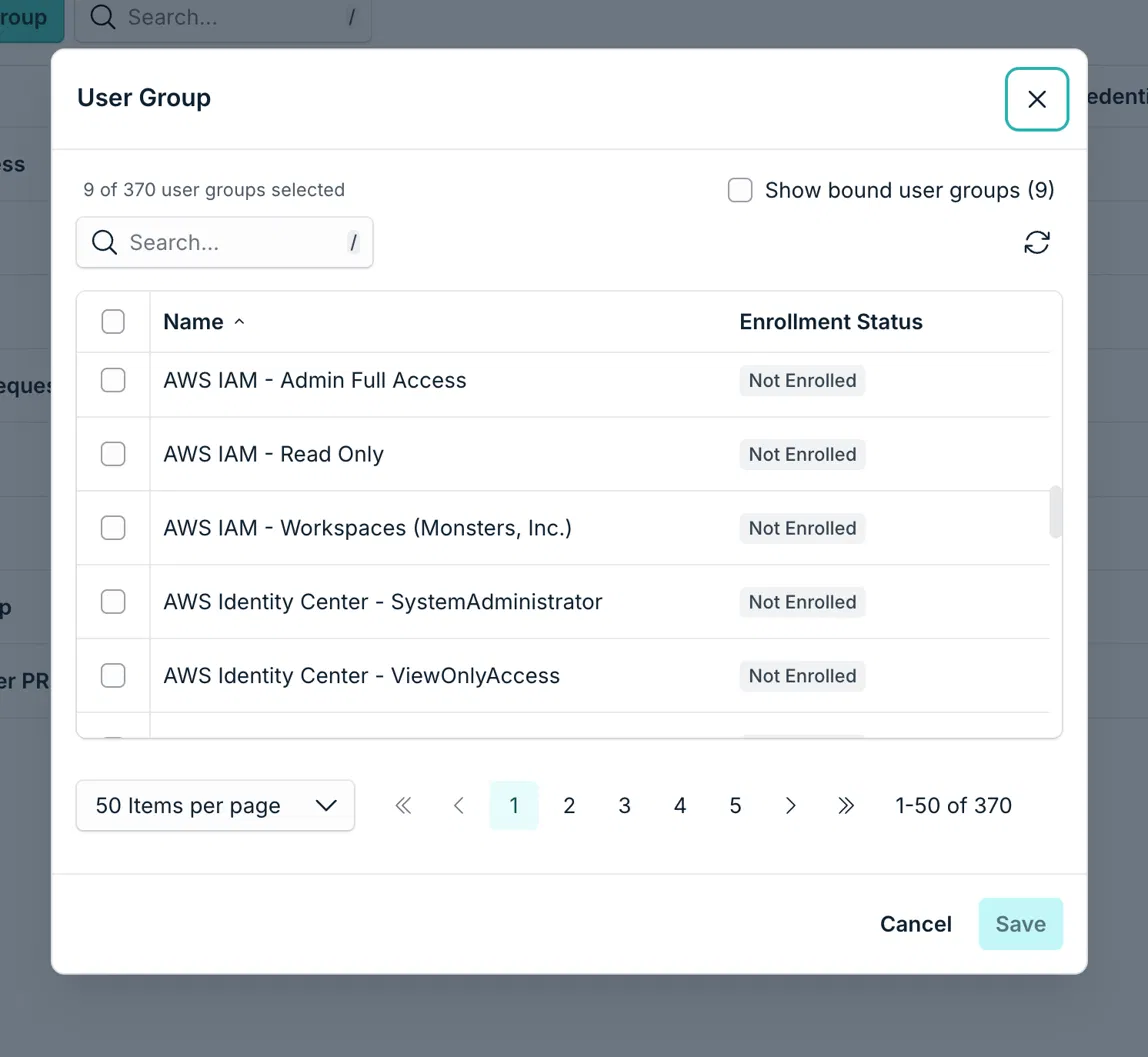
- Select Save.
The groups now appear in the User Groups table. The members of these groups see the PAM tabs in their User Portal.
A new group can take a moment to appear. If you enrolled a group and it is not in the table, wait 1 minute and then select the refresh icon of the table. The wait gives time for the enrollment to synchronize with PAM.
What the Table Shows
The User Groups table displays the following columns:
| Column | Description |
|---|---|
| Members | The number of users in the group. |
| Privileged Websites | The number of websites shared with the group. |
| Servers | The number of servers shared with the group. |
| Databases | The number of databases shared with the group. |
| Privileged Credentials | The number of credentials shared with the group. |
| Manage Permissions | Opens the group to see and change the resources that are shared with it. |
How Enrollment Affects the PAM Users Count
The PAM Users number in the PAM Overview is the sum of the members of all enrolled groups. A user who belongs to more than one enrolled group is counted once, because PAM counts unique users.
Best Practices
-
Enroll only the groups that need privileged access. Every member of an enrolled group sees the PAM resources that are shared with the group, so avoid broad groups that include the whole company.
-
Prefer groups that exist for PAM. A group such as PAM Users or Database Admins makes it clear why people have access, and it is easier to review.
-
Enroll the group before you share resources. You select an enrolled group when you share a server, a database, a website, or a credential.
Next Steps
-
Share resources with the group. For the end user experience, see Get Started: Connect to a PAM Resource as an End User.
-
To give temporary access to a group, see Grant Temporary Access to PAM Resources with Access Requests.
Was this information helpful?