Get Started: Connect to a PAM Resource as an End User
You connect to Privileged Resources from the User Portal. A Privileged Resource is a website, a server, or a database that your administrator added to Privileged Access Management (PAM) and shared with you. You open the resource from its card, and PAM connects you through a Jump Server.
Finding Your Resources in the User Portal
When your administrator enrolls your user group in PAM, new tabs appear in your User Portal. All Applications become All Resources, and three tabs are added for your Privileged Resources.
Without PAM, the User Portal shows All Applications, Favorites, and Folders.

With PAM, the User Portal shows All Resources, Applications, Privileged Websites, Servers, Databases, Favorites, and Folders.

| Tab | What it shows |
|---|---|
| All Resources | All the applications and Privileged Resources that you have access to. |
| Applications | Your applications. |
| Privileged Websites | The Privileged Websites shared with you. |
| Servers | The servers shared with you. |
| Databases | The databases shared with you. |
| Favorites | The resources that you marked as favorite, using the star on the card. |
| Folders | The folders that you created to organize your resources. |
To find a resource, search for its name, or open the tab of its type.
Connecting to a Resource
- In the User Portal, select the card of the resource.
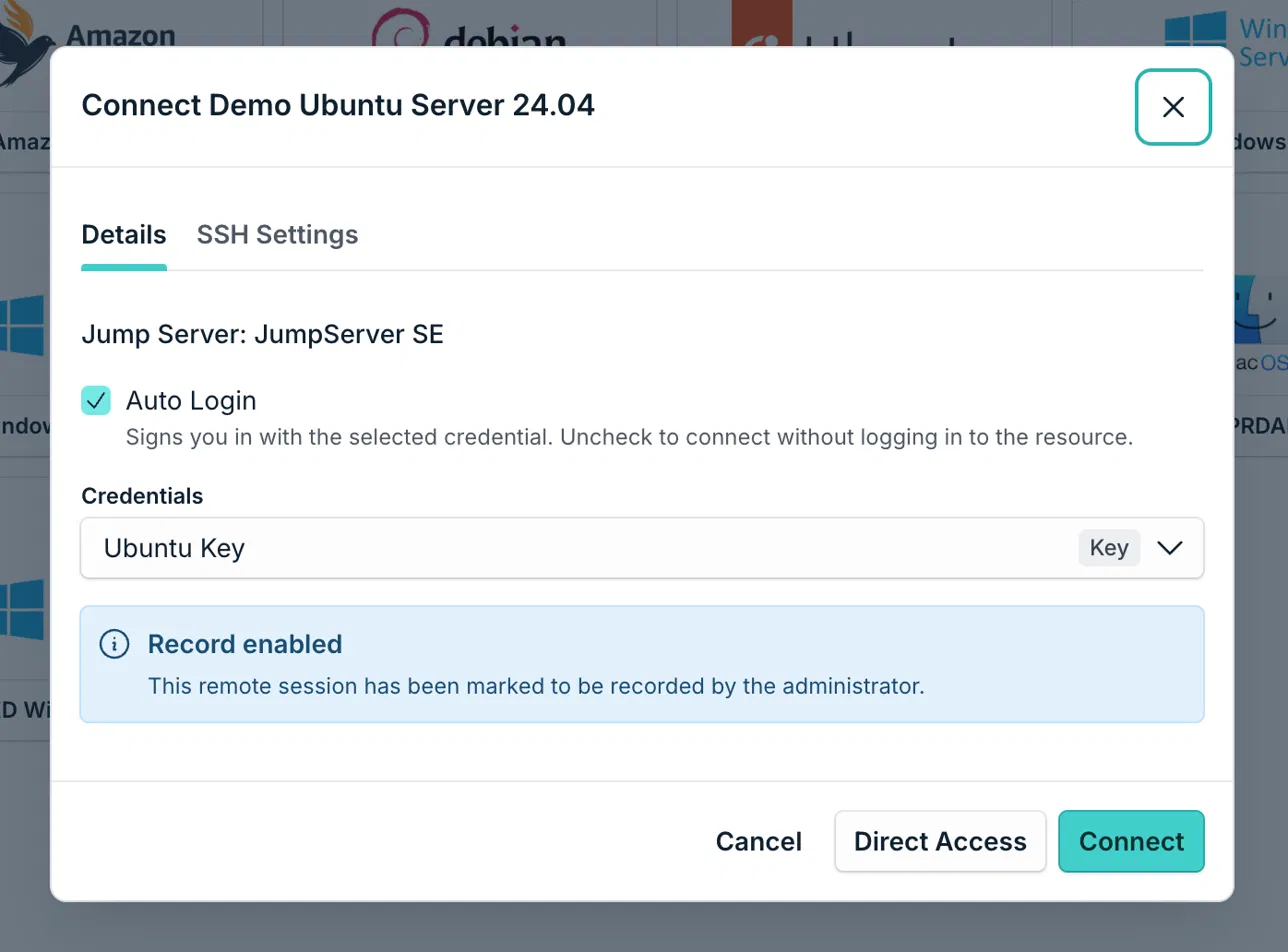
For servers, the Connect window opens before the connection starts.
-
Check the settings in the Details tab:
-
Jump Server: the Jump Server that PAM uses to reach the resource.
-
Auto Login: PAM signs you in with the selected credential. Clear the Auto Login checkbox if you do not have a credential, or if you want to reach the resource without signing in. You then enter your own sign-in details in the resource.
-
Credentials: the credential PAM uses to sign you in. If your administrator shared more than one credential with you, select the one you want to use.
-
-
If the window shows Record enabled, your administrator marked the session to be recorded.
-
Select Connect. The session opens in your browser.
Servers also offer Direct Access, which opens the session in the SSH or RDP application installed on your computer instead of the browser. Direct Access is available only for servers.
Changing the Session Settings for SSH and RDP Servers
For SSH and RDP servers, the Connect window has an extra tab with settings that adjust the session to your preferences.
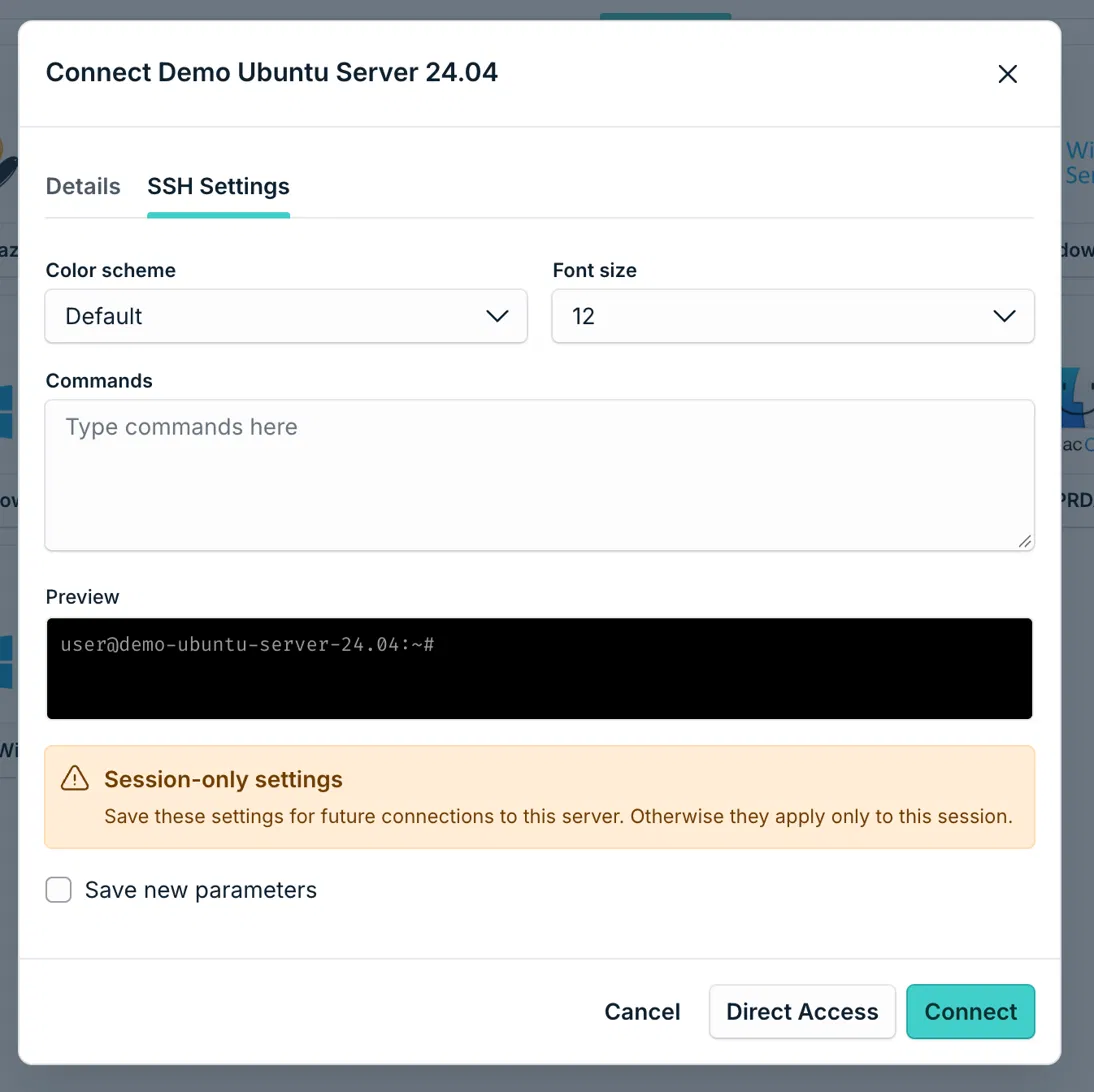
SSH Settings
-
Color scheme: the colors of the terminal.
-
Font size: the size of the text in the terminal.
-
Commands: commands that run when the session starts.
-
Preview: shows how the terminal looks with your choices.
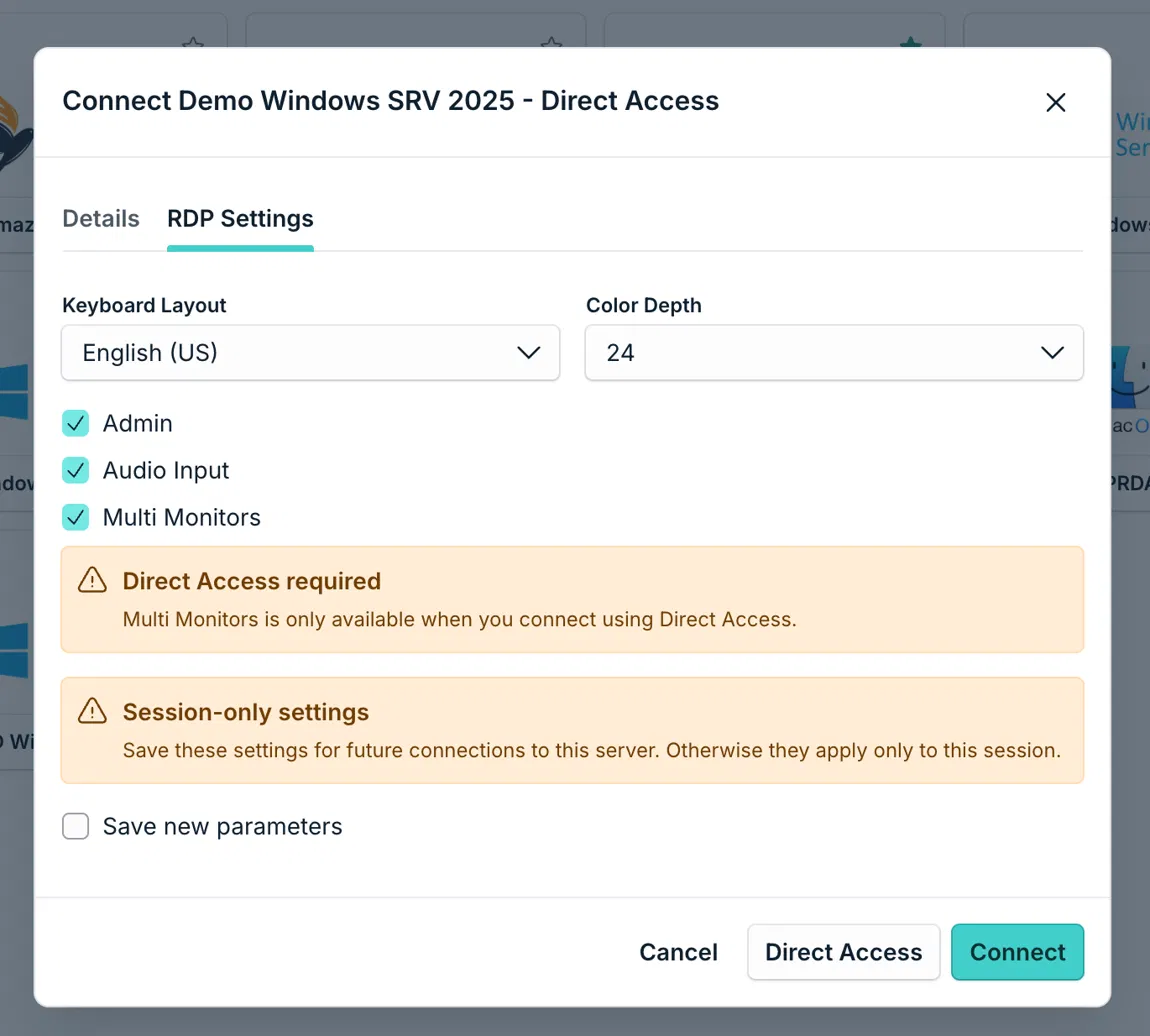
RDP Settings
-
Keyboard Layout: the keyboard layout of the session.
-
Color Depth: the color quality of the session.
-
Admin, Audio Input, and Multi Monitors: options that you can turn on or off. Multi Monitors works only when you connect with Direct Access.
These settings apply only to the current session. To use them again the next time you connect to the same server, select Save new parameters.
Connecting to a Website
When you open a Privileged Website, the way you connect depends on how your administrator configured it:
-
Web Shield: the website opens in an isolated browser session. You do not need to install JumpCloud Go™.
-
Without Web Shield: the website opens in your own browser. You may need the JumpCloud Go™ browser extension, which fills in the sign-in details for you. If PAM asks you to install it, follow the instructions on the screen.
Connecting to a Database
When you select the card of a database, the connection can open directly, without the Connect window. This happens when your administrator did not set up DB Shield for that database. In this case, the database session opens in your own browser.
Viewing a Secret or a Multifactor Code
If your administrator gave you permission, you can view the secret of a credential and its multifactor code directly in the User Portal, without asking your administrator.
**Note:**If you do not see a resource, a tab, or an option described in this article, ask your administrator to check that your user group is enrolled in PAM and that the resource is shared with you.
Was this information helpful?