Get Started: Enterprise Portal (Preview)
JumpCloud’s Enterprise Portal centralizes the control and management of Organizations from one dashboard. This enables admins to control all of their organizations efficiently, from a single, browser-based portal. Enterprise Portal Admins can view top-level data for all of their managed orgs at-a-glance. They can also securely launch full management sessions from the Enterprise Portal for any org they administer.
Terminology:
- Global Configuration: The primary organization. This is where you manage the settings for all the organizations.
- Organizations: These are the managed sub-organizations.
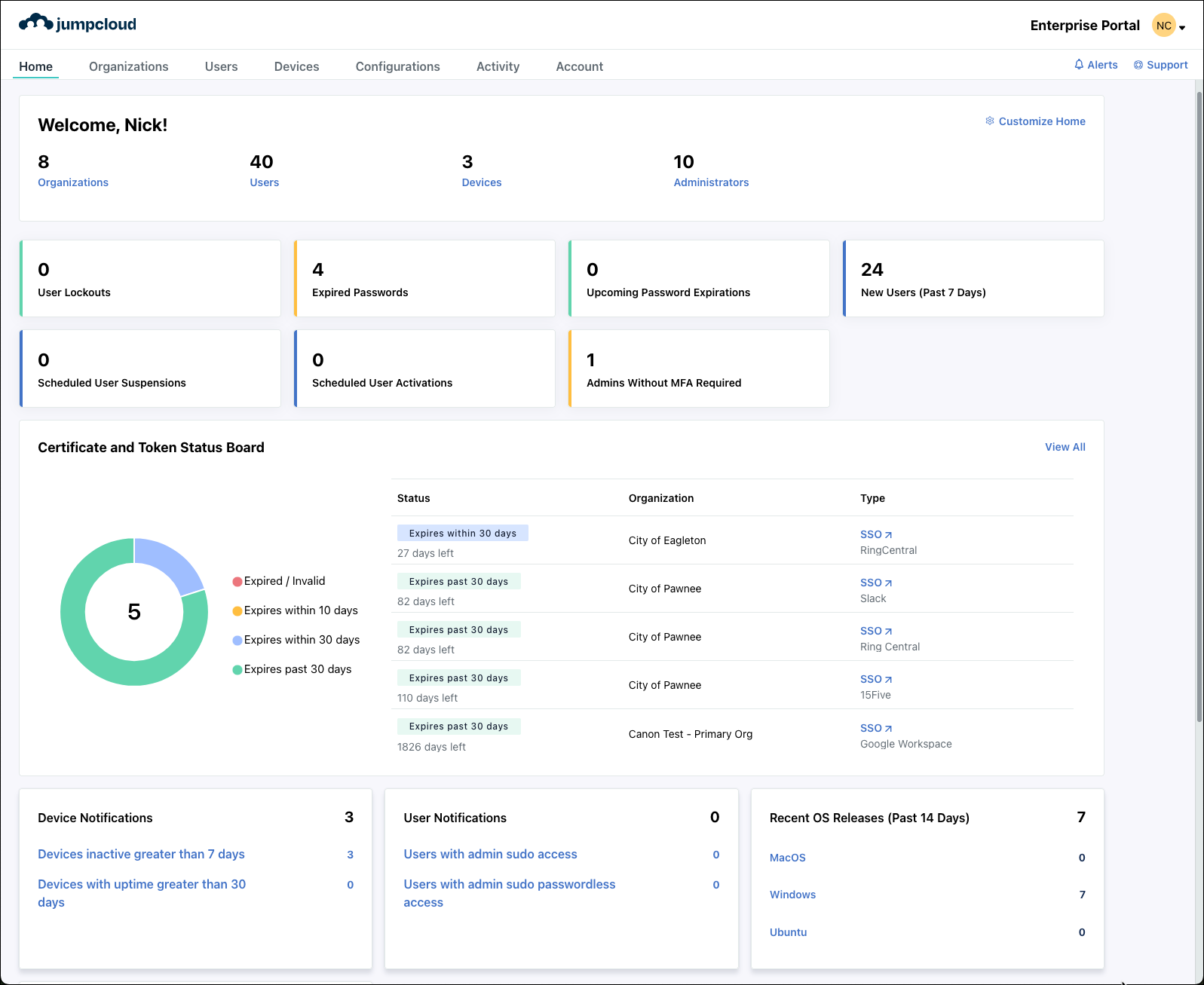
To access your org’s Enterprise Portal:
- Log in to the JumpCloud Enterprise Portal.
If your data is stored outside of the US, check which login URL you should be using depending on your region. If your organization uses LDAP, RADIUS, or requires firewall allow list configuration, the Fully Qualified Domain Names (FQDNs) will also be region specific. See JumpCloud Data Centers for the URLs, FQDNs, and IP addresses.
- The Enterprise Portal Dashboard has seven main tabs:
- Home
- General overview of all managed orgs, devices, Admins, and Users.
- Organizations
- Create, launch, view, and manage your orgs.
- Users
- View all existing users, add new, or perform a variety of other actions for users.
- Devices
- View all existing devices, add new, or perform a variety of other actions for devices.
- Configurations
- View, create, and manage SSO applications and Active Directory Integrations (ADI).
- Activity
- View and download activity insights for your Enterprise Portal.
- Account
- View and manage the account overview. Admins with Billing will see Payment information as well.
- Home
Homepage
The Homepage is your primary dashboard for at a glance information about all the orgs, users, devices, and Admins that you administer across all managed orgs. Enterprise Portal Admins can view info about every org’s user data including User Lockouts, Expired Passwords, Upcoming Password Expirations, New Users (Past 7 Days), Devices Inactive Greater Than 7 Days and more.
To learn how to use the Homepage, see Enterprise Portal Homepage.
The Alerts dashboard displays a summary of all the alerts generated across different orgs, see Device Monitoring and Alerting in the Enterprise Portal to learn more.
The Mobile Device Management (MDM) Certificate and Token Status Board saves Enterprise Portal Admins time trying to figure out when each of their tokens or certificates for MDM, SSO and Entra ID are expiring soon to prevent disruption for their users. This feature also gives an aggregate view of all managed orgs’ tokens and certificates and the status of each. See MDM Certificate and Token Status Board in the Enterprise Portal to learn more.
Organizations Tab
JumpCloud uses the term Organizations, which, for certain use cases, are the equivalent of Organizational Units (OUs).
Admins can manage multiple orgs within the JumpCloud Enterprise Portal. Once an org is added, view details for the org and perform other actions. Use this capability to easily create orgs that are linked to your company as managed orgs.
To learn how to use the Organizations tab, see Manage Organizations in the Enterprise Portal.
Admins can also save valuable time setting up new orgs by cloning from an existing org, see Clone an Organization in the Enterprise Portal to learn more.
Users Tab
Admins can see all of the users they manage across all orgs in the Enterprise Portal, and quickly take action to resolve any issues. Enterprise Portal Admins can filter by User State, Organization, or Role to quickly see which users need help and select from options like unlocking accounts, suspending users or forcing a password change.
To learn how to use the Users tab, see Manage Users in the Enterprise Portal.
Devices Tab
Enterprise Portal Admins can see all of the devices they manage across all orgs, and quickly take action to resolve any issues. Enterprise Portal Admins can filter by Organization, Status, or Device OS to quickly see which devices need help and select from options like locking, restarting or shutting down devices. Remote Assist can also be started from here.
To learn how to use the Devices tab, see Manage Devices in the Enterprise Portal.
Admins can save valuable time and reduce errors when running custom commands on devices across many orgs by creating command templates. These can be accessed, and applied to any managed orgs, instead of manually configuring commands for each one. See Manage Command Templates in the Enterprise Portal and Run Ad Hoc Commands on Devices in the Enterprise Portal to learn more.
On top of running commands, Enterprise Portal Admins can also save valuable time and resource costs onboarding new users by creating policy group templates. Instead of manually configuring a new policy group for each user, Admins can create, access, and apply these policy groups to any of their orgs. See Policy Group Template Gallery to learn more.
Administrators Tab
Enterprise Portal Admins can manage Admin accounts across all orgs within the JumpCloud Enterprise Portal. After adding an Admin, you can view their details and perform a variety of other actions like requiring Multi-Factor Authentication (MFA), suspending/restoring accounts, and resetting passwords. Admins can select specific permission and access levels for their Enterprise Portal Admins. This establishes more structured security for IT to service their customers to their exact preferences.
To learn how to use the Administrators tab, see Manage Admins in the Enterprise Portal.
To learn about different roles available, see Manage Administrator Roles and Access in the Enterprise Portal.
Activity Tab
View and download activity insights from the Enterprise Portal. Customize the view by using the filter options to specify what information you’re looking for.
To use the Activity Tab:
- Once logged into the Enterprise Portal, click Activity.
- You can filter by the dropdown menus at the top; Time Range, Event Type, or Initiated By, then click Apply.
- Click Download to save the report locally.
Account Tab
The Account tab has important information like Provider ID and security settings like MFA requirements.
To use the Account tab:
- Once logged into the Enterprise Portal, click Account.
- There are two pages;
- Account Overview:
- Provider ID:Click the 'eye' icon to view it, or the 'double page' icon to copy it directly to your clipboard.
- API Key and Expiration Date: Your API key is disabled by default. If API keys are enabled for your account, you will only have access to it at the time it was created. You can also set an expiration date for your API key.
- Settings: You can enable Global MFA Requirement for all Admins from here. See Manage Admins in the Enterprise Portal to learn more.
- Account Overview:
- API Keys are disabled for new Admins by default.
- Only Admins with Billing role are able to enable this for other Admins. If this is enabled and you haven’t generated an API key yet, you will have the option to Generate API Key. API Keys are only available at the time they’re created. Make sure to store it in a secure place, like JumpCloud’s Password Manager so you can access it when you need it.
- You can Generate New API Key at any time, however it will revoke access to the current API key and render all calls using the previous API key inaccessible, and you will need to update integrations with the new API key. See JumpCloud APIs for a list of affected integrations.
Enterprise Portal More Actions Menu Clicking your initials in the Enterprise Portal launches the More Actions menu with options for passwords, User Portal, API keys, and log out.
To use the Enterprise Portal more actions menu:
- In the top right corner, click your initials.
- The dropdown menu has multiple options to select from:
- Change Password
- Launch User Portal
- My API Key
- Logout
Enterprise Portal Dropdown Menu
To use the Enterprise Portal dropdown menu:
- Launch a managed org from the Enterprise Portal.
- From the Admin Portal of that managed org, in the top right corner click the name of the org to open the Enterprise Portal dropdown menu. All of your managed orgs are accessible from here.
- Click on any of them to launch their Admin Portal.
- This allows you to toggle back and forth easily between your managed orgs.
Support
Enterprise Portal Admins can get interactive support directly from their Enterprise Portal in a variety of ways, see Support in the Enterprise Portal to learn more.
Was this information helpful?