Enable Password Rotation for a Privileged Credential
Password rotation changes the password of a Privileged Credential on the server and updates it in JumpCloud Privileged Access Management (PAM). The password does not stay the same for long, and users never need to know it.
Password rotation uses a script on the server. The script changes the account password and sends the new password to PAM through the PAM API. Rotations then appear in the credential history.
Password rotation is available only for Privileged Credentials of the Password type that are linked to a Windows or Linux server.
This article covers how to enable password rotation and get the script. To install and run the script, see the article for your server type.
Prerequisites
- A Privileged Credential of the Password type, linked to a Windows or Linux server.
- Internet access on the server that rotates the password. It must reach the PAM API on port 443 so the script can authenticate and send the new password to PAM.
Allow outbound access from that server to the address for your JumpCloud organization data center:
| Data center | Address | Port |
|---|---|---|
| US | *.api.vault.jumpcloud.com | 443 |
| EU | *.api.vault.eu.jumpcloud.com | 443 |
| India | *.api.vault.in.jumpcloud.com | 443 |
If this connection is blocked, the script fails even when the credential and server are configured correctly.
Enable Password Rotation
The Password Rotation card is not shown when you add a credential. Add the Privileged Credential first, then edit it.
- In the JumpCloud Admin Portal, go to Access > PAM > Privileged Resources > Privileged Credentials.
- Click the name of the Privileged Credential.
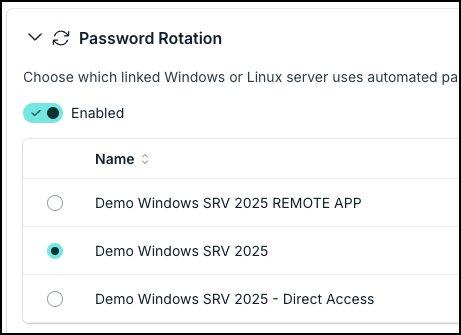
- Open the Password Rotation card and turn on Enabled.
- In the table, select the server that rotates the password. The table lists the Windows and Linux servers linked to this credential. You can select only one.
- Click Save.
Get the Script
Password rotation runs from a script on the server. The password changes only when the script runs. To automate it, run the script with a task scheduler such as Task Scheduler, cron, or systemd timers.
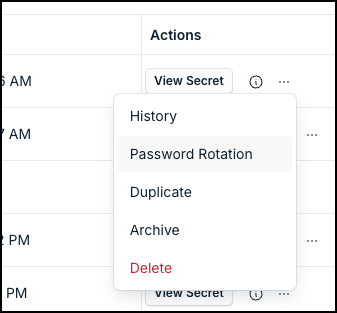
After you save, the three-dot menu of the credential has a new option, Password Rotation.
- In the Actions column of the credential, click the three dots and select Password Rotation.
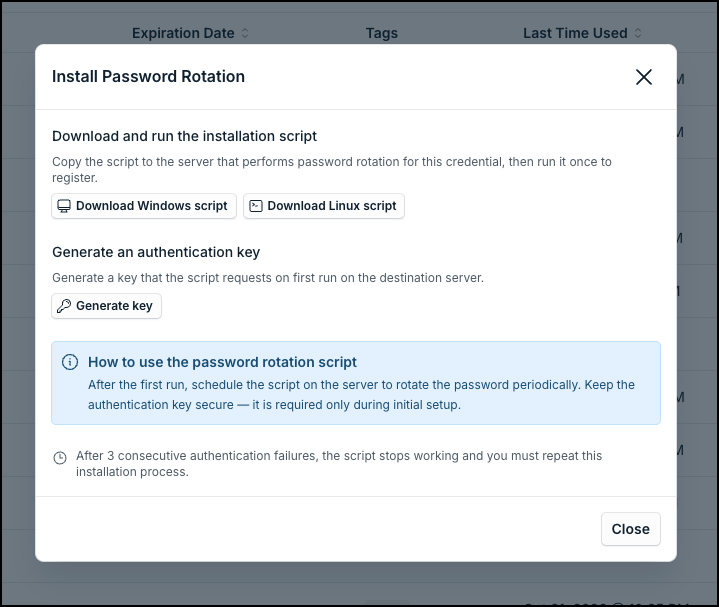
- In the Install Password Rotation window, click Download Windows script or Download Linux script, based on the server you selected.
- Click Generate key and copy the authentication key.
Copy the script to the server that rotates the password and run it once to register it. On the first run, the script asks for the authentication key. After that, schedule the script on the server to rotate the password on a regular interval.
Keep the authentication key secure. It is required only during the initial setup.
After 3 consecutive authentication failures, the script stops working. Repeat the installation process.
Check the Rotations
After the script starts rotating the password, the rotations appear in History in the three-dot menu of the credential.
Was this information helpful?