Edit Resource Manager Permissions
A Resource Manager groups administrators and defines what they can do with the Privileged Access Management (PAM) resources that you share with the group. After you share the resources, you can change the permissions at any time. For example, you can reduce a group of administrators from managing servers to only viewing them.
Permissions belong to the Resource Manager, so a change applies to all administrators in that Resource Manager.
Prerequisites
- The Resource Manager must exist, and the resources must already be shared with it. To create a Resource Manager and share resources, see Delegate Resource Management with Resource Managers.
Permissions
Each resource shared with a Resource Manager has one or more permissions.
| Permission | What the administrators can do |
|---|---|
| Manage | Manage and edit the resource. |
| View Details | View the details of the resource, without changing it. |
The window shows the permissions that are available for the type of resource that you select.
Editing the Permissions
-
In the Admin Portal, go to Access > PAM > Resource Managers.
-
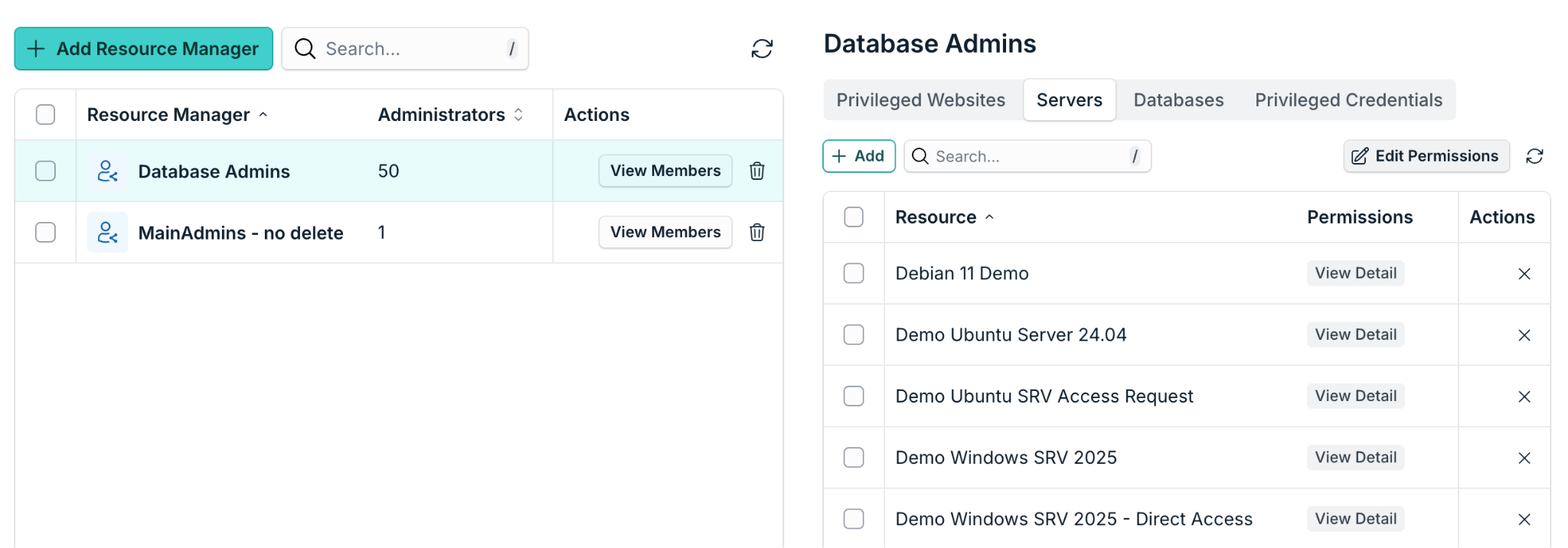
Select the row of the Resource Manager. A panel on the right shows the resources that are shared with it, in tabs by type: Privileged Websites, Servers, Databases, and Privileged Credentials.
-
Select the tab of the type of resource that you want to change.
-
Select Edit Permissions, at the top right of the table.
-
In the Edit window, on the left, select the resources to change. To select all of them, use the checkbox in the header of the list.
-
On the right, in Permissions, select or clear the permissions. For example, to give administrators only read access to servers, clear Manage and keep View Details.
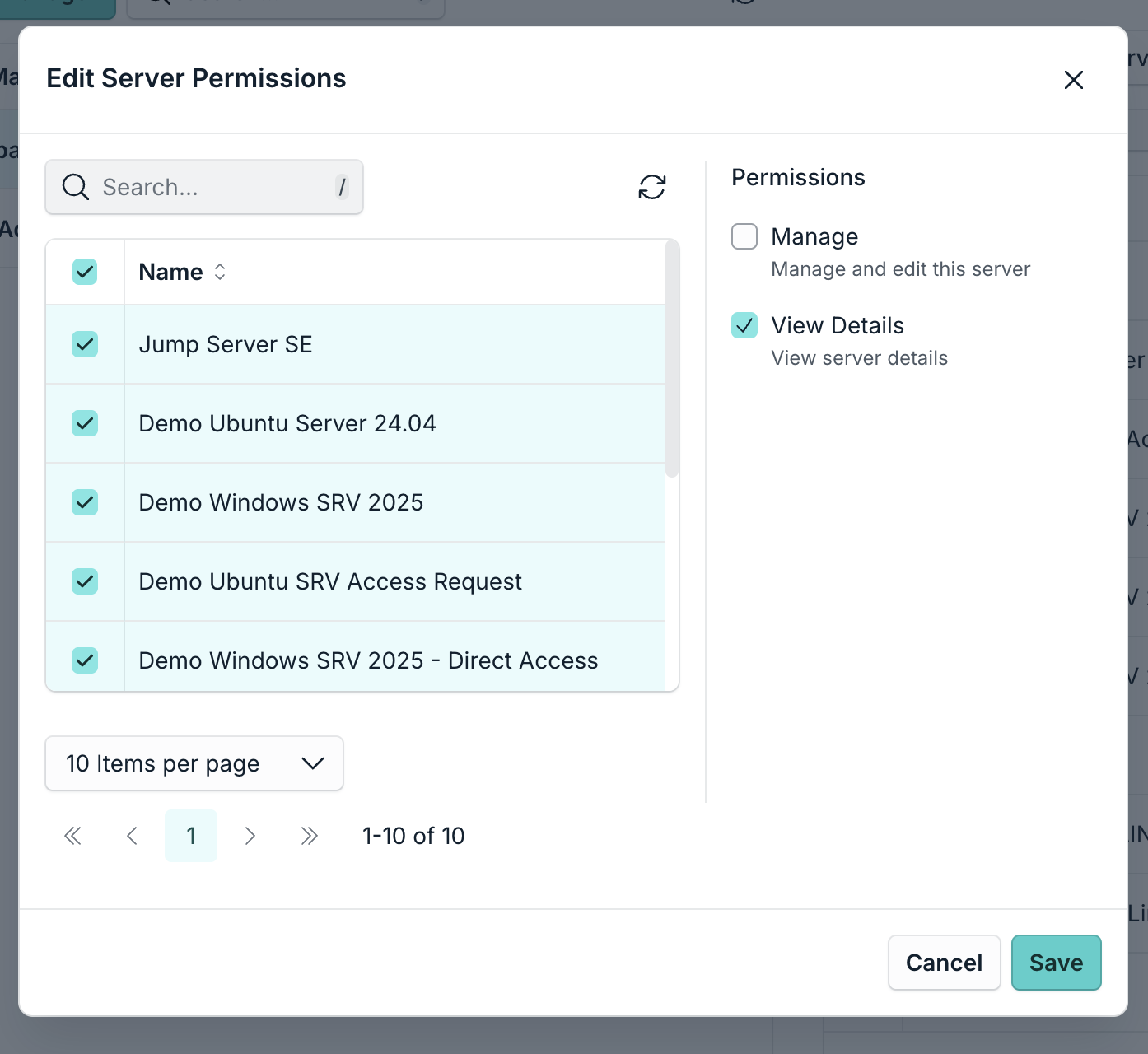
- Select Save.
The table now shows the new permissions for each resource. From this moment, all administrators in the Resource Manager have only these permissions on the selected resources.
Best Practice
Because permissions are defined for the whole Resource Manager, administrators who need different levels of access belong in different Resource Managers. For example, create one Resource Manager for administrators who manage servers, and another for administrators who only view them. To see who is in a Resource Manager, select View Members in its row.
Was this information helpful?