Device Patch Report
The Device Patch Report (Windows) gives IT Admins per-device visibility into Windows Knowledge Base (KB) patch installation status in the JumpCloud Admin Portal. Use this report to see which KB updates are installed, pending, or failed on each Windows device, and to download results for compliance and audit workflows. The report is auto-populated from existing patch data. No manual data entry is required.
Prerequisites
- The JumpCloud agent must be installed and running on Windows devices so that patch data can sync. See Install the Windows Agent.
Supported Platforms
- Windows devices managed by JumpCloud with KB patch inventory available for the device.
Accessing the Device Patch Report
- Log in to the JumpCloud Admin Portal.
- Go to Insights > Reports. The JumpCloud Reports list displays.
- Search and click Device Patch Report (Windows) in the Name column to open the report preview.
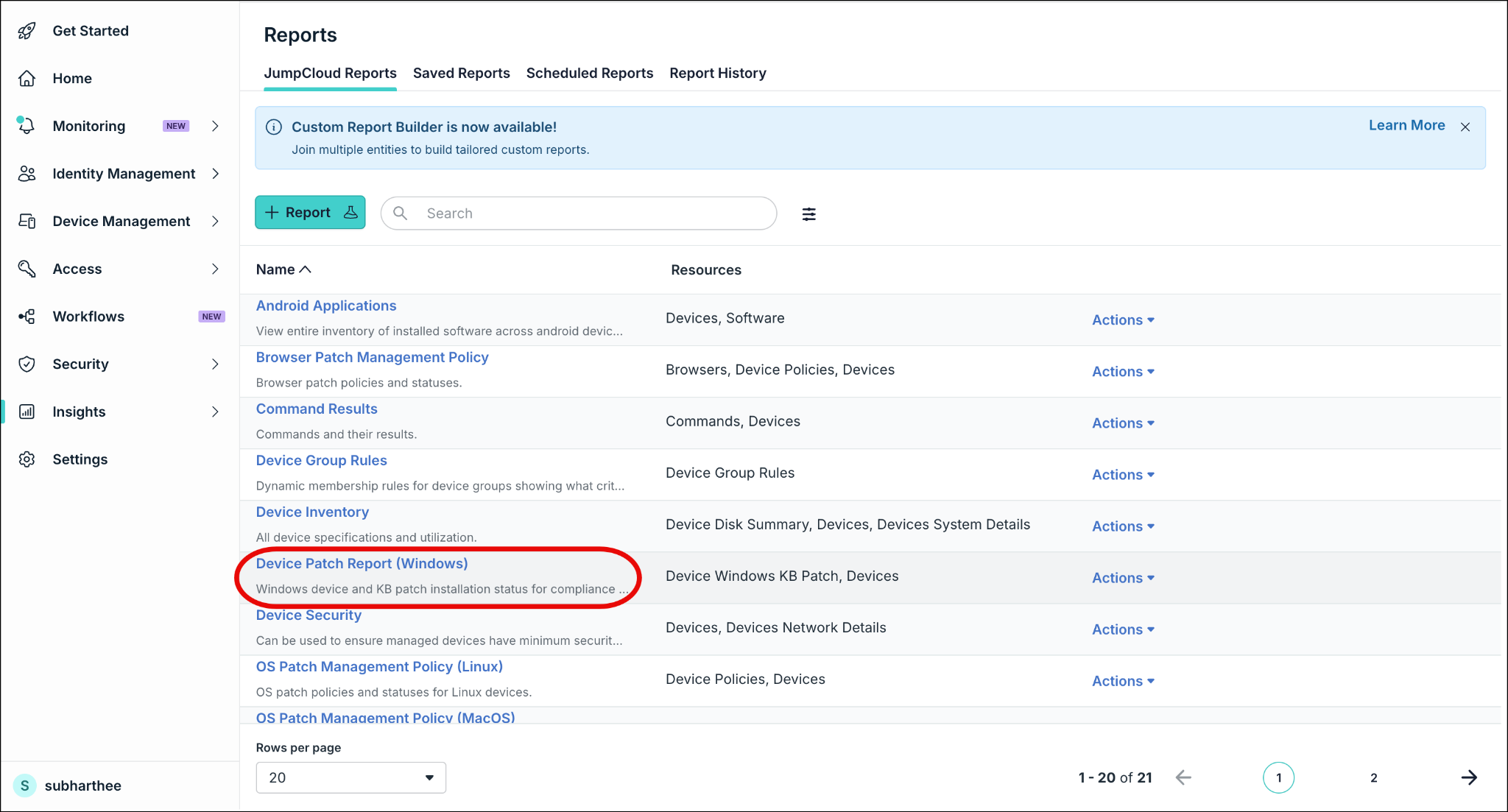
You can use the filter icon next to the Search bar on the Reports list to narrow available reports by resource. See JumpCloud Reports for general Reports list behavior.
Editing Report Columns
Use Edit Columns to choose which fields appear in the preview. Columns available for this report include device fields and KB patch fields.
Device-oriented columns visible in the Admin Portal include:
| Column | Description |
|---|---|
| Device Display Name | The display name of the Windows device. |
| Hostname | The hostname reported for the device. |
| Hardware Serial Number | The hardware serial number of the device. |
| Operating System Edition | The Windows OS edition on the device. |
| OS Version | The OS version reported for the device. |
| Device Last Contact | The last contact time for the device. |
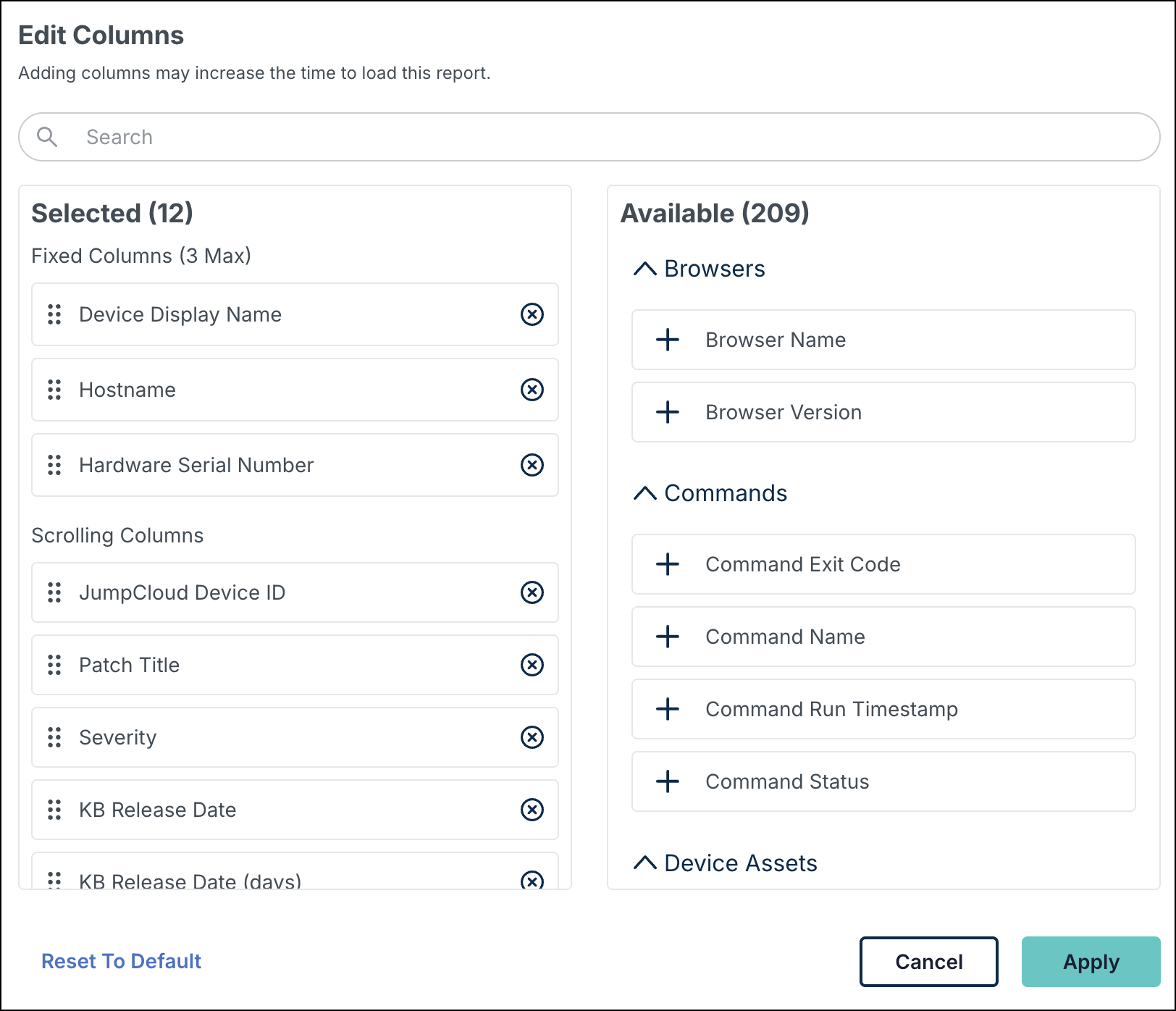
Preview and CSV export use the same row grain: one row per device and KB. Rows without a KB Number or Patch Title are excluded.
Filtering the Device Patch Report
- Log in to the JumpCloud Admin Portal.
- Go to Insights > Reports.
- Open Device Patch Report (Windows).
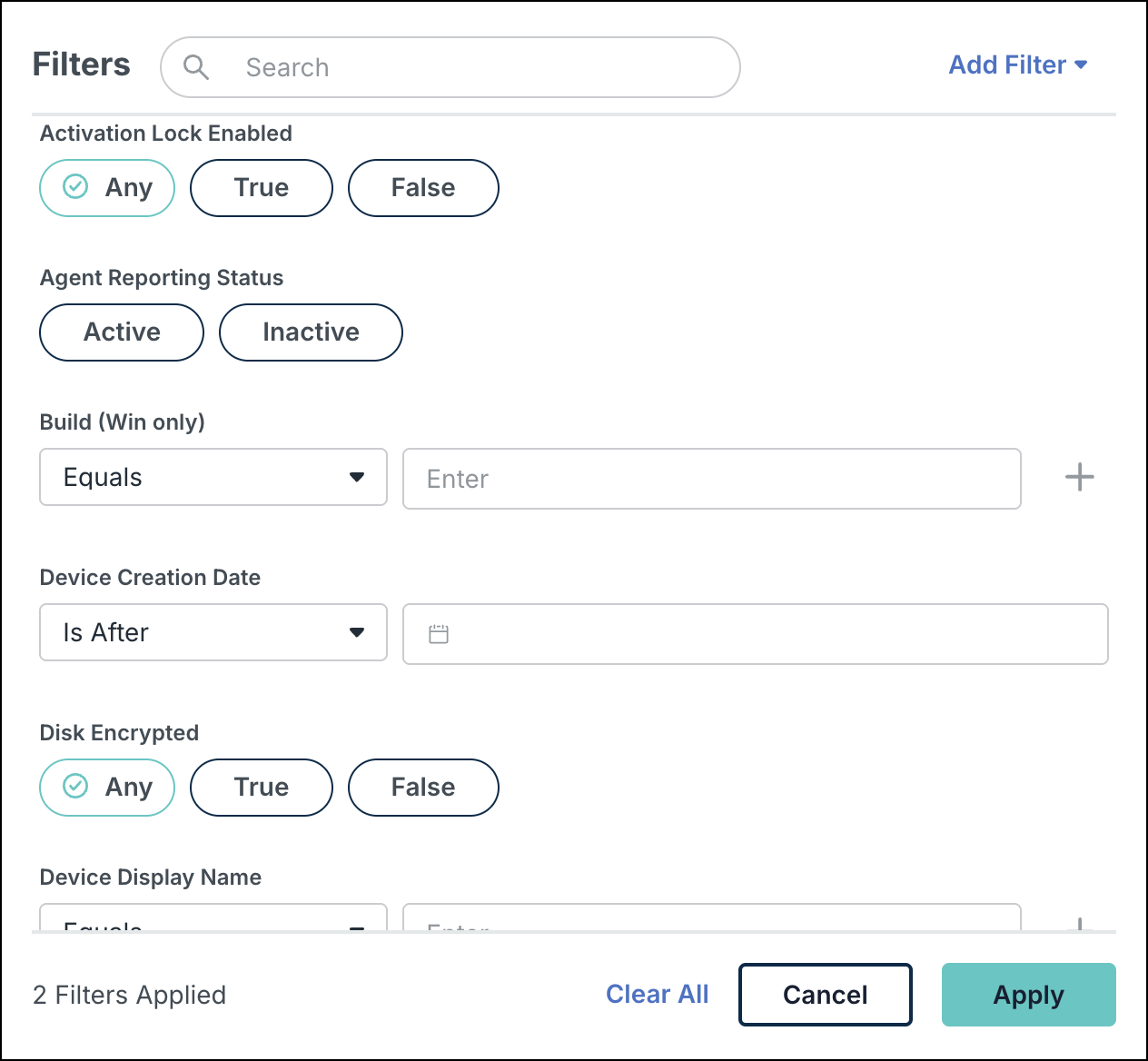
- Click Filter.
- Apply the filters you need, then review the Applied Filters area.
- (Optional) Click Show More to expand the applied filter list.
- (Optional) Click Clear All to remove applied filters.
Running and Previewing the Device Patch Report
Use preview when you need to confirm columns, filters, and sample rows before downloading the full export.
- Log in to the JumpCloud Admin Portal.
- Go to Insights > Reports.
- Click Device Patch Report (Windows) in the Name column.
- Review the preview results in the Admin Portal.
- (Optional) Click Edit Columns to change which columns appear.
- (Optional) Click Filter to narrow the preview results.
Preview is capped at up to 500 rows. If your organization has more device and KB pairs, or if preview times out, use Download to retrieve the full set.
Downloading the Device Patch Report
Admins can download the Device Patch Report (Windows) to get the complete data set for compliance and audit use. Download returns the full organization result set, not only the preview subset.
- Log in to the JumpCloud Admin Portal.
- Go to Insights > Reports.
- Open Device Patch Report (Windows).
- Click Download, or open the Actions dropdown menu and choose the download option.
- Select the export format.
Product acceptance criteria specify CSV download. Confirm whether additional formats appear in the Download menu in your environment.
Handling a Report Timeout
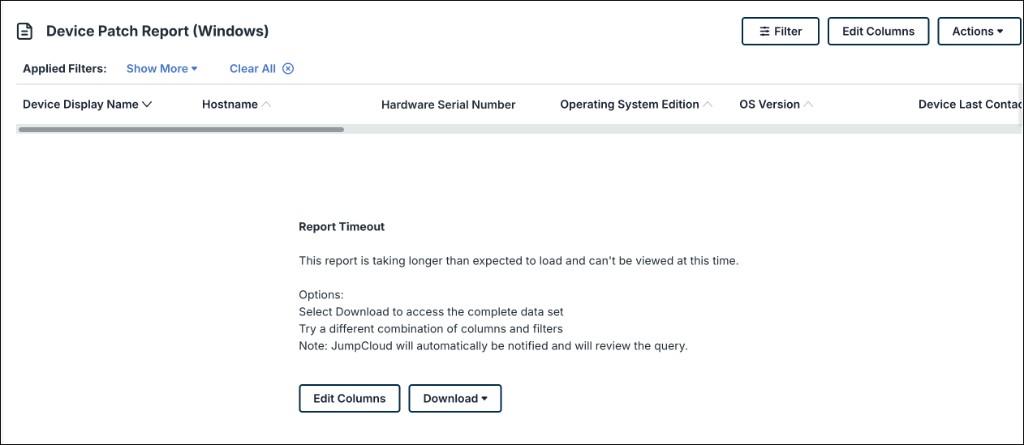
If the preview cannot finish loading, the report page shows a Report Timeout message instead of data rows.
When Report Timeout appears:
- Message: This report is taking longer than expected to load and can't be viewed at this time.
- Select Download to access the complete data set.
- Try a different combination of columns and filters.
- JumpCloud is automatically notified and will review the query.
Recovering from a Report Timeout
- On the Report Timeout message, click Download to export the complete data set.
- (Optional) Click Edit Columns, reduce the selected columns, then reload the preview.
- (Optional) Click Filter, apply a narrower filter set, then reload the preview.
- (Optional) In Applied Filters, click Clear All, then reapply only the filters you need.
Interpreting Status Values
Use the Status column to prioritize remediation.
| Status | Meaning |
|---|---|
| Installed | The KB is installed on the device. |
| Pending | The KB is not yet installed and remains pending on the device. |
| Failed | Installation of the KB on the device failed. |
Relating the Report to the Windows KB Management Dashboard
Sample rows in the Device Patch Report (Windows) are intended to align with Windows KB patch data shown on the Windows KB Management dashboard under Device Management > Patch Management. Use the dashboard for interactive compliance charts and device actions. Use the Device Patch Report (Windows) when you need a downloadable, per-device KB status export.
For dashboard orientation, see Get Started: Unified Patch Dashboard to learn more.
Saving or Scheduling Device Patch Report
JumpCloud Reports supports saving customized reports and scheduling delivery for many reports. For Device Patch Report (Windows), save-as-new and schedule behavior depends on whether those Reports platform controls are enabled for your organization.
- Log in to the JumpCloud Admin Portal.
- Go to Insights > Reports.
- Open Device Patch Report (Windows).
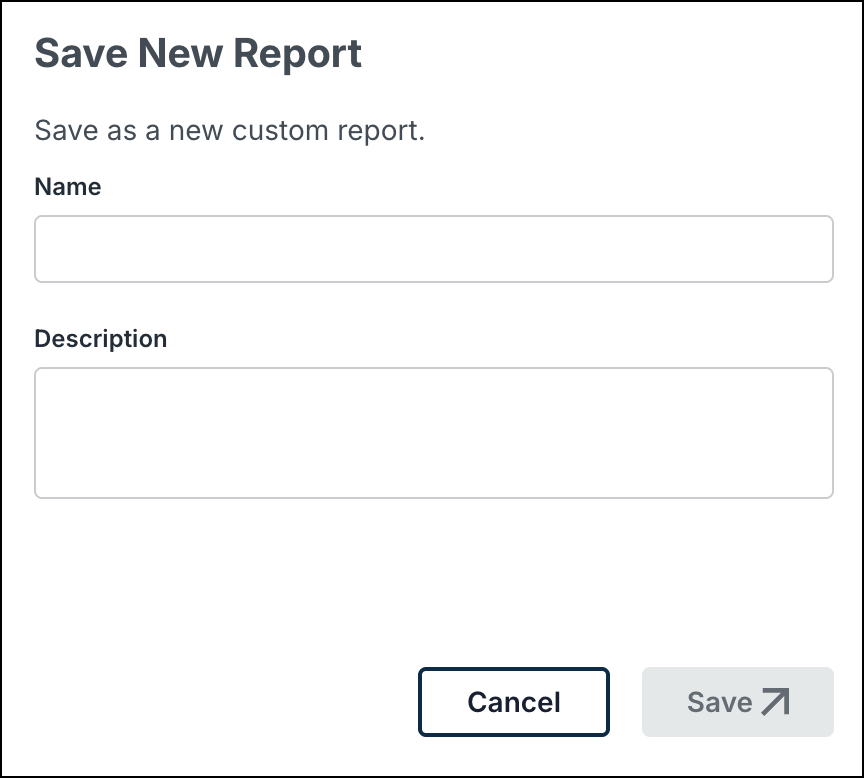
- (Optional) Click Actions > Save As New to save a customized view, if available.
- (Optional) Click Actions > Schedule Report to schedule delivery, if available.
For general scheduling steps, notification channels, and report history, see JumpCloud Reports and Scheduling a Report.
Was this information helpful?