Manage the specific setup and configuration requirements for Windows, Apple, and Android devices of your organizations in the Enterprise Portal.
Terminology:
- Enterprise Portal: Portal where Enterprise Admins manage settings for multiple organizations under one Enterprise Configuration. Differs from the JumpCloud Admin Portal, which is for one organization
- Enterprise (formerly Enterprise Configuration): Centralized hub for all the organizations' objects in the Enterprise Portal. Items can be created and shared for organizations in the Enterprise Portal from this hub
- Organizations: A division of the enterprise (for example a region or a country) that maintains its own users, devices, and resources
- Enterprise Administrator: Admin who has full access to all orgs and enterprise resources
- Organization Administrator: Admin whose access is limited to explicitly granted orgs
Enterprise Portal Admins can see all of the devices they manage across all orgs in the Enterprise Portal, and quickly take action to resolve any issues. You can filter by Organization, Status, or Device OS to see which devices require action and select from options like locking, restarting, or shutting down devices. You can also start Remote Assist from here. See Manage Devices in the Enterprise Portal to learn more.
Windows MDM
Admins can enroll devices in Windows MDM using one of the following methods:
- Using the JumpCloud Agent
- See Use Windows MDM (Admin) to learn more.
- Installing and setting up provisioning packages
- See Create a Provisioning Package to learn more.
- Allowing User Enrollment: Users can log into the User Portal from their Windows device and enroll the device in MDM.
- See Use Windows MDM (End User) to learn more.
Each device enrolled in Windows MDM will be associated with its specific organization.
Apple MDM
Apple Push Notification Service (APNs) Configuration
The Apple Push Notification Service (APNs) certificate will be configured and managed in the MDM tab of the Enterprise Configuration only. See Configuring MDM to learn more.
Considerations:
- Every Organization will inherit the APNs configuration from the Enterprise Configuration. This configuration will be visible under Organizations, but it will not be editable.
- APNs certificates need to be renewed yearly to continue to securely manage and communicate with Apple devices.
- Enrollment profiles are not available for download at the Enterprise layer because devices cannot enroll in this layer. To download the enrollment profile, you must be in an Organization.
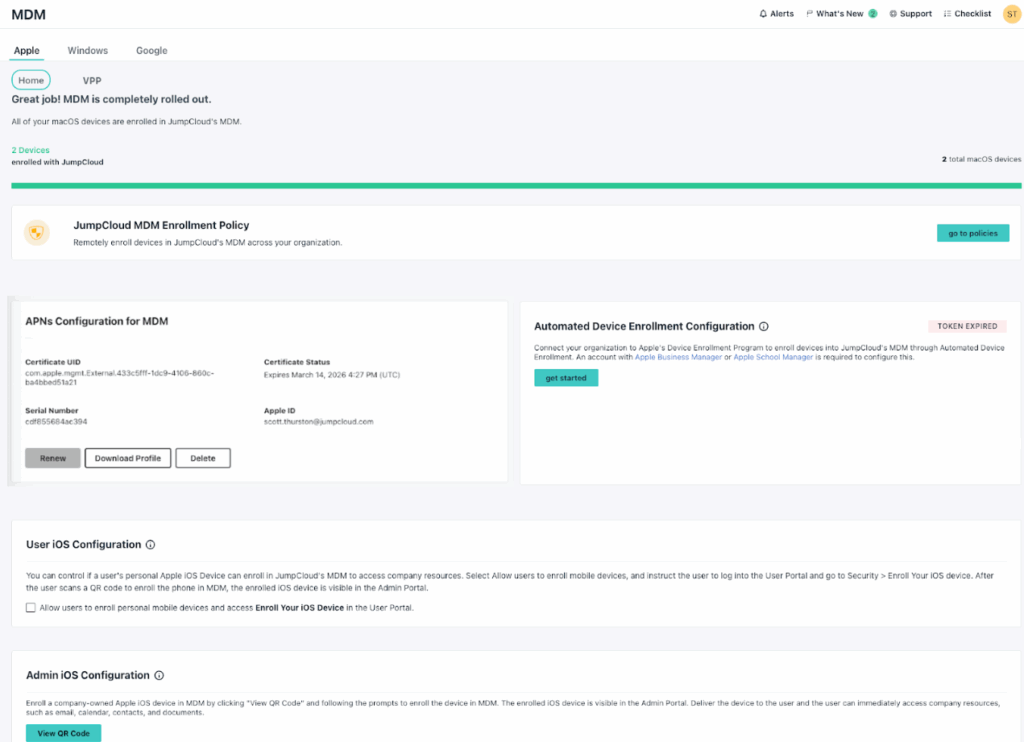
Automated Device Enrollment (ADE) Configuration
For organizations using Automated Device Enrollment (ADE), configuration requires linking JumpCloud to a unique Device Manager Service in Apple Business via a JumpCloud-generated key.
Considerations:
- ADE configurations are not shared between Organizations. Each Organization admin will need to configure ADE and the desired enrollment experience for macOS, iOS and iPadOS.
- Automated Device Enrollment routing is determined by the Device Management Service tied to each Organization. When a device enrolls, it automatically lands in the Organization associated with its registered Device Management Service.
To configure ADE, see Configure Automated Device Enrollment to learn more.
To create a Device Manager Service in Apple Business:
- Log into Apple Business, select your profile name, then select Preferences.
- Click on Device Management Services, then click Add.
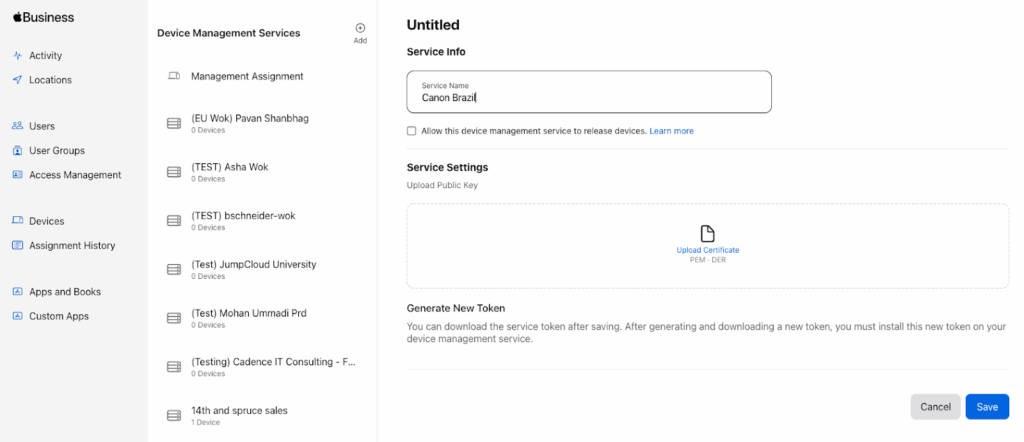
After creating and linking the Device Management Service, the Organization Admin can configure the end user’s setup experience for macOS and iOS/iPadOS enrollments that use ADE.
To configure the ADE user enrollment experience:
- In the JumpCloud Enterprise Portal, go to Device Management > MDM.
- From the Apple tab, under Automated Device Enrollment Configuration,click either Configure MacOS or Configure IOS And IPadOS.
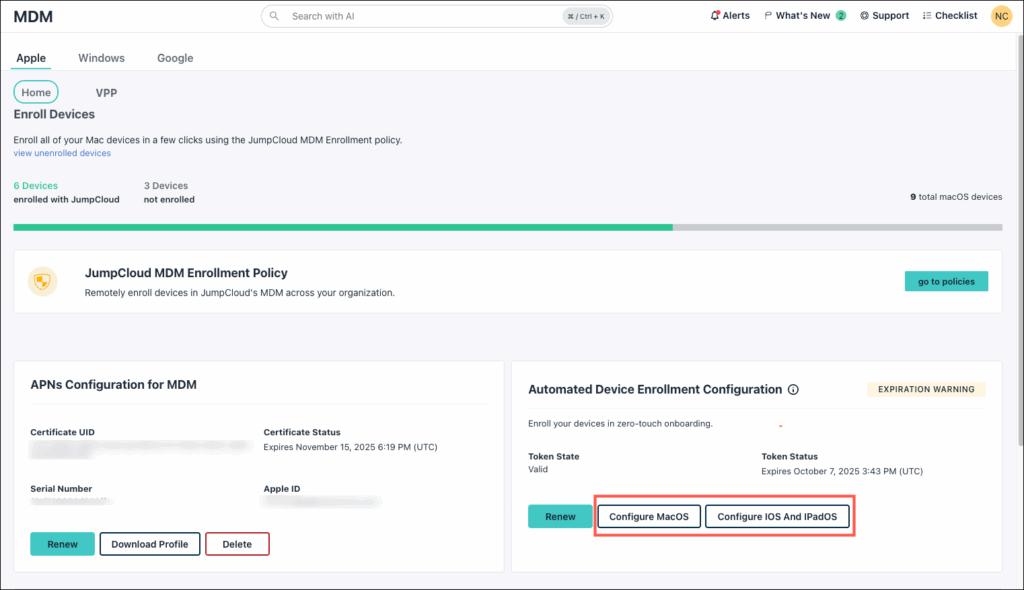
Once the Organizations are set up with their respective ADE connection and the associated enrollment settings, device records in Apple Business need to be assigned to the correct Device Management Service.
The Device Manager token expires after one year and will need to be renewed for automated device enrollments to continue working.
Apple VPP Configuration
Apple’s Volume Purchase Program (VPP) tokens added at the Enterprise Configuration layer automatically share down to all Organizations, allowing each Organization to deploy App Store applications on Apple devices. See Manage Software with Apple's VPP to learn more.
Considerations:
- Each Organization can have multiple Apps & Books (VPP) content tokens added from different Apple Business Organizational Units. However, these tokens cannot be shared across different Organizations.. The content tokens also need to be renewed once yearly.
- Licenses for public and Custom/B2B applications must be purchased and allocated separately for each unique Organization in Apple Business.
Additional Apple MDM Resources:
Android EMM
Android Enterprise Registration in Enterprise Configuration
Android EMM registration and configuration takes place under the MDM > Google tab of the Enterprise Configuration only. See Set Up Android EMM to learn more.
The ability to delete an Android EMM registration is exclusively available within the Enterprise configuration.
Turning On Google Authentication for an Enterprise
If Organization Admins require end-user device authentication during the enrollment process, they must enable Google Authentication within the Google Admin Portal. See Configuring Device Authentication to learn more.
To turn on Google Authentication:
- Log in to the Google Admin Console.
- Go to Devices > Mobile & endpoints > Settings > Third-party integrations.
- Click the pencil icon next to the desired Android Enterprise Mobility Management (EMM) solution to edit it.
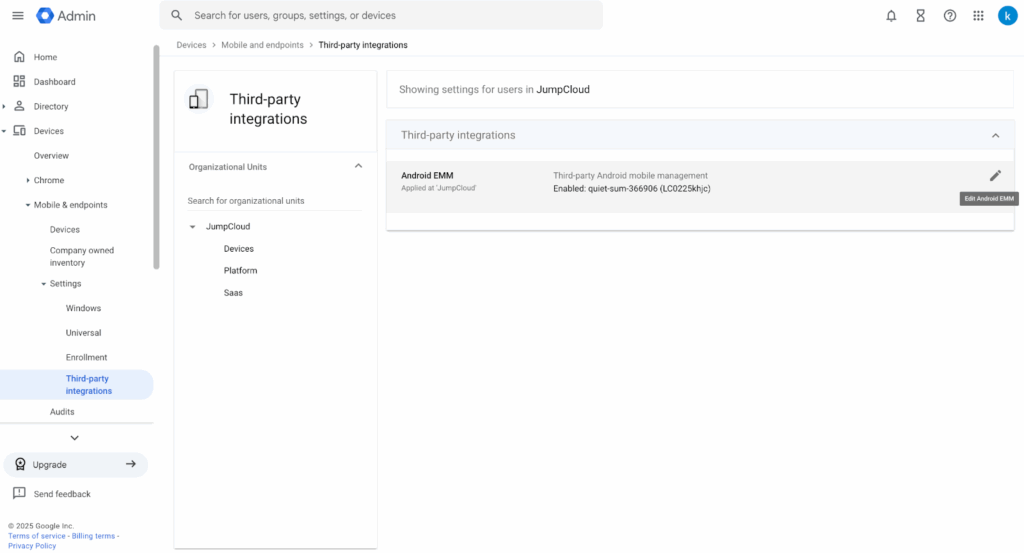
- Admins can enable/disable the integration by selecting or clearing the Enable third-party Android mobile management checkbox.
- Click Manage EMM providers.
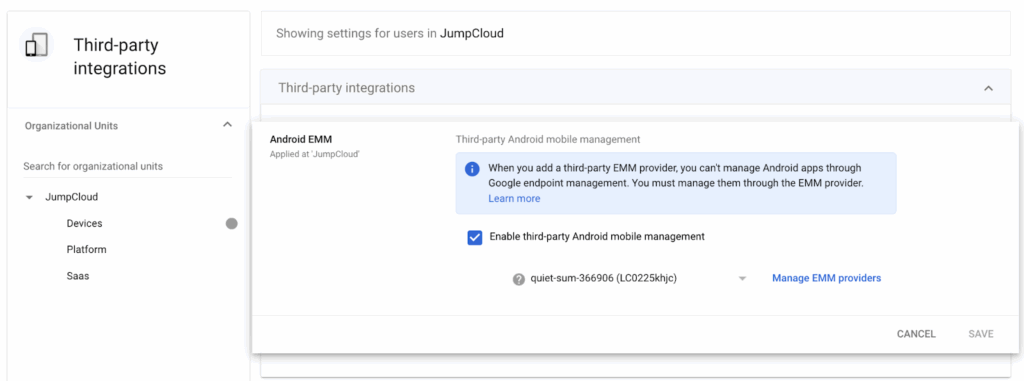
- A list of available EMM providers appears.
- Turn on the Authenticate Using Google option by toggling the button for the desired enterprise.
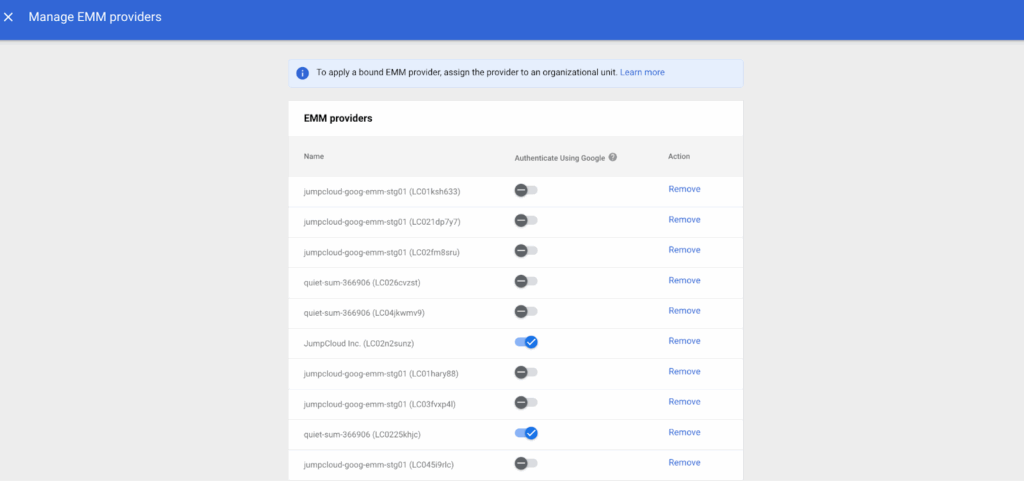
Enabling this feature will use your configured identity provider (IdP) to perform end user authentication, for example JumpCloud, Google, or another configured IdP.
Configuring Zero-Touch Enrollment
Each organization will need to enroll in Android Zero-Touch (ZTE) Portal individually.
From the JumpCloud Enterprise Portal, go to Device Management > MDM > Google. Then scroll down to the Android Zero-Touch Enrollment section, and click Launch Zero-Touch Portal.
Google controls the Admin roles and permissions within the Android ZTE Portal. IT Admins accessing the ZTE portal via JumpCloud may see a different scope of devices than what is configured through JumpCloud's RBAC settings.
Enrollment Tokens
Admins can generate enrollment tokens for devices within their respective organizations, see Adding Enrollment Tokens to learn more.
Ensure you’re using the correct tokens for your organization. Don’t use tokens created in one organization to enroll devices intended for another.
Commands, Policies, and Software Management
Enterprise Portal Admins have comprehensive control over all enrolled devices within their organization, encompassing Commands, Policies, and Software Management. See Managing Devices to learn more.
Commands: You can execute commands on Linux, macOS, and Windows devices. See Get Started: Commands to learn more.
Policies: Policies enable the customization of managed devices across various platforms, including Windows, macOS, iOS/iPadOS, Linux, and Android. See Get Started: Policies to learn more.
Software Management: In addition to Apple's VPP, software can be managed on Windows, macOS, Android, and iOS/iPadOS devices. See Get Started: Software Management to learn more.
Private and Web apps created within Google's Managed Google Play Store iFrame are universally accessible across all organizations and can be added to the available applications list for each respective organization.
Was this information helpful?