Create a Policy to Install JumpCloud Go Extension in Selected Browsers
Configure the policy to install the JumpCloud Go extension in your browsers on Windows, Mac, and Linux devices that use the JumpCloud agent.
Prerequisites
The computer must be running the JumpCloud agent.
If your Org uses Microsoft Intune, Chrome Browser Cloud Management (CBCM), or other MDM tools to manage browser settings, ensure those configurations align with this policy to avoid policy conflicts.
For Google Chrome, see Chrome: Using CBCM to Deploy the Extension to learn more.
If you’ve already installed the JumpCloud Go extension for Chrome via the Google Chrome Browser Force-Installed Extension List policy, it is still recommended to select the checkbox for Chrome browser while configuring this policy. This applies to only Windows devices.
Creating a JumpCloud Go extension Installation Policy
To create a Force-Installed Extension List Policy:
- Log in to the JumpCloud Admin Portal.
If your data is stored outside of the US, check which login URL you should be using depending on your region. If your organization uses LDAP, RADIUS, or requires firewall allow list configuration, the Fully Qualified Domain Names (FQDNs) will also be region specific. See JumpCloud Data Centers for the URLs, FQDNs, and IP addresses.
- Go to Device Management > Policy Management.
- In the All tab, click (+).
- On the New Policy panel, select the Mac or Windows tab.
- Select the Install JumpCloud Go Extension In Selected Browsers policy from the list, then click configure.
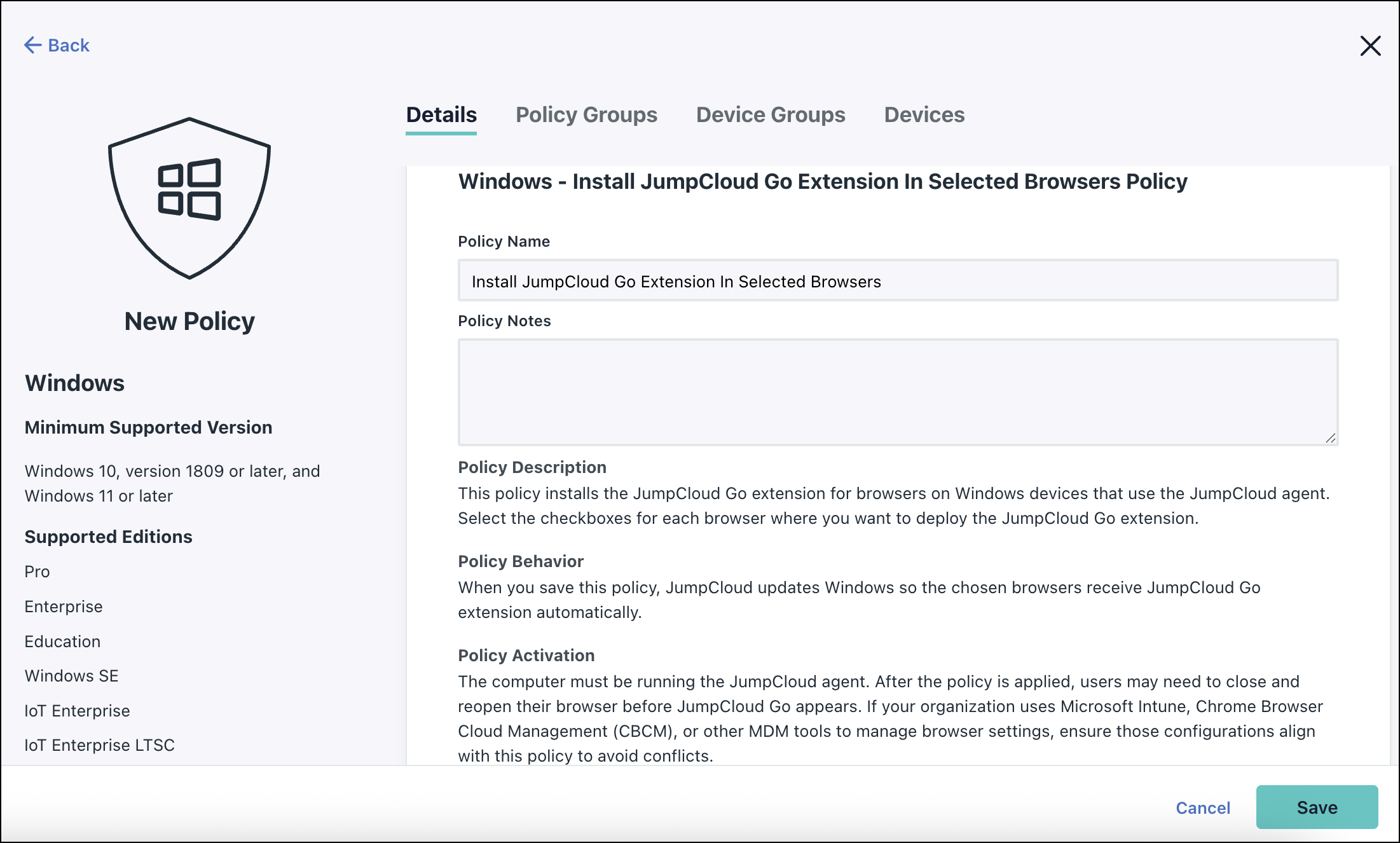
- (Optional) In the Policy Name field, enter a new name or keep the default. Policy names must be unique.
- (Optional) In the Policy Notes field, enter details like when you created the policy, where you tested it, and where you deployed it.
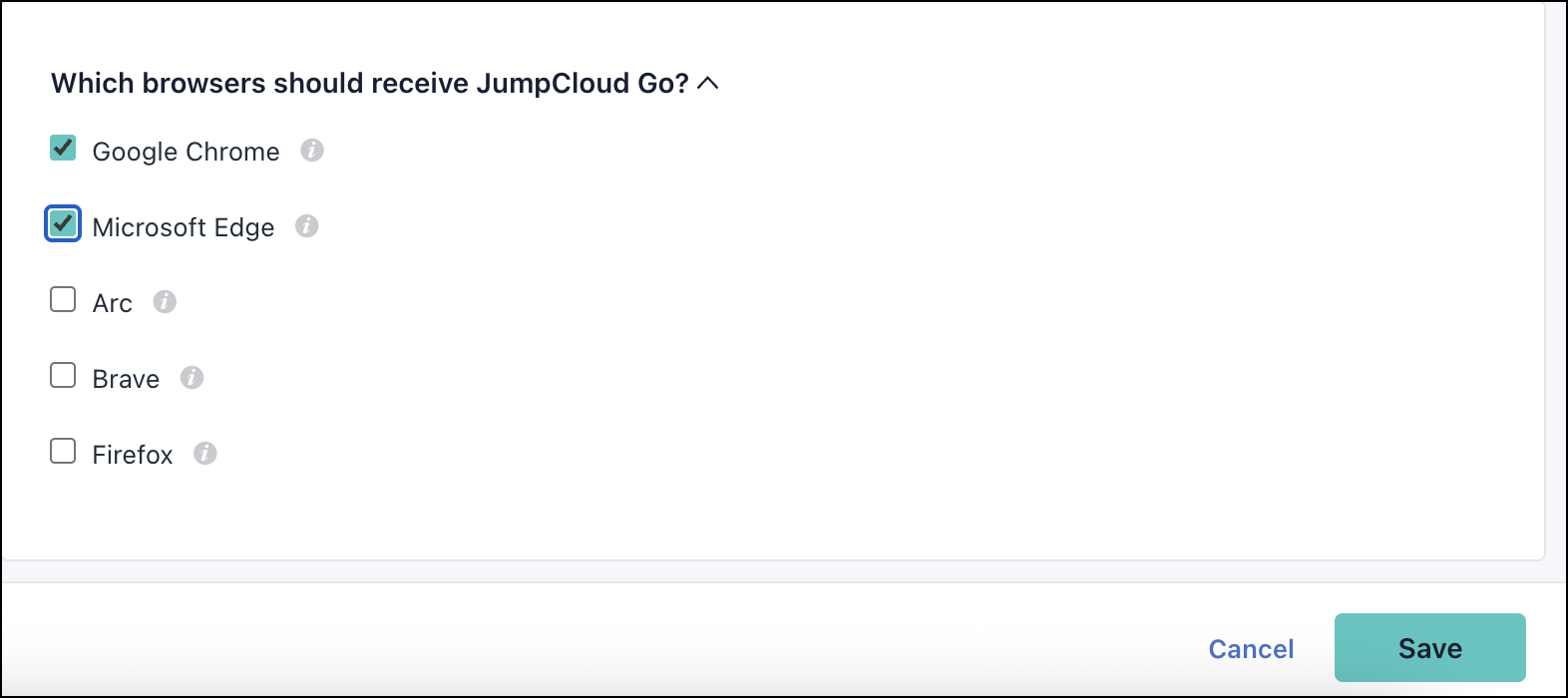
- Under Settings, select the checkboxes for browsers for which you wish to install the extension.
- Click the Devices tab to bind the policy to a device, or click the Device Groups tab to bind it to a group of devices.
- (Optional) Click the Policy Groups tab. Select one or more policy groups where you'd like this policy to be included.
After the policy applies, users may need to close and reopen their browser before JumpCloud Go shows up.
Migrating to this Policy
If you currently use the Google Chrome Browser Force-Installed Extension List policy only for JumpCloud Go, we recommend migrating to this new, dedicated policy.
This migration process is only for devices having the JumpCloud Go extension on Google Chrome browser.
To migrate to the new policy:
- In the existing Google Chrome Browser Force-Installed Extension List, Admins need to clear the JumpCloud Go checkbox under Jumpcloud Chrome Browser Extensions.
- Go to Device Management > Policy Management.
- Click (+).
- Search for Install JumpCloud Go Extension In Selected Browsers policy.
- Click Configure.
- In the Details tab, scroll down and select the supported browsers as required and assign the policy to a device group/devices.
JumpCloud Go appears automatically across Chrome, Edge, and Firefox on the selected devices.
Some orgs may have the Google Chrome Browser Force-Installed Extension List policy in place to deploy both JumpCloud Go and other extensions such as the JumpCloud Password Manager. In such a case, keep JumpCloud Go enabled in that existing policy and ensure the Chrome browser option is also selected in the new policy settings for consistent enforcement.
After deploying the extension, users may need to restart their browser for the policy to take effect.
Was this information helpful?