Create a Device Level Windows Self Service App Catalog Policy
Use the Windows Self Service App Catalog policy to control which devices can access the Self Service App Catalog from the JumpCloud Windows Tray App. By default, the catalog is visible to all users. Apply this policy to hide the catalog on specific devices or device groups.
This is a device level policy that applies system-wide to the device and all of its users. You can bind this policy to individual devices or device groups. For policies that apply to a specific user's profile across devices, see Get Started: Policies and Learn More section of this article.
Prerequisites:
- Windows devices running Windows 10, 11 or later.
- Supported editions: Pro, Enterprise, Education.
- The JumpCloud agent v2.153.5 must be installed and running on Windows devices. See Install the Windows Agent and JumpCloud Agent Compatibility, System Requirements, and Impacts.
Considerations:
- If this policy is not applied, the catalog is shown by default.
- Hiding the entire JumpCloud Windows Tray App with the JumpCloud App Controls policy also prevents users from opening the Self Service App Catalog. See Hide Windows Tray App Using a Policy.
- To apply a policy to a device, the device must be running on a supported OS. Before you assign a policy, follow the instructions in Get Started: Devices.
- To apply a policy to a group of devices, you must define device groups. Before you assign a policy, follow the instructions in Get Started: Groups.
Creating the Policy
To create a Self Service App Catalog policy for Windows devices, do the following:
Selecting the Policy Template
- Log in to the JumpCloud Admin portal.
If your data is stored outside of the US, check which login URL you should be using depending on your region. If your organization uses LDAP, RADIUS, or requires firewall allow list configuration, the Fully Qualified Domain Names (FQDNs) will also be region specific. See JumpCloud Data Centers for the URLs, FQDNs, and IP addresses.
- Go to Device Management > Policy Management. The Policy Management page is displayed.
- On the Policy Management page, click +Add New.
- Select Device Policy to assign the policy to devices and device groups. On the New Device Policy page:
- Select the Windows tab.
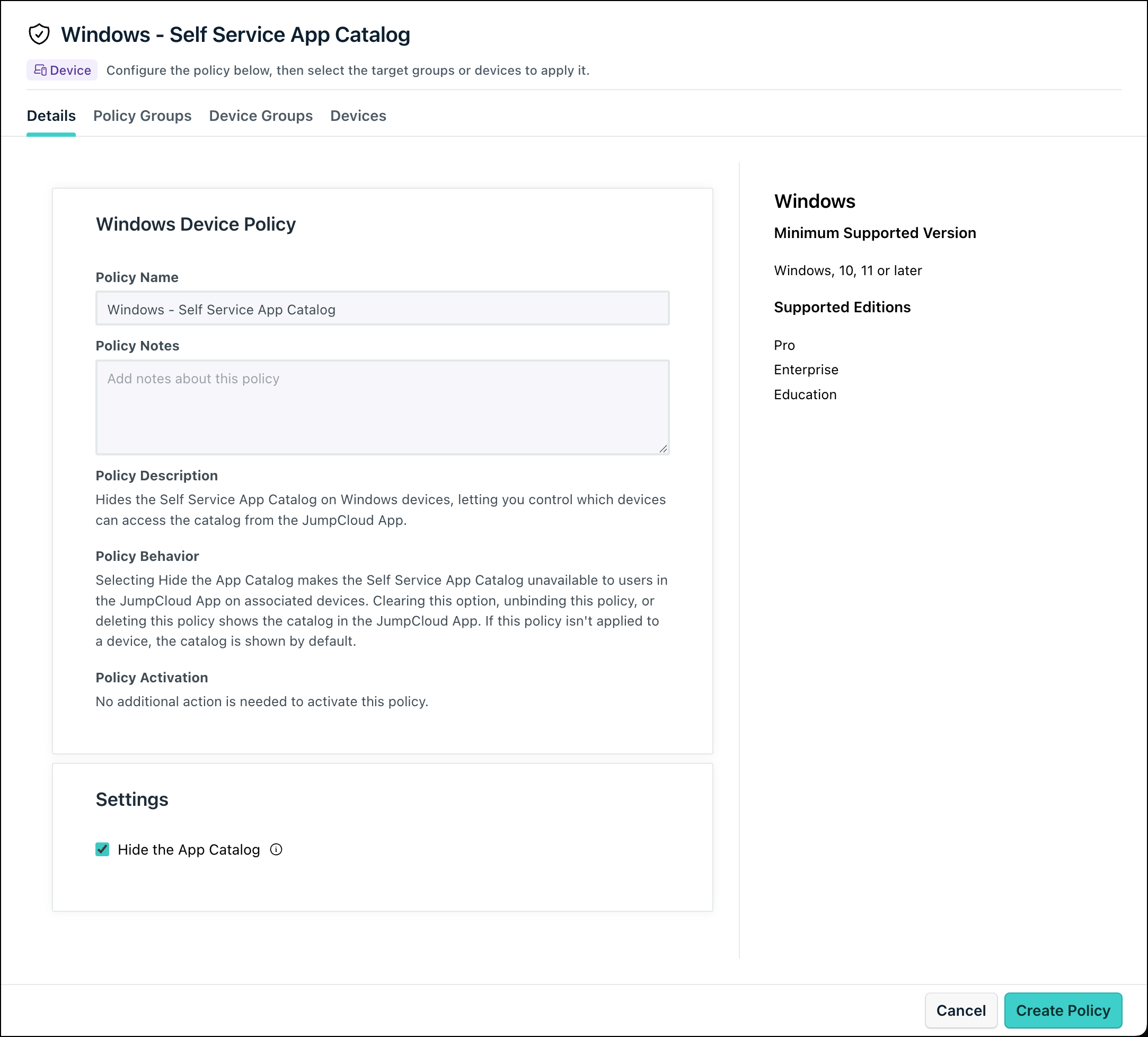
- Search and select the policy name and click Configure. The Details tab of the policy is displayed.
- On the Details tab, configure the required policy configuration settings.
- (Optional) In the Policy Name field, enter a new name for the policy or keep the default. Policy names must be unique.
- (Optional) In the Policy Notes field, enter details such as creation date of the policy, and information on testing and deployment of the policy.
Configuring the Policy
- Under Settings, select the Hide the App Catalog checkbox.
Selecting Hide the App Catalog makes the Self Service App Catalog unavailable to users in the JumpCloud App on associated devices. Clearing this option, unbinding this policy, or deleting this policy shows the catalog in the JumpCloud App. If this policy is not applied to a device, the catalog is shown by default.
Applying the Policy
- (Optional) Select the Policy Groups tab. Select one or more policy groups where you want to add this policy.
- Select the Device Groups tab. Select one or more device groups where you want to apply this policy to. For device groups with multiple OS member types, the policy only applies when a user logs into a supported Windows device that is enrolled in MDM.
- Or, select the Devices tab. Select one or more devices where you want to apply this policy.
- Click Create Policy. A success message is displayed indicating the completion of policy creation.
Viewing Policy Status
- Select the Statustab.
- To see the last Result Log for a device where this policy is applied, click view.
- If any errors occur, they're listed inExit Status. If you have an Exit Status of 0, no errors occurred when applying or enforcing this policy.
Was this information helpful?