Create a Custom Admin Role for PAM
PAM permissions are part of the admin roles of JumpCloud. When you create a custom admin role, the PAM Permission Category controls what an administrator can see and change in JumpCloud PAM: Privileged Resources, Privileged Credentials, Resource Managers, Blocking Rules, Jump Servers, User Groups, Session History and the PAM Overview.
Prerequisites
- Permission to create and edit admin roles in the JumpCloud Admin Portal.
- The name of the administrator who will receive the role.
The PAM menu needs View on Applications. PAM is integrated with other JumpCloud services. For an administrator to see PAM under Access in the Admin Portal, the role must include at least View in Application Management > Applications. Without it, the PAM menu does not appear, even when the role has PAM permissions.
Creating a Custom Admin Role for PAM
- In the JumpCloud Admin Portal, go to Settings > Administrators > Custom Roles.
- Create a new custom role and enter a name for it.
- Optional: in Choose Default Role as Template, select a default role to start with its permissions.
- In the Permission Category list, select PAM.
- Select the PAM permissions that the administrator needs. See PAM Permissions below.
- Select the Application Management Permission Category and, in Applications, select View. Without this permission, the administrator does not see PAM in the menu.
- Save the role and assign it to the administrator.
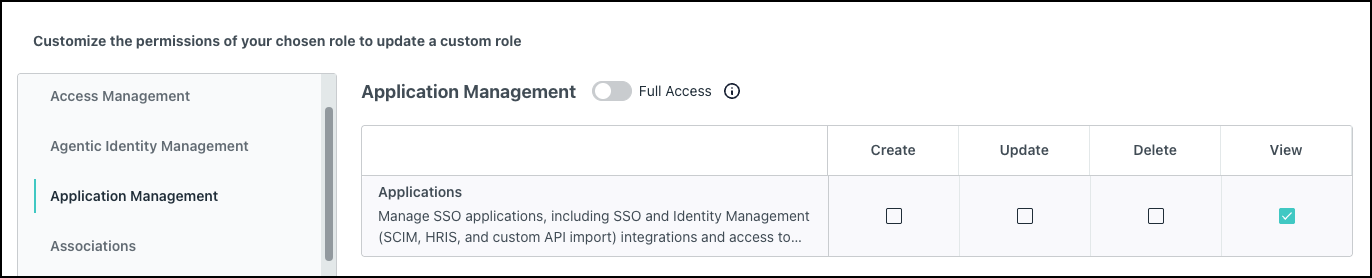
View in Applications does not allow the administrator to create or change SSO applications. In this role, it is only the access path to the PAM menu.
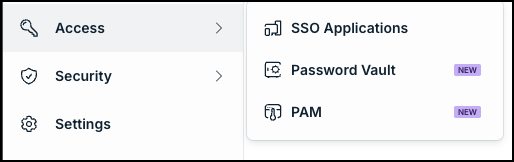
PAM Permissions
When no permission is selected, the administrator has no access to that area.
The Full Access toggle at the top of the PAM category selects all the permissions and locks them. Use it only for administrators who manage the entire PAM.
Create, Update, Delete and View
Each of these areas has four permissions. Select only the ones that the administrator needs.
| Area | What it controls |
|---|---|
| Privileged Websites | Manage the websites that users access with Web Shield or JumpCloud Go™. |
| Servers | Manage the servers that users access. |
| Databases | Manage the databases that users access. |
| Privileged Credentials | Manage the credentials that PAM uses to sign in to the resources. |
| Resource Managers | Associate administrators with Privileged Resources. |
| Blocking Rules | Manage the rules that block commands and queries. |
| Jump Servers | Install Jump Servers and see their health. |
| User Groups | Enroll user groups in PAM. Create enrolls or creates a group, Update changes the details, Delete removes the group from PAM and View lists the groups. |
Full Access, View or No Access
| Area | What it controls |
|---|---|
| Overview | The PAM Overview dashboard, with usage statistics and the health of the Jump Servers. |
| Session History | The recordings and the keystroke logs of the sessions. With Full Access, the administrator can browse and play the recordings. |
Settings
| Permission | What it does |
|---|---|
| Manage all Privileged Resources | The administrator manages every Privileged Resource, even when not listed in the Managers card of the resource. |
| Backup | The administrator generates and manages the backup keys of the Jump Servers. These keys protect the daily encrypted backups of the privileged credentials and resources. |
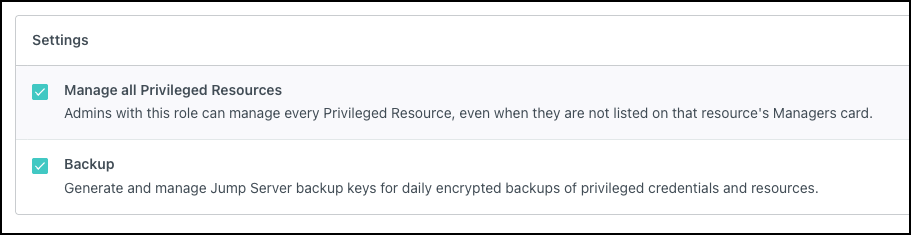
Visibility of Privileged Resources for Administrators
The role defines which areas of PAM the administrator can use. It does not define which resources the administrator can manage. Administrators with the Administrator with Billing role see all resources. For any other administrator, a resource appears only if one of these is true:
- The administrator is listed in the Managers card of the resource, directly or through a Resource Manager.
- The role of the administrator has Manage all Privileged Resources.
Examples of Custom Roles for PAM
Administrator Who Manages Resources, Without Deleting Them
Use this role for an administrator who adds and edits resources, but must not remove them.
- Privileged Websites, Servers, Databases and Privileged Credentials: Create, Update and View.
- Resource Managers: View.
- Application Management > Applications: View.
Auditor
Use this role for an administrator who reviews the activity in PAM, but does not change any configuration.
- Overview: View.
- Session History: Full Access, to play the recordings.
- Application Management > Applications: View.
Do not select any other PAM permission for this role.
Recommendations
- Select the minimum permissions. Start with View and add Create, Update and Delete only when needed.
- Use Delete with caution. Removing a resource affects the users who connect to it.
- Give Manage all Privileged Resources to few administrators. It bypasses the Managers card of every resource.
- Give Session History with Full Access only to the people who can see what users did in their sessions.
- A role does not give access to connect. To connect to a resource, the person must be in a user group that has access to it.
Troubleshooting
| Problem | Cause and solution |
|---|---|
| The administrator does not see PAM in the menu. | The role does not have View in Application Management > Applications. Add it to the role. The direct URL of PAM may still open, but the menu does not show PAM. |
| The administrator sees PAM, but not a specific area. | The role does not have a permission in that area. Add View, at least. |
| The administrator does not see a specific resource. | The administrator is not listed in the Managers card of the resource, and the role does not have Manage all Privileged Resources. |
| The administrator manages a resource, but cannot connect to it. | Managing a resource does not give access to connect. Add the administrator to a user group that has access to the resource. |
Was this information helpful?