Connect to a Server With an SSH Key
Most Linux servers accept SSH connections with an SSH key. In JumpCloud Privileged Access Management (PAM), you store the private key in a Key credential and link that credential to the server. When a user connects, PAM signs in to the server with the key, so users do not need to know the key or a password.
You can create the Key credential in two places:
- Privileged Credentials: create the credential first, and link it to one or more servers later.
- The server form: create the credential while you add or edit the server, in the Server Credentials card.
Prerequisites
- You have the private key of the SSH key pair.
- The public key of the pair is in the authorized keys file of the user on the target server. Without it, the server rejects the connection.
- The server is already added to PAM, or you are adding it now.
Creating the Credential in Privileged Credentials
- In the Admin Portal, go to Access > PAM > Privileged Resources.
- Select Privileged Credentials, then add a new credential.
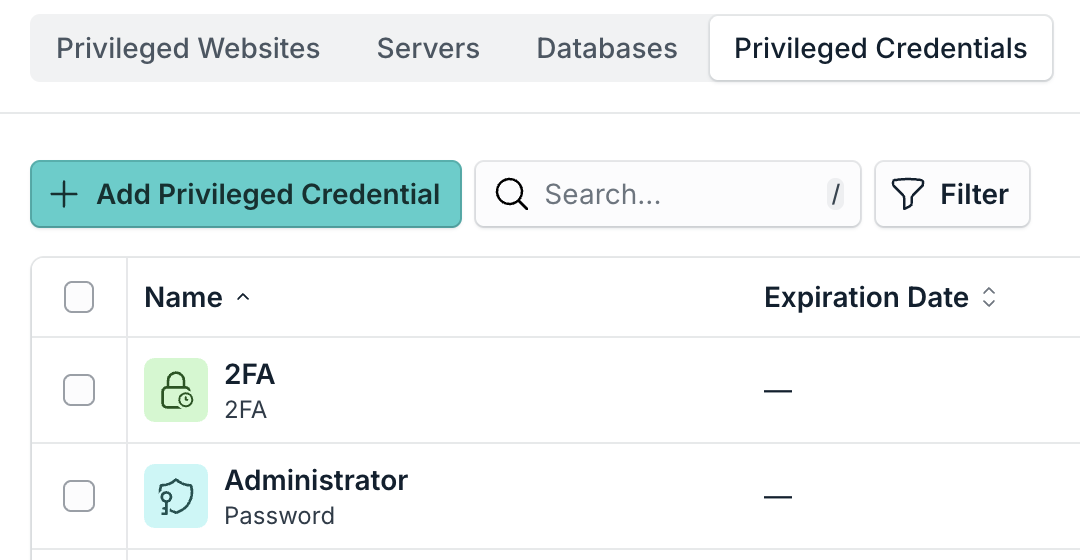
- Fill in the credential form, as described in Filling in the Key Credential.
- Save the credential.
- Link the credential to the server, as described in Linking an Existing Credential to a Server.
Creating the Credential from the Server Form
- In the Admin Portal, go to Access > PAM > Privileged Resources.
- Select Servers, then add a new server or open the server you want to edit.
- In the Server Credentials card, select Add, then select Create New Credential.
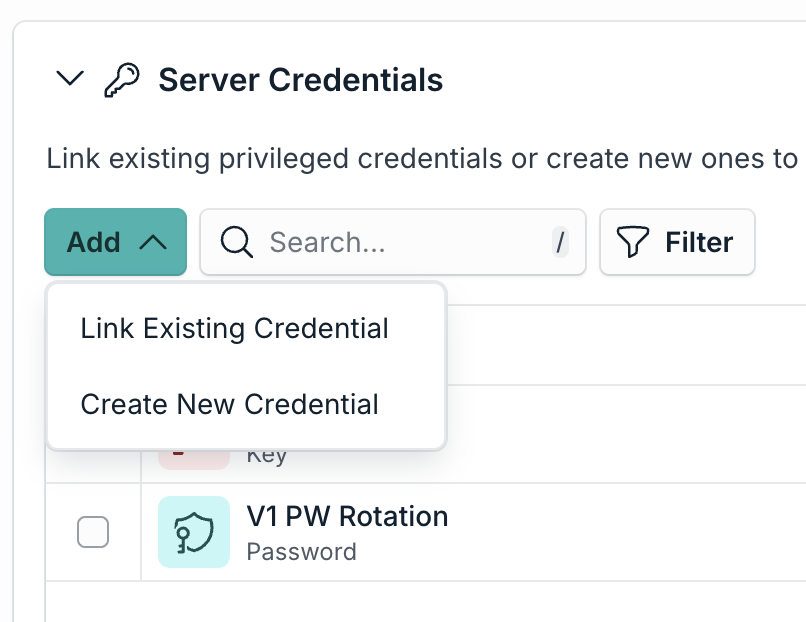
- Fill in the credential form, as described in Filling in the Key Credential.
- Save the credential, then save the server.
The new credential is linked to the server automatically.
Filling in the Key Credential
- In Credential Type, select Key.
- In Name, enter a name that helps you identify the credential, such as Ubuntu Key.
- In Username, enter the user that the key signs in as on the server, such as ubuntu.
- In Private key, paste the full private key, including the first and last lines (
-----BEGIN RSA PRIVATE KEY-----and the matching END line).
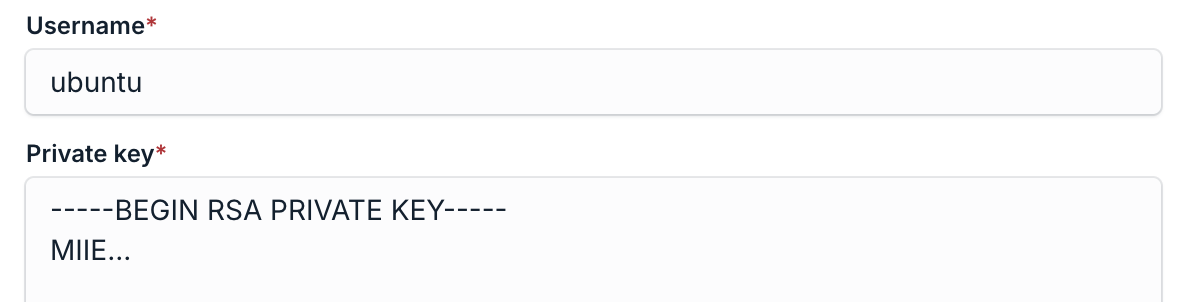
Enter only the private key in the Private key field. Never paste the private key in the Public key field, or in any other field.
Linking an Existing Credential to a Server
- Open the server you want to edit, as described in Creating the Credential from the Server Form.
- In the Server Credentials card, select Add, then select Link Existing Credential.
- Select the Key credential, and confirm.
- Save the server.
The same Key credential can be linked to more than one server, as long as the public key is in the authorized keys file of each server.
Adding the Public Key to the Target Server
Skip this section if the public key is already on the server. Run the command on the target server, signed in as the user that PAM will use to connect.
- Add the public key to the authorized_keys file of the user, and set the correct permissions.
For example:
mkdir -p ~/.ssh && chmod 700 ~/.ssh
echo 'ssh-ed25519 AAAAC3NzaC1lZDI1NTE5AAAAIH7nQ2xK9vPz4mLr8TtYw3dFhJ6bUcVoE1sGaXkN0RyZ ubuntu@workstation' >> ~/.ssh/authorized_keys
chmod 600 ~/.ssh/authorized_keys
Checking the Connection
- Open the User Portal with a user that has access to the server.
- Connect to the server. PAM signs in with the key, and the session opens without asking for a password.
If the connection fails, check that the public key is in the authorized keys file of the user, that the username in the credential is correct, and that the Jump Server can reach the server on the SSH port.
Was this information helpful?