Connect to a Resource with Direct Access using SSH
Direct Access lets you connect to a resource using SSH from your own terminal, instead of the browser.
From the JumpCloud User Portal, Direct Access opens the SSH app on your device. For example: Terminal on macOS. Approve the connection in the browser so JumpCloud can confirm that your account started the session.
Direct Access applies to any resource connected with SSH, including Linux hosts, network switches, firewalls, and other devices your Admin added for SSH access in JumpCloud Privileged Access Management (PAM).
Prerequisites
- Access to a resource in JumpCloud PAM that uses SSH.
- Access to the JumpCloud User Portal.
- An SSH app available on the device. For example: Terminal on macOS.
Considerations
- Use Direct Access to work in your local SSH app outside the browser. Use Connect to work in the browser.
- Network switches and other network devices that use SSH follow the same Direct Access steps. Shared resources appear under All Resources and Servers in the JumpCloud User Portal.
Starting Direct Access from the User Portal
To start Direct Access from the User Portal, do the following:
- Log in to the JumpCloud User Portal.
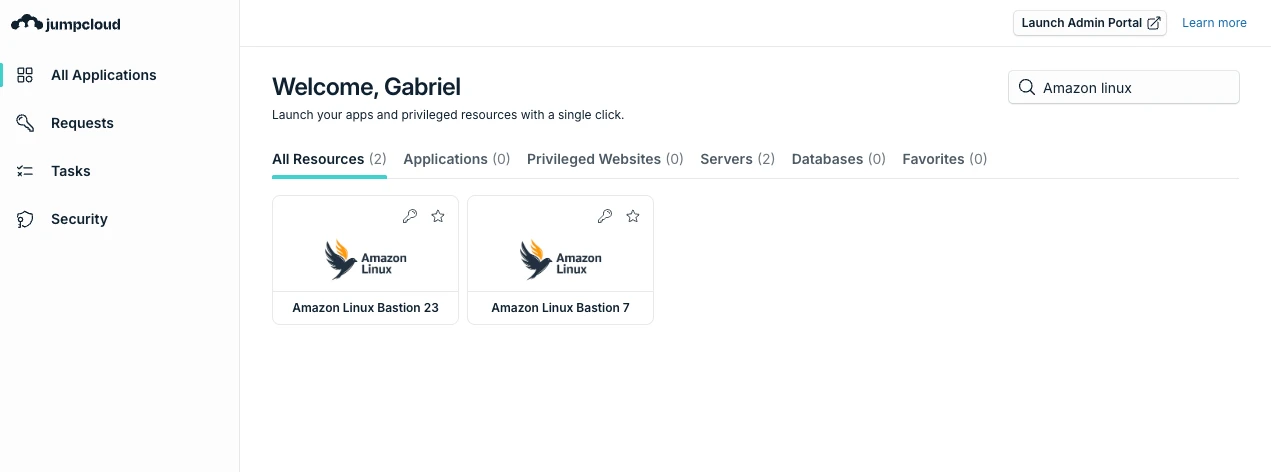
- In the left navigation, click All Applications.
- Find the resource:
- Stay on the All Resources tab and search by name, or
- Click the Servers tab, then search or select the resource.
- Select the resource tile. The Connect dialog opens.
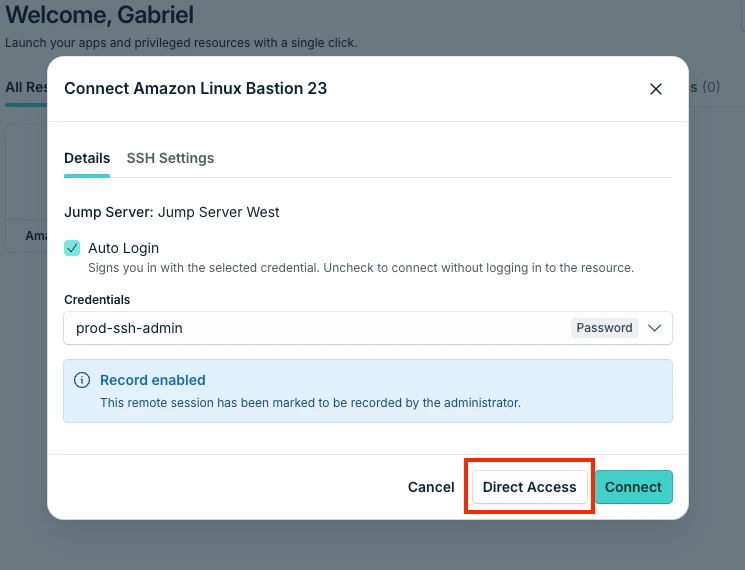
- Check the connection details. If a credential is required, select the credential your Admin shared.
- Click Direct Access.
Approving the Connection in Your Browser
The terminal displays a link and waits for authentication. Open the link and approve the connection before the session continues.
For example:
Please open the following link in your browser to authenticate:
https://console.jumpcloud.com/login/device?code=XXXX-XXXX
Waiting for authentication...
Direct Access runs outside the browser. The approval page links the terminal session to your JumpCloud account. JumpCloud verifies that you are logged in and that you started this connection. The terminal session does not continue until approval is complete.
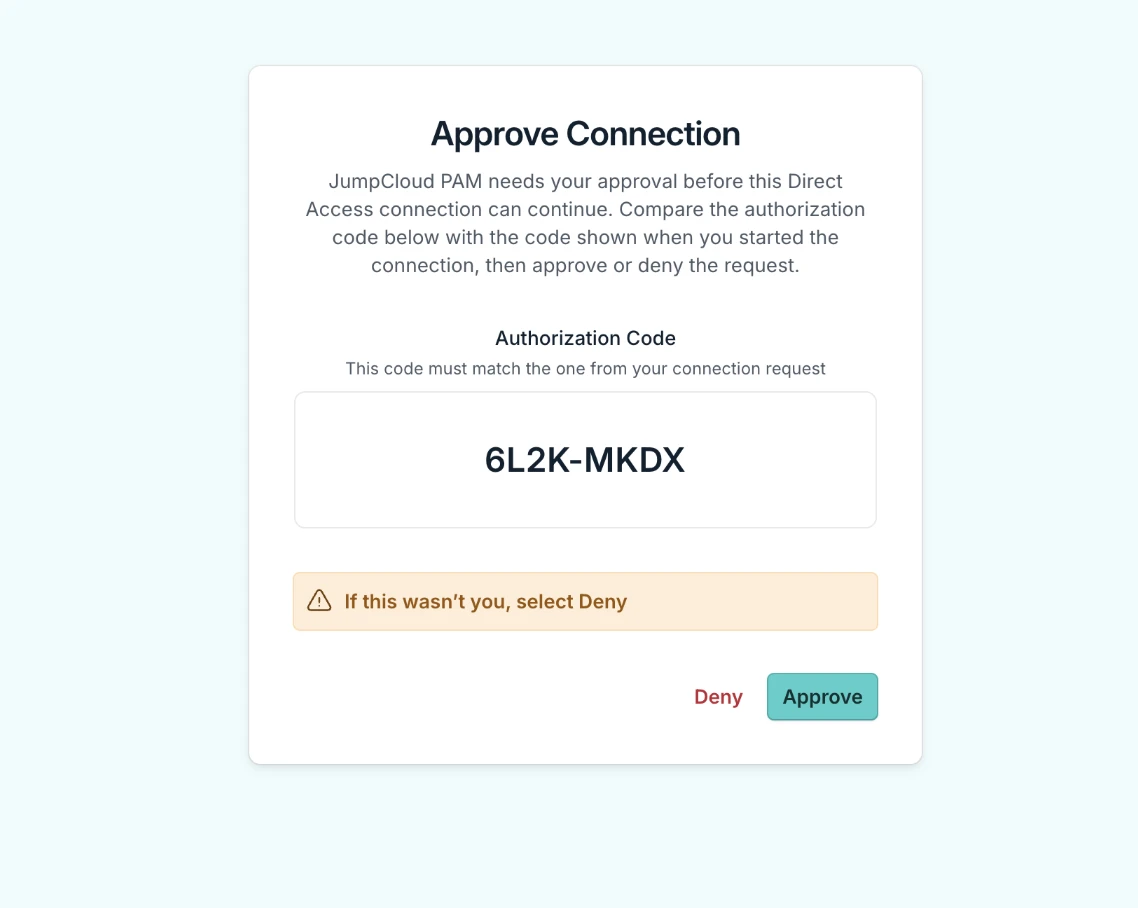
To approve the connection, do the following:
- Open the link from the terminal. Prefer the browser where you are already logged in to JumpCloud.
- On the Approve Connection page, confirm that the code matches the code from your connection request.
- Click Approve to continue, or click Deny if you did not start this connection.
If you did not start this connection, click Deny, then contact your Admin. Do not approve a code you do not recognize.
Returning to Your Terminal
After approval, return to the terminal. The SSH session continues, and you can work on the resource.
After the session starts, close the approval browser tab.
Understanding What to Expect
| Step | Where it happens | What it means |
|---|---|---|
| Start Direct Access | JumpCloud User Portal | An SSH resource was selected and the JumpCloud User Portal opened the local SSH app |
| Open the link | Terminal to browser | The approval request for this session opened |
| Approve or Deny | Browser (JumpCloud account) | The JumpCloud account allows or blocks the terminal session |
| Continue in terminal | Local SSH app | Work on the resource continues over SSH outside the browser |
Troubleshooting Direct Access
- If nothing opens on the device, confirm that an SSH app is set as the default, then try Direct Access again.
- If the approval page reports an invalid or expired code, start Direct Access again from the JumpCloud User Portal and use the new link.
- If approval succeeds and the terminal continues to wait, return to the same terminal window that showed the link. If the terminal still waits, click Deny on any open approval page, close that terminal prompt, and start Direct Access again.
- If the resource does not appear, in All Applications, search on the All Resources tab, or click the Servers tab and search there. If the resource still does not appear, ask your Admin to confirm that it is shared with you and set up for SSH.
Was this information helpful?