Configuring User SCEP and Enterprise WiFi Policies for Zero-Touch Network Access
JumpCloud Managed PKI and MDM work together so employees get a usercertificate and corporateWiFi automatically when they sign in to a managed device — no manual certificate import and no WiFi setup. You create a Users SCEP endpoint in PKI, copy the URL and challenge into a UserSCEPCertificate MDM policy, then pair an EnterpriseWi-Fi policy on the sameusergroups. JumpCloud delivers the SCEP profile first, then WiFi, and binds EAP-TLS to the SCEP-issued identity.
Prerequisites
- Access to the JumpCloud Admin portal permission to manage Certificate Authority resources and MDM policies.
- An active JumpCloud-managed Client Certificate Authority configured.
- Target devices must be enrolled in JumpCloud MDM (Windows or macOS for user-scoped policies).
- A RADIUS server configured for EAP-TLS / 802.1X (JumpCloud RADIUS or your NAS).
- RADIUS server TLS certificate thumbprint(s) and trusted server hostnames for the Wi-Fi policy.
Considerations
- Save the challenge password immediately. It is shown only once and cannot be recovered or revealed later. If the password is lost, regenerate it from the SCEP endpoint row.
- Each SCEP endpoint is attached to one Client CA and one profile (Users or Devices). Create separate endpoints if you need both user and device certificates from the same CA.
- The endpoint hostname is region-specific. The URL hostname differs by data center. Examples:
scep.jumpcloud.comfor US,scep.eu.jumpcloud.comfor EU,scep.in.jumpcloud.comfor India. - Do not select a certificate in the Wi-Fi policy. Assign UserSCEP and EnterpriseWi-Fi to the sameusergroups, JumpCloud orchestrates delivery order (SCEP before Wi-Fi) and platform binding.
- The SCEP policy delivers the client certificate chain. The WiFi policy carries RADIUS / NAS server trust (CA thumbprints and trusted server names). These are separate trust materials.
Adding SCEP Endpoint
A Simple Certificate Enrollment Protocol (SCEP) endpoint lets MDM request and install certificates from your JumpCloud CA without manual distribution.
Add a User SCEP endpoint
To create an endpoint with the Users profile:
- Log in to the JumpCloud Admin Portal.
- Go to Security > Certificate Authority.
- Click the SCEP Endpoints tab.
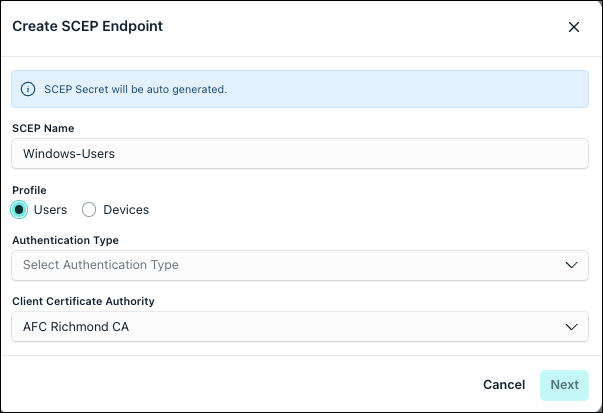
- Click + Add SCEP Endpoint. The Create SCEP Endpoint dialog opens.
- In the SCEP Name field, enter a name for the endpoint. For example: Corporate WiFi User Certs.
- Under Profile, select Users. The endpoint accepts only user-scoped certificate signing requests and issues user certificates.
- The Authentication Type drop-down is set to the default value of Challenge Password.
- From the Client Certificate Authority drop-down, select the CA that issues certificates through this endpoint.
- Click Next. A success message is displayed.
- Copy the Unique Endpoint URL and Challenge Password. You enter these in the User SCEP MDM policy in the next section.
The Challenge Password is displayed only in this success step. After you click Close, JumpCloud does not show this password again in the Admin Portal. If you do not copy it now, regenerate it and update every MDM SCEP policy that uses this endpoint.
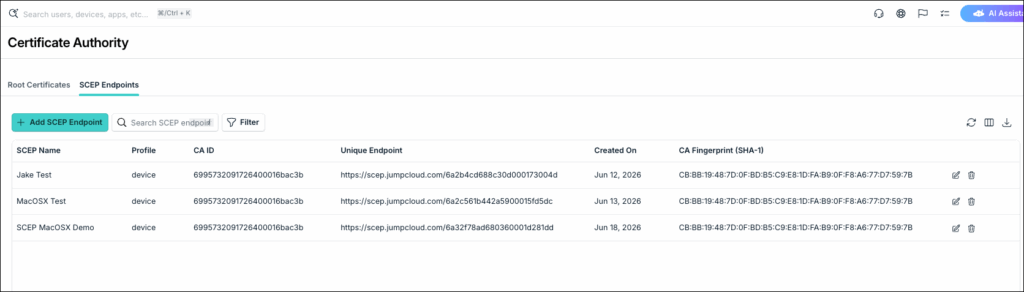
The SCEP Endpoints list displays the following columns:
| Column Name | Description |
|---|---|
| Name | Display name set when the endpoint was created. |
| Profile | Verification type: User or Device. |
| CA ID | Identifier of the linked Client Certificate Authority. |
| Unique Endpoint | Full SCEP URL. Use the copy icon in the row to copy the value. |
| Created time | Timestamp when the endpoint was created. |
| trash icon | Deletes the endpoint. |
Add a Device SCEP Endpoint
To create an endpoint with the Users profile:
- Log in to the JumpCloud Admin Portal.
- Go to Security > Certificate Authority.
- Click the SCEP Endpoints tab.
- Click + Add SCEP Endpoint. The Create SCEP Endpoint dialog opens.
- In the SCEP Name field, enter a name for the endpoint.
- Under Profile, select Devices. The endpoint accepts only device-scoped certificate signing requests and issues user certificates.
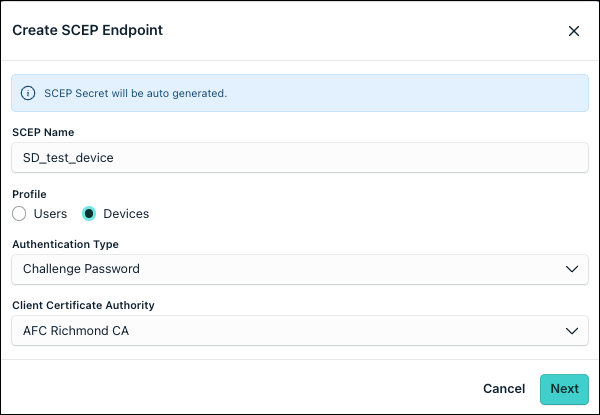
- The Authentication Type drop-down is set to the default value of Challenge Password.
- From the Client Certificate Authority drop-down, select the CA that issues certificates through this endpoint.
- Click Next. A success message is displayed.
- Copy the Unique Endpoint URL and Challenge Password. You enter these in the User SCEP MDM policy in the next section.
The Challenge Password is displayed only in this success step. After you click Close, JumpCloud does not show this password again in the Admin Portal. If you do not copy it now, regenerate it and update every MDM SCEP policy that uses this endpoint.
| Column Name | Description |
|---|---|
| Name | Display name set when the endpoint was created. |
| Profile | Verification type: User or Device. |
| CA ID | Identifier of the linked Client Certificate Authority. |
| Unique Endpoint | Full SCEP URL. Use the copy icon in the row to copy the value. |
| Created time | Timestamp when the endpoint was created. |
| trash icon | Deletes the endpoint. |
Regenerating a Challenge Password
If the challenge password is lost or compromised, regenerate it from the endpoint details. This invalidates the old password.
- Go to Security > Certificate Authority > SCEP Endpoints.
- Click the row for the endpoint. The Edit SCEP Endpoint view opens.
- Click Regenerate under Challenge Password and confirm.
- Copy the new challenge password from the success step.
- Click Save.
- Update every MDM SCEP policy that uses this endpoint with the new challenge password, and redeploy those policies.
Regenerating the challenge password invalidates the old password. Existing certificates remain valid, but new enrollments and renewals fail until MDM policies are updated.
Deleting a SCEP Endpoint
- Go to Security > Certificate Authority > SCEP Endpoints.
- In the endpoint row, click the trash icon.
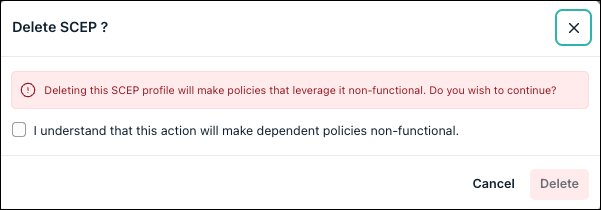
Deleting an endpoint stops new enrollments and renewals through that URL. Devices keep issued certificates until expiry but cannot renew.
Creating a User SCEP Certificate MDM Policy
When a user in an assigned group signs in to a managed Windows or macOS device, JumpCloud pushes a user level SCEP profile. The device enrolls a certificate in the user store (CurrentUser on Windows; login keychain on macOS).
To create the policy:
Selecting the policy template
- Log in to the JumpCloud Admin Portal.
If your data is stored outside of the US, check which login URL you should be using depending on your region. If your organization uses LDAP, RADIUS, or requires firewall allow list configuration, the Fully Qualified Domain Names (FQDNs) will also be region specific. See JumpCloud Data Centers for the URLs, FQDNs, and IP addresses.
- Go to Device Management > Policy Management.
- Click + Add New.
- Select User Policy.
- Select the Windows or macOS tab (create one policy per platform you support).
- Search for and select User SCEP Certificate (or the SCEP user policy name shown in your tenant).
- Click Configure.
Configuring SCEP settings
On the Details tab, configure the following fields using values from the SCEP endpoint success step:
| Field Name | Description |
|---|---|
| CA thumbprint | Thumbprint of the issuing CA. May auto-fill when you upload a root CA file below. |
| Challenge | Challenge password from the SCEP endpoint (masked in the portal). |
| Server URL | Full SCEP URL from Unique Endpoint. |
| Key length | Default 2048 (options: 1024, 2048, 4096). |
| Subject name | Default suitable for users (for example, CN=%UserEmail%). UI lists supported substitution tokens. |
| Subject Alternative Names | Default suitable for user identity (for example, RFC822 email SAN). |
| Retry count / retry delay | Defaults 3 / 1 second. |
| Template name | Optional SCEP template name when required by the endpoint. |
| Renewal period (days) | Default 30. |
| EKU — Client Authentication | Keep enabled for RADIUS / 802.1X. UI warns if disabled. |
| EKU — Document Signing / Smart Card Logon | (Optional) Default off unless needed. |
| Root / CA file | Upload PEM/CRT/DER from your CA inventory; ships trusted root material to devices. |
Applying the Policy
- (Optional) Select the Policy Groups tab. Select one or more policy groups where you want to add this policy.
- Select the User Groups tab. Select one or more user groups where you want to apply this policy. For user groups with multiple OS member types, the policy only applies when a user logs into a supported Windows device that is enrolled in MDM.
- Or, select the Users tab. Select one or more users to whom you want to assign this policy.
- Click Create Policy. A success message is displayed indicating the completion of policy creation.
Viewing Policy Status
- Select the Statustab.
- To see the last Result Log for a device where this policy is applied, click view.
- If any errors occur, they're listed inExit Status. If you have an Exit Status of 0, no errors occurred when applying or enforcing this policy.
Policy status may show Pending User Registration until the user signs in to a managed device.
Creating a Device SCEP Certificate MDM Policy
- To create a device level SCEP Certificate policy for Windows devices, see Create a Device Level Windows SCEP Profiles Policy.
- To create a device level SCEP Certificate policy for macOS devices, see Create a Device Level Mac SCEP Profiles Policy
Creating an Enterprise WiFi MDM Policy
Pair an Enterprise Wi-Fi policy with the same user groups. JumpCloud delivers WiFi after SCEP and binds EAP-TLS to the SCEP-issued user certificate — no separate certificate reference field. See Create a Device Level Windows WiFi Configuration Policy to learn more.
What Happens at User Login
- The user signs in to a managed Windows or macOS device enrolled in JumpCloud MDM.
- The JumpCloud Agent detects the session and sends a check-in with device and user identity.
- The backend resolves User SCEP and Enterprise Wi-Fi policies for that user.
- MDM delivers the user-scoped SCEP profile; the device enrolls via SCEP and stores the cert in the user store.
- MDM delivers the user-scoped Wi-Fi profile, bound to the SCEP identity.
- The device auto-connects to the configured SSID using EAP-TLS.
On shared devices, each user receives their own certificate in their own user store when they sign in. Certificates are not removed when another user logs in.
Coexistence With Manual Certificates
Auto-provisioned SCEP certificates may coexist with manually issued certificates (Admin Portal or User Portal). The orchestrated Wi-Fi profile uses the SCEP / AGENT_MDM identity for that policy pair, not an arbitrary client certificate. Manual certificates are not deleted during automated provisioning. Certificate inventory shows distinct source values for audit.
Was this information helpful?