Configure MFA Frequency Controls in Conditional Access Policies (Preview)
Use MFA Frequency Controls to decide how often users must complete Multi-factor Authentication (MFA) when they sign in to the JumpCloud User Portal or Single Sign-On (SSO) applications protected by Conditional Access Policies.
Set how long MFA remains valid after a successful sign-in. Users can skip MFA for subsequent sign-ins during this window when using an approved method.
These controls apply to User Portal and SSO applications only. They do not apply to Admin Portal, LDAP, RADIUS, or device login. Admin Portal keeps its existing MFA behavior.
JumpCloud checks this setting when a user starts a new sign-in. It does not interrupt an app session that is already open, nor does it prompt the user for MFA during an ongoing session.
Considerations
- Some SSO applications can force users to authenticate again. In that case, JumpCloud requires MFA even if a recent MFA is still within the interval you set.
- For sensitive resources or shared devices, choose Require MFA during every login.
- For lower-risk resources on trusted devices, consider a longer interval.
MFA Frequency Options
When a Conditional Access Policy requires MFA, choose one of these intervals:
- Custom
- 1 hour
- 4 hours
- 8 hours
- 12 hours
- 24 hours
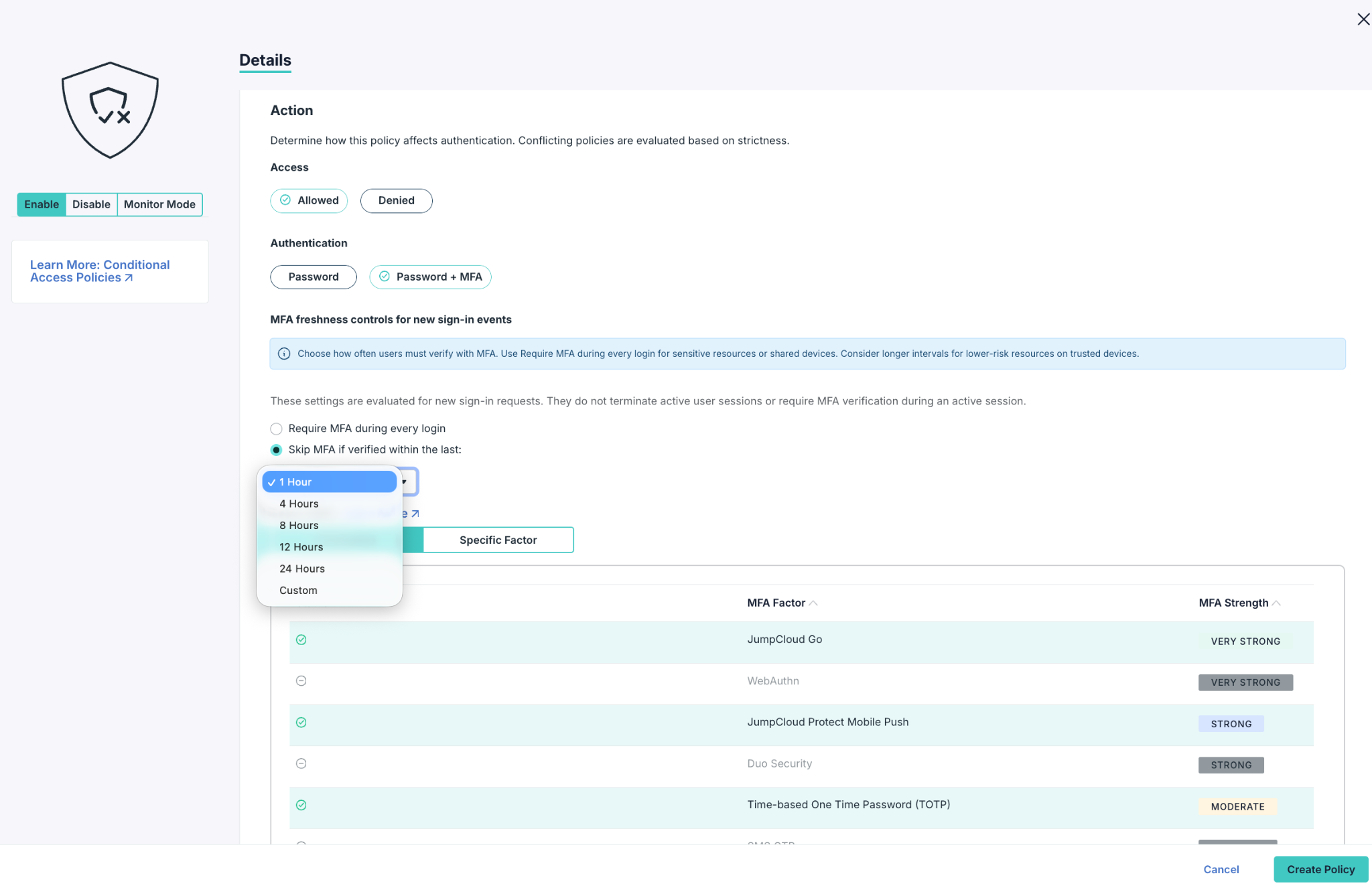
Configuring MFA Frequency Controls
To configure MFA Frequency Controls:
-
Log in to the JumpCloud Admin Portal.
-
Go to Security > Conditional Access Policies.
-
Click (+) and select User Portal or SSO Application from the dropdown list.
-
Or, select an existing policy that requires MFA.
-
Go to Actions, and select one option:
| Option | What it does |
|---|---|
| Require MFA during every login | Default for new policies. Users must complete MFA on every sign-in for this policy. |
| Skip MFA if verified within the last | Lets you choose 1 Hour, 4 Hours, 8 Hours, 12 Hours, 24 Hours, or Custom Duration. |
- If you selected Skip MFA if verified within the last, choose the interval.
- Click Create Policy for a new policy or Update Policy if you are updating an existing policy.
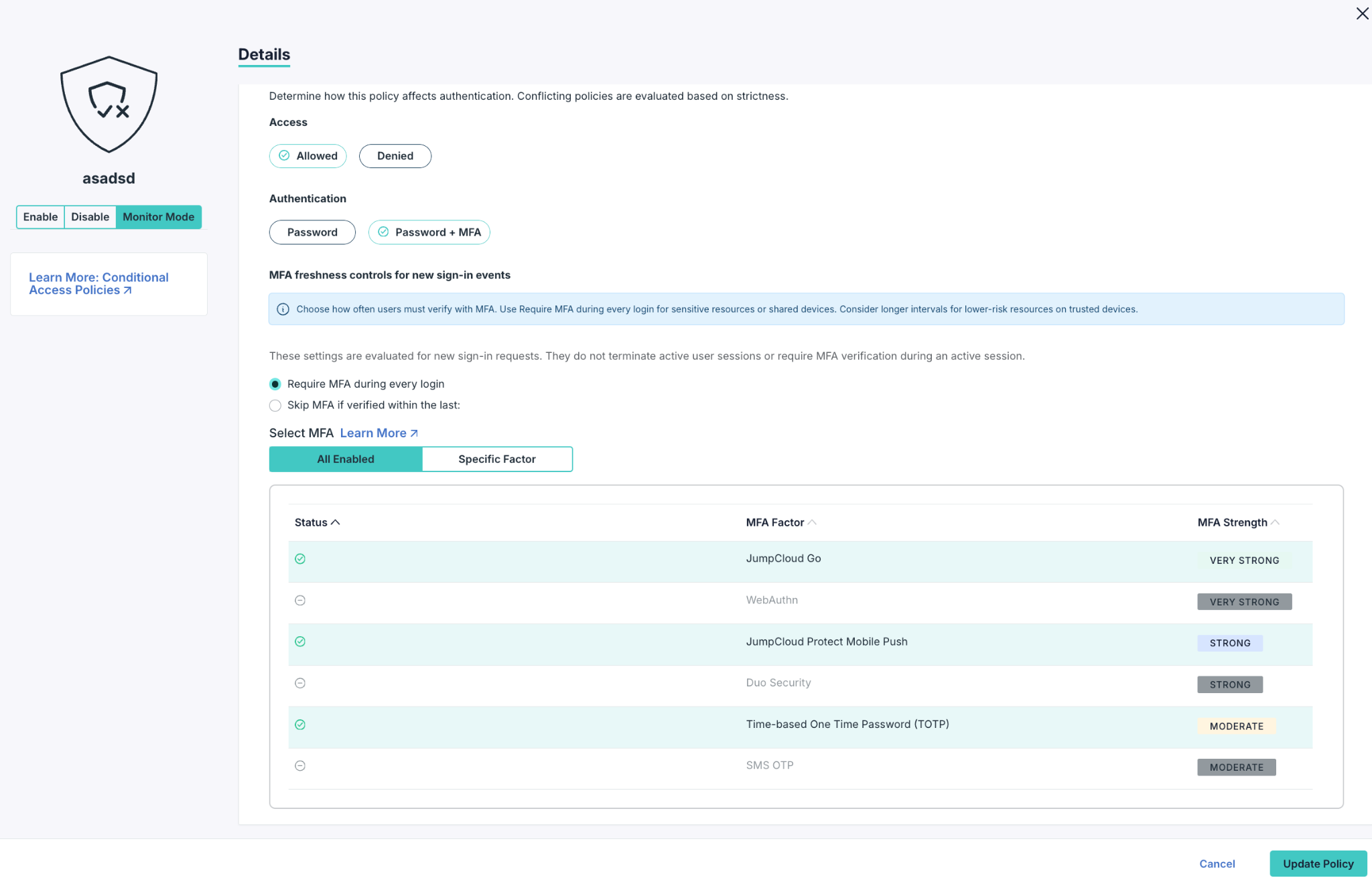
How MFA Frequency Works
A recent MFA can cover a later User Portal or SSO sign-in only when all of the following are true:
- The earlier MFA is still within the interval set on the policy being checked.
- The earlier MFA method is allowed by that policy.
- The policy is not set to require MFA on every login.
- The application is not forcing the user to authenticate again.
If the interval is still valid but the earlier MFA method is not allowed by the policy, the user is asked to complete the MFA method mandated by the policy. JumpCloud asks only for the MFA method the policy requires.
Examples
Same MFA requirement, different intervals
- User Portal: Any MFA, 8 hours
- Salesforce: Any MFA, 1 hour
The user completes MFA for User Portal at 9:00, then opens Salesforce at 9:20. JumpCloud does not prompt for MFA again.
Stronger MFA required for a sensitive app
- User Portal: Any MFA, 8 hours
- AWS: FIDO2, 1 hour
The user completes an authenticator app MFA at 9:00, then opens AWS at 9:20. JumpCloud prompts for FIDO2 because the earlier method does not meet the AWS policy.
MFA on every login
- AWS: FIDO2, Every Access
The user completes FIDO2 at 9:00, then opens AWS again at 9:05. JumpCloud prompts for FIDO2 again.
Example Directory Insights event
The following Directory Insights (DI) event shows MFA skipped because MFA freshness was already satisfied:
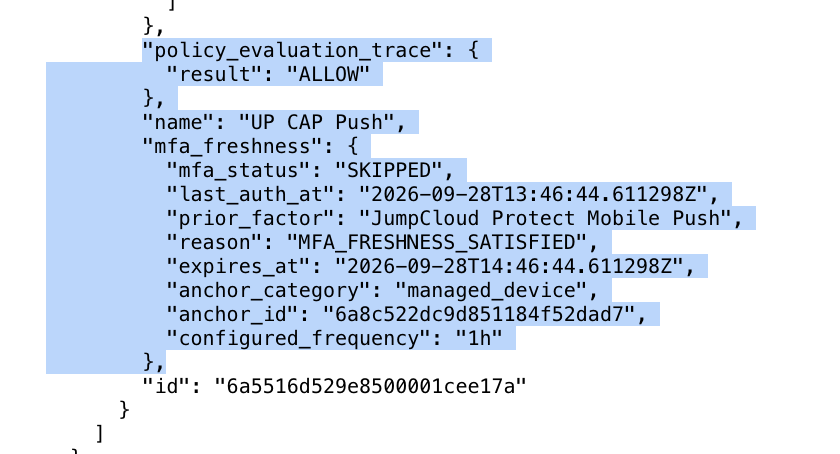
Reviewing MFA Required or Skipped
JumpCloud records whether MFA was required or skipped for User Portal and SSO access decisions, including the policy checked, the resource accessed, the MFA method used, and the reason MFA was challenged or reused. See Get Started: Directory Insights to learn more.
Was this information helpful?