Configure Jump Server Credentials Backup
Jump Server Backup keeps a daily encrypted copy of privileged credentials and resources on each Jump Server. If the JumpCloud cloud is unavailable, you can open that backup on the Jump Server host and work offline.
Backups stay on the Jump Server. They are not a substitute for normal Admin Portal access. Use them when you need local access without depending on the JumpCloud cloud.
This article is for administrators who manage Jump Server Backup keys in Privileged Access Management (PAM) Settings, and who may need to open a backup on a Jump Server host.
Prerequisites
- Your Admin Portal role must include the PAM Backup permission.
- At least one Jump Server installed in your environment. Backups are written on the Jump Server host.
- A secure company location to store the Backup Key. Treat the key as company property, not personal data.
Considerations
- Daily backups do not start until you generate a Backup Key. If you never generate a key, Jump Servers do not keep these encrypted backup files.
- The Admin Portal shows a new Backup Key only once. After you leave the reveal screen, the key is masked and you cannot reveal it again.
- Rotating the key does not rewrite older backup files. New backups use the new key. Older backups still need the previous key.
Understanding Jump Server Backup
- In the JumpCloud Admin Portal, generate a Backup Key in Settings > Jump Server Backup.
- After the key exists, each Jump Server keeps a daily encrypted backup of privileged credentials and resources on that host.
- For offline access, open a backup file on the Jump Server host with the CLI and enter the Backup Key that matches that file.
| Item | Where it lives |
|---|---|
| Backup Key | Generated in Admin Portal Settings. You must store a copy securely. The portal shows a new key only once. |
| Encrypted backup files | On each Jump Server host (daily). The Admin Portal does not store the backup files. |
| Offline recovery | On the Jump Server host, using the CLI and the matching Backup Key. |
Daily backups do not start until you generate a Backup Key. If you never generate a key, Jump Servers do not keep these encrypted backup files.
Opening Jump Server Backup
- Log in to the JumpCloud Admin Portal.
- Go to Privileged Access Management > Settings.
- Open the Jump Server Backup tab.
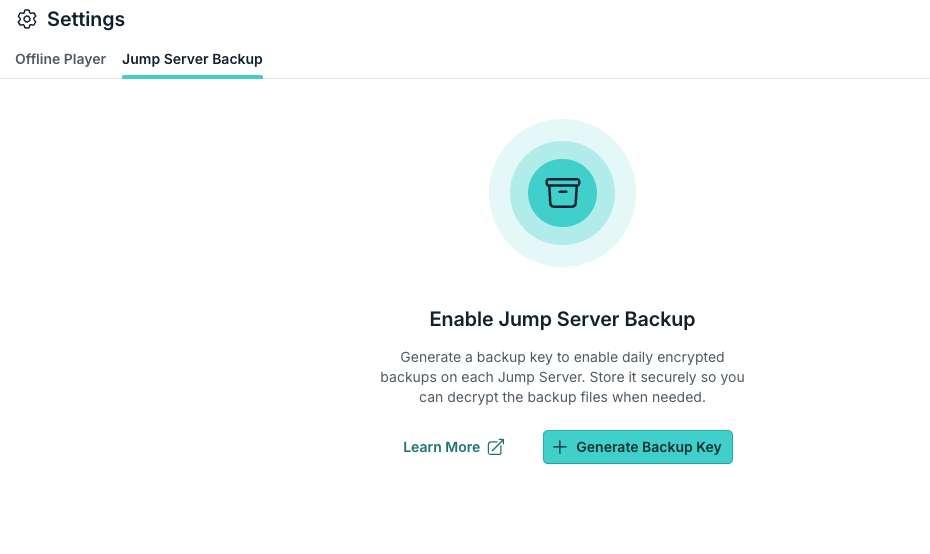
If no key exists yet, you see the empty state Enable Jump Server Backup.
Generating a Backup Key for the First Time
- Click Generate Backup Key.
- In the confirmation dialog Enable Jump Server Backup?, confirm that you understand the key is shown only once, then click Generate Backup Key.
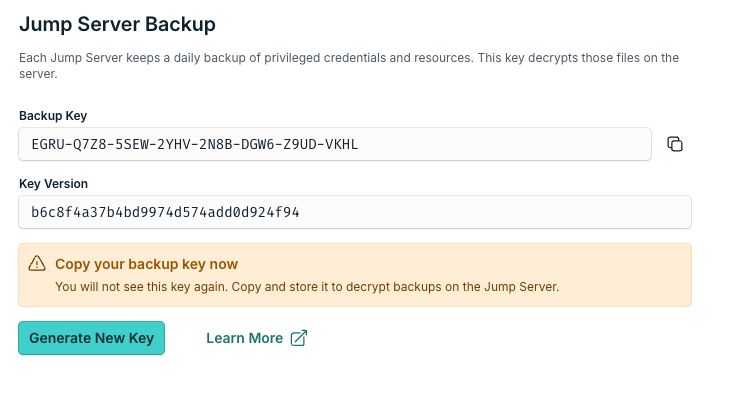
- When the key appears, copy it immediately and store it in your organization’s secure location.
The Backup Key is shown only once. After you leave this screen, the Admin Portal masks the key and you cannot reveal it again. If you do not copy it now, you will not be able to decrypt backups that use this key.
On this screen you see:
| Field | Description |
|---|---|
| Backup Key | The secret you use later to decrypt backup files on the Jump Server. Copy it now. |
| Key Version | An identifier for this key generation. Use it when you track which key belongs to which backups. |
Viewing Active Backups
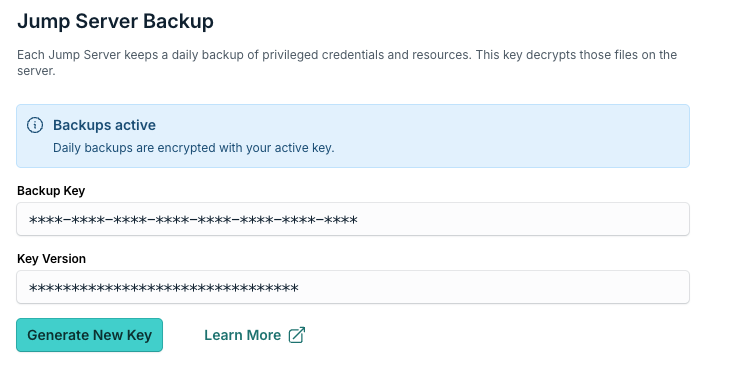
When you return to Jump Server Backup, the portal shows that backups are active. The Backup Key and Key Version are masked. You cannot copy the previous key from this screen.
With an active key, each Jump Server keeps a daily encrypted backup of privileged credentials and resources on that host. Check the Jump Servers list Last Backup column to see when a Jump Server last completed a backup cycle.
Generating a New Backup Key
Use Generate New Key when your organization needs to rotate the key. This does not rewrite older backup files.
- On Jump Server Backup, click Generate New Key.
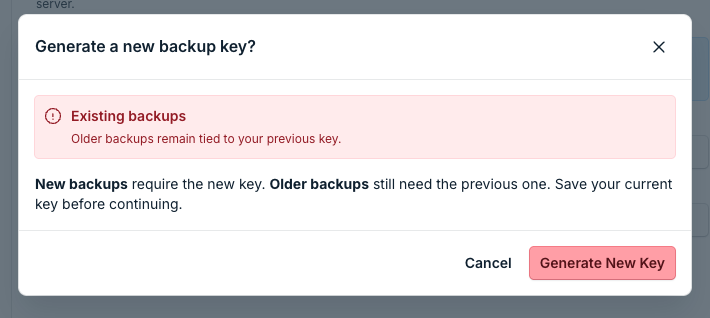
- Read the confirmation dialog carefully, then confirm.
- Copy the new key when it appears. Store it with your previous keys.
New backups use the new key. Older backups still need the previous key. Save your current key before you generate a new one. Do not discard older keys if you still need older backup files.
Backup Key Best Practices
| Practice | Why |
|---|---|
| Copy the key during the one-time reveal | The Admin Portal will not show that key again. |
| Store the key in a secure company location or sealed process | The key decrypts privileged credentials and resources offline. |
| Keep every previous key after a rotation | Older .bkp files still need the key that was active when they were created. |
| Limit who can use the Backup permission | Only trusted admins should generate or rotate keys. |
| Test recovery in a maintenance window | Confirm a saved key opens a real backup file on a Jump Server before you need it in an outage. |
Accessing a Backup Offline on the Jump Server
Use these steps on the Jump Server Linux host when you need offline access.
Listing Available Commands
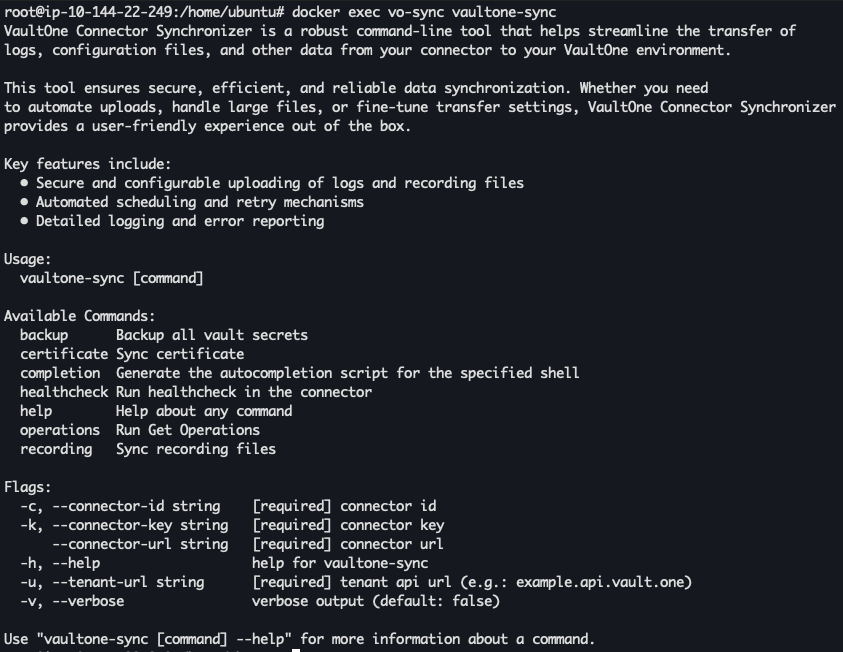
On the Jump Server host, run:
docker exec vo-sync vaultone-sync
This shows the usage guide and available operations, including backup commands.
Listing Backup Files
docker exec vo-sync vaultone-sync backup list
A list of backup files on that Jump Server is displayed.
Opening a Backup File
Run:
docker exec -it vo-sync vaultone-sync backup open <FILENAME.bkp>
When prompted:
- Confirm you want to open the backup file (
YorN). - Provide a reason for accessing the backup. This is logged for auditing.
- Enter the Backup Key that matches that file. The key is not shown as you type.
After authentication succeeds, browse the offline backup data on the Jump Server.
Enter the Backup Key that was active when that backup file was created. If you rotate keys later, the newest key opens only newer backups. Older files still need their original key.
If a backup file does not change from one day to the next, no new records were added. The most recent backup file is still the latest snapshot.

Was this information helpful?