Configure Database Blocking Rules
Blocking rules add a layer of protection to your databases. During a session, a blocking rule stops actions you do not want users to run, such as dropping a table or reading a sensitive column. This helps you prevent mistakes and reduce risk, even for users who already have access to the database.
Each rule uses one of three types:
- Command Blocking: blocks SQL commands, such as DROP or DELETE.
- SQL Pattern Blocking: blocks queries that match a SQL pattern you define.
- Table Replacement: replaces a query on a table, so users only get the columns you allow.
Blocking rules apply to databases only.
Prerequisites
- Add at least one database to JumpCloud Privileged Access Management (PAM).
- Confirm that you have permission to manage blocking rules in PAM.
- Decide which commands, queries, or columns you want to protect.
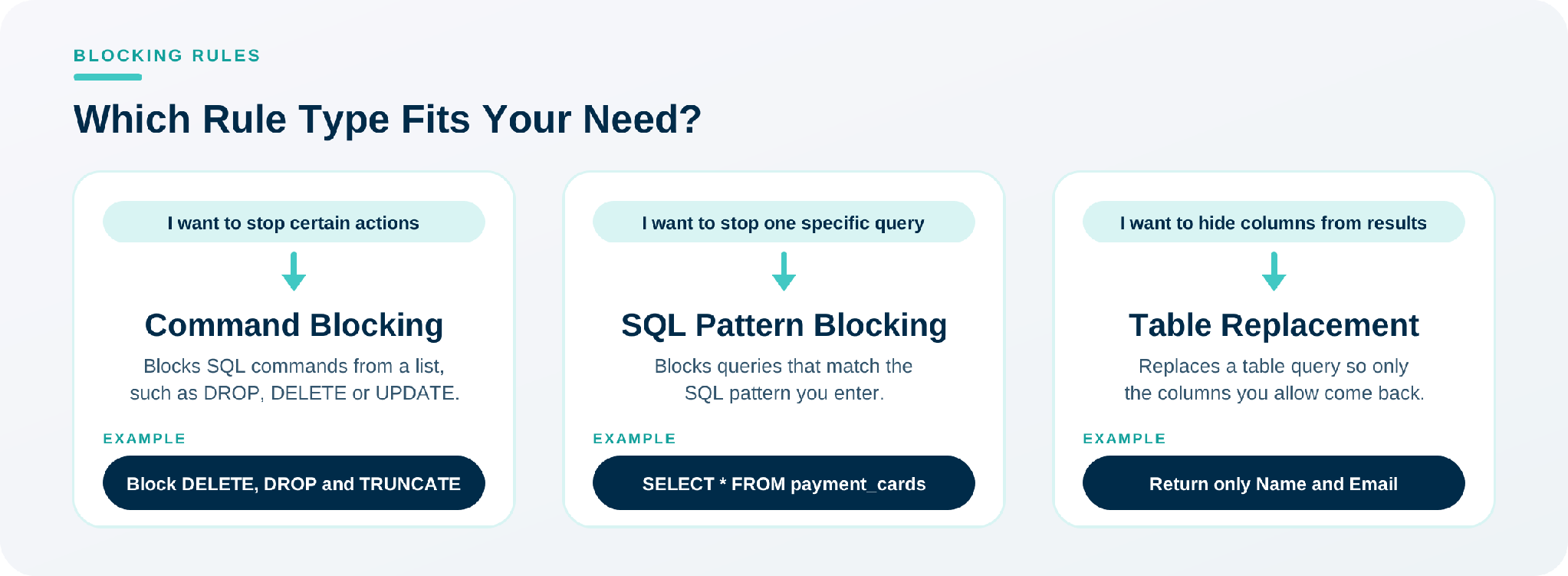
Choosing the Right Rule Type
| Rule type | What it does | Use it when |
|---|---|---|
| Command Blocking | Blocks the SQL commands you select from a list. | You want to stop a whole type of action, for example deleting data or changing the structure of a database. |
| SQL Pattern Blocking | Blocks queries that match the SQL pattern you enter. | You want to stop one specific query, but still allow the same command in other queries. |
| Table Replacement | Replaces references to a table with a query you define. | Users need to read a table, but some columns, such as salary or phone number, must stay hidden. |
Common Use Cases
| Goal | Rule type | How to set it up |
|---|---|---|
| Prevent users from deleting data | Command Blocking | Block DELETE, DROP, TRUNCATE, ALTER, and MERGE. ALTER can remove columns and MERGE can delete rows. |
| Give read-only access to auditors or support teams | Command Blocking | Block INSERT, UPDATE, DELETE, MERGE, TRUNCATE, CREATE, ALTER, DROP, RENAME, COMMENT, GRANT, REVOKE, and CALL. CALL can run procedures that change data. |
| Stop a query that exposes a sensitive table | SQL Pattern Blocking | Enter the pattern SELECT * FROM payment_cards. |
| Hide sensitive columns, such as salary | Table Replacement | Replace the employees table with a query that returns only Name and Email. |
Creating a Blocking Rule
You can create a rule from the Blocking Rules tab, or while you add or edit a database. This section covers the Blocking Rules tab. To create a rule from a database, see Linking or Creating Rules from a Database.
- In the Admin Portal, go to Access > PAM > Blocking Rules.
- Click Add Blocking Rule.
- In General, enter the rule details. See the table below.
- In Rule Conditions, select a Blocking method and configure it. Steps for each method follow in this article.
- In Resources, click Add Databases, select the databases that the rule protects, and click Select.
- Click Save.
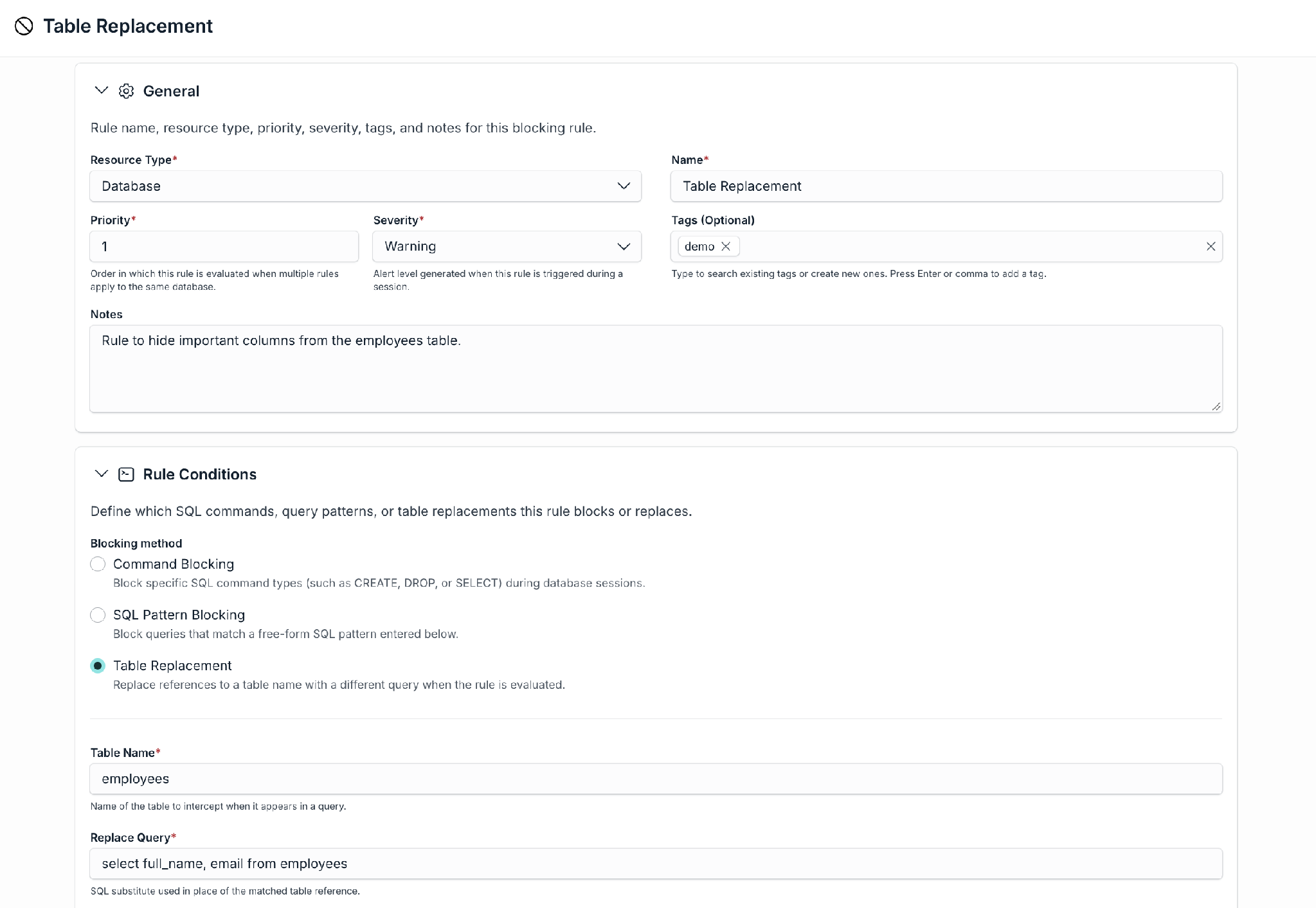
General fields:
| Field | What to enter |
|---|---|
| Resource Type (required) | Select Database. |
| Name (required) | A clear name that tells other Admins what the rule does, for example, Delete Block. |
| Priority (required) | The order in which PAM evaluates this rule when several rules apply to the same database. |
| Severity (required) | How serious the blocked action is for your org. |
| Tags (optional) | Labels that help you organize and find rules. Select an existing tag or type a new one, then press Enter or comma. |
| Notes (optional) | Context for other Admins, such as why the rule exists. |
Blocking SQL Commands (Command Blocking)
Use Command Blocking to stop users from running specific SQL commands.
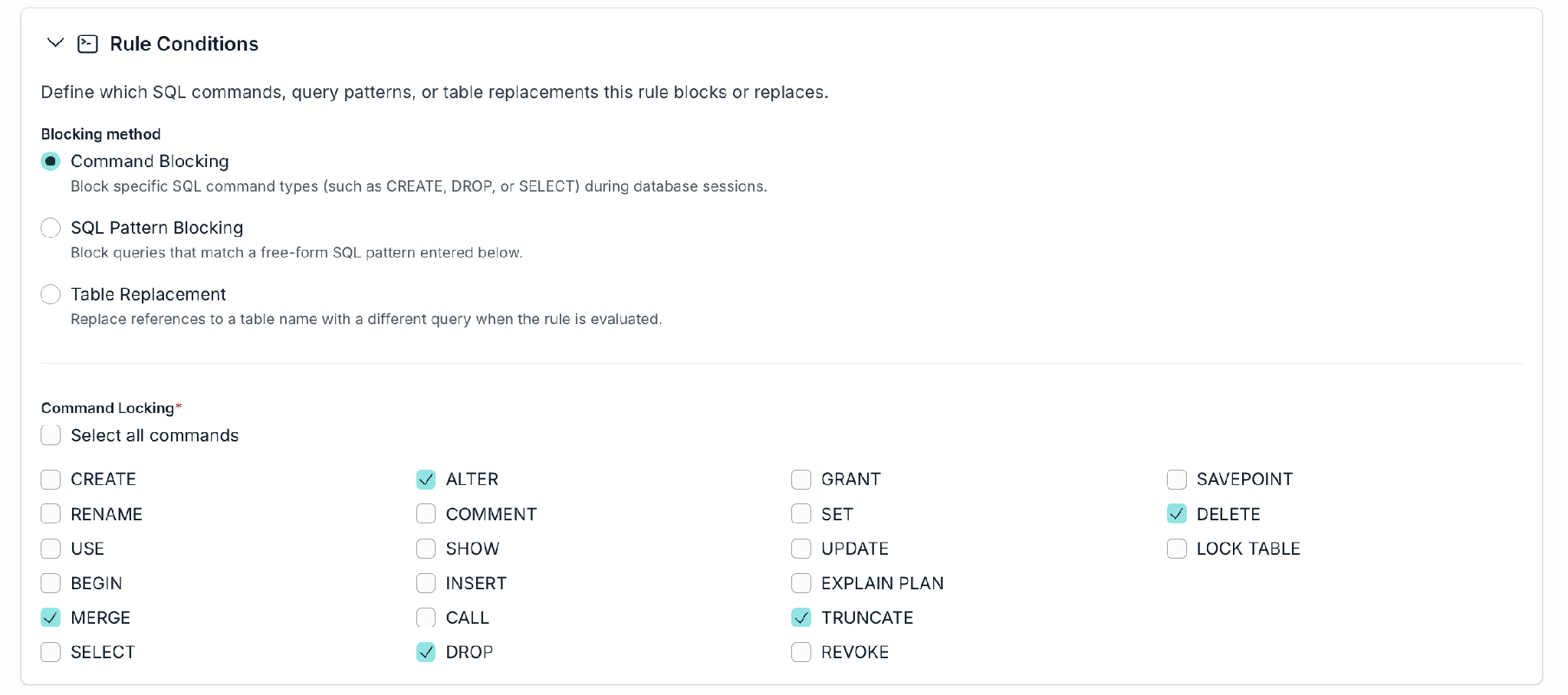
- In Rule Conditions, select Command Blocking.
- Select the commands to block. To select every command, select Select all commands.
- Complete the other steps in Creating a Blocking Rule, and save.
Available commands:
| Group | Commands | Block them to |
|---|---|---|
| Change structure | CREATE, ALTER, DROP, RENAME, COMMENT | Protect tables, columns, and other database objects. |
| Change data | INSERT, UPDATE, DELETE, MERGE, TRUNCATE | Keep data from being added, changed, or removed. DELETE and TRUNCATE remove rows, and TRUNCATE removes all rows of a table at once. |
| Manage permissions | GRANT, REVOKE | Stop users from changing database permissions. |
| Read and explore | SELECT, SHOW, USE, EXPLAIN PLAN | Limit how users read or browse data. |
| Sessions, transactions, and routines | BEGIN, SAVEPOINT, SET, LOCK TABLE, CALL | Control transactions, session settings, table locks, and stored procedures. |
For example: To stop users from deleting data, create a rule named Delete Block. Select DELETE, DROP, and TRUNCATE, and set the severity to Critical. To also stop users from removing columns or deleting rows through other commands, select ALTER and MERGE too.
Blocking a Specific Query (SQL Pattern Blocking)
Use SQL Pattern Blocking to stop one specific query, without blocking the whole command.
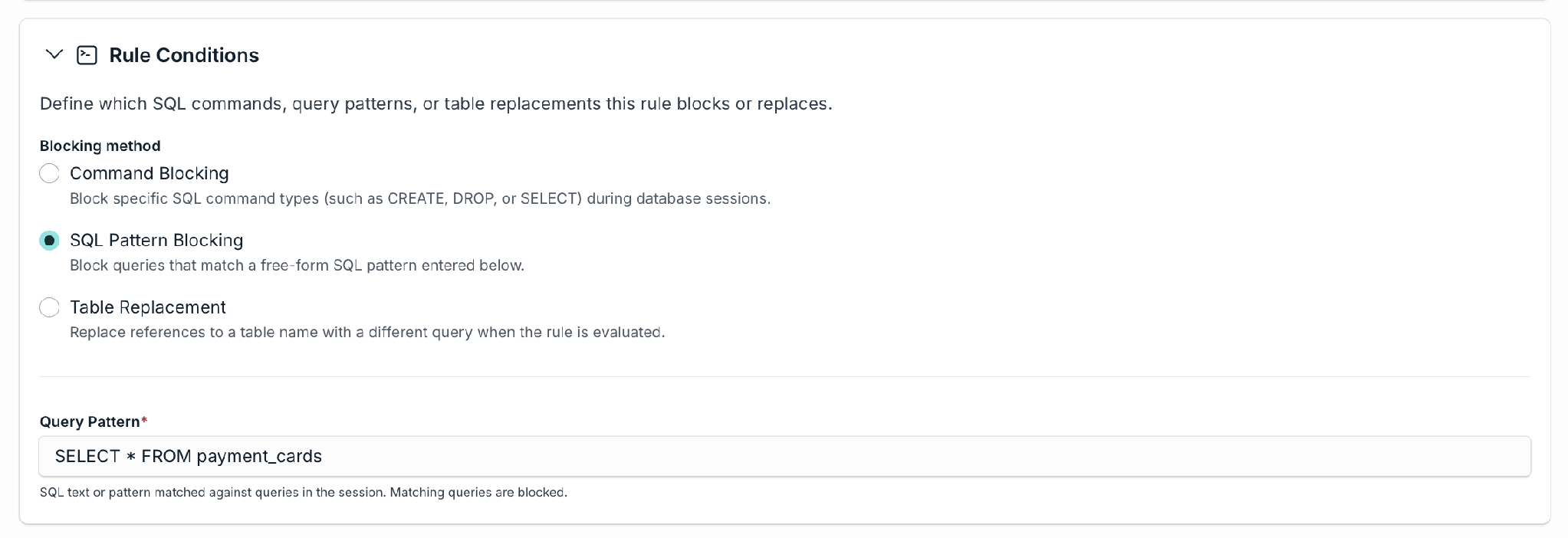
- In Rule Conditions, select SQL Pattern Blocking.
- In Query Pattern, enter the SQL text or pattern to block. PAM blocks queries that match it during the session.
- Complete the other steps in Creating a Blocking Rule, and save.
For example: To stop users from reading every row of a sensitive table, enter SELECT * FROM payment_cards in Query Pattern. Users can still run other SELECT queries.
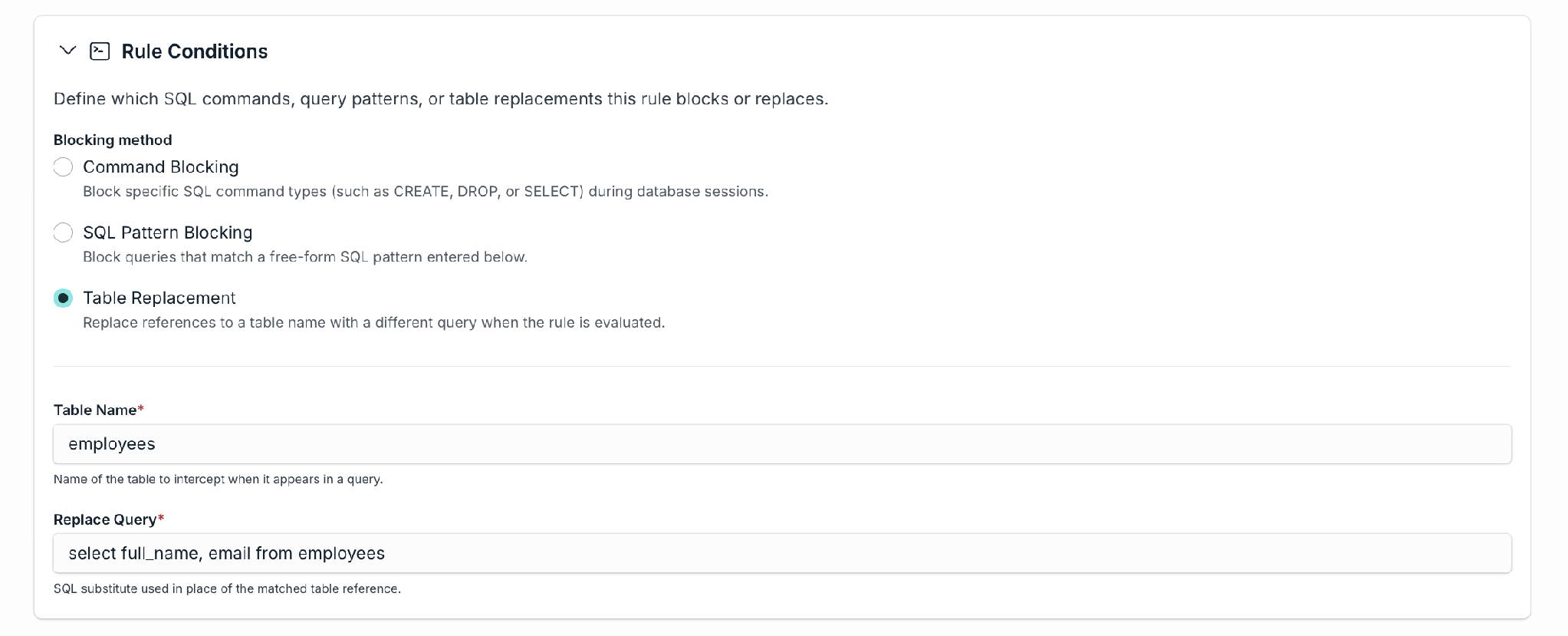
Hiding Columns (Table Replacement)
Use Table Replacement when users need to read a table, but some columns must stay hidden. When a query refers to the table, PAM uses the query you define instead.
- In Rule Conditions, select Table Replacement.
- In Table Name, enter the name of the table to intercept.
- In Replace Query, enter the SQL query that returns only the columns you allow.
- Complete the other steps in Creating a Blocking Rule, and save.
For example: An employees table has the columns Name, Email, and Salary. Users must see names and emails, but never salaries.
| Field | Value |
|---|---|
| Table Name | employees |
| Replace Query | SELECT Name, Email FROM employees |
When a user runs SELECT * FROM employees during a session, the result includes only the Name and Email columns. Salary is not returned.
Linking or Creating Rules from a Database
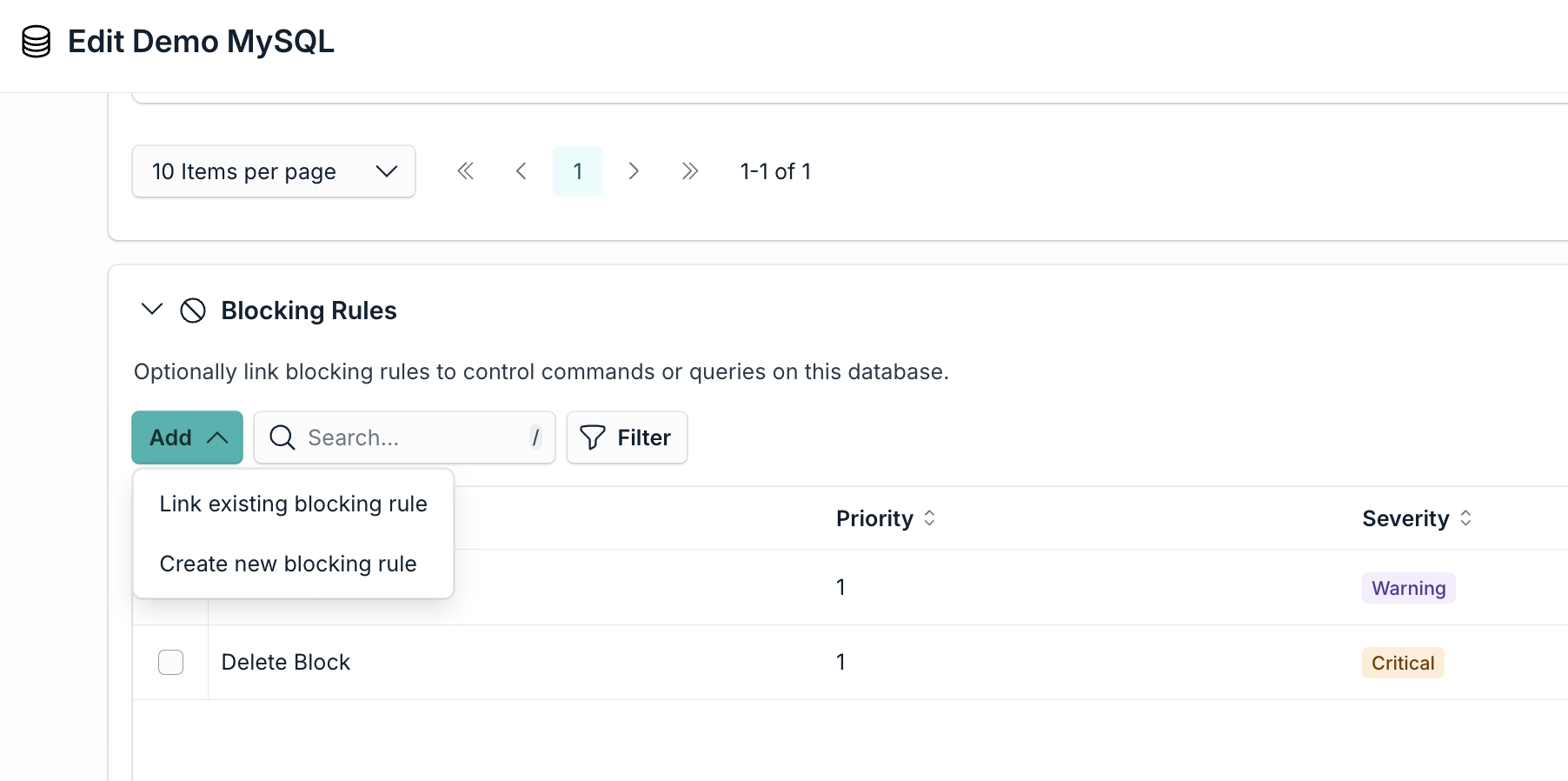
You can also manage rules on the database itself. The Blocking Rules card on the Add or Edit database page lets you link an existing rule or create a new one without leaving the page.
- In the Admin Portal, go to Access > PAM > Privileged Resources > Databases > Add/Edit Database.
- In the Blocking Rules card, click Add.
- Choose one option:
- Link existing blocking rule: select one or more rules, then click Add selected. The list shows only rules that are not linked to this database yet.
- Create new blocking rule: a side drawer opens with the same fields described earlier. Complete them and click Save.
- Click Save changes on the database page.
To stop a rule from applying to a database, click the X in the Actions column of the rule. The rule stays in the Blocking Rules tab.
Exempting Users or Groups
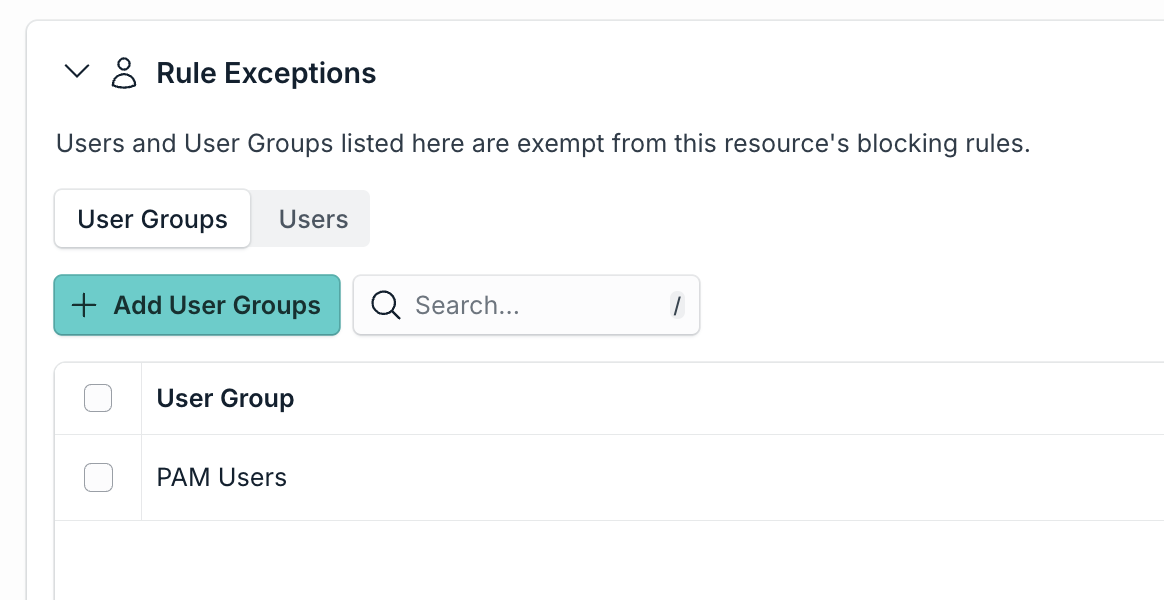
Use Rule Exceptions for users who need to run actions that the rules would otherwise block, for example, a database administrator.
- Open the database you want to edit.
- In Rule Exceptions, select the User Groups tab or the Users tab.
- Click the add button, for example, Add User Groups, and select who to exempt.
- Click Save changes.
Exceptions apply to the database, not to a single rule. An exempt user or group skips every blocking rule linked to that database. Keep the list short.
Editing or Deleting a Rule
- Edit: in the Blocking Rules tab, click the name of the rule, make your changes, and click Save changes. Changes apply to every database linked to the rule.
- Delete: click the trash icon in the Actions column. The rule stops protecting every database it was linked to.
- Find a rule: use Search or Filter at the top of the list.
Following Best Practices
- Start small. Begin with Command Blocking for the riskiest commands, such as DELETE, DROP, and TRUNCATE, then add more rules as needed.
- Use clear names and tags. A name like Delete Block tells other Admins what the rule does.
- Match severity to risk. Use Emergency or Critical for destructive actions, and a lower severity for less risky ones.
- Test first. Link a new rule to a test database and run the blocked action before you use the rule in production.
- Keep database permissions tight. Blocking rules add protection during a session. They do not replace the permissions of the database account that users connect with.
Troubleshooting Tips
- A rule does not block anything: Check that the rule is linked to the database, that the user is not in Rule Exceptions, and that you saved your changes.
- A database is missing in the Select Databases window: It is probably already linked to the rule. Check the Resources section.
- A rule is missing in the Select Blocking Rules window: It is probably already linked to the database.
- The You have unsaved changes bar is still visible: Click Save changes, or Discard changes to go back to the saved version.
Was this information helpful?