Apple Compliance Dashboard
The Apple dashboard focuses on rollout progress and update posture for devices managed by a supported update policy. There is no global severity filter at the Apple dashboard level. Severity filtering is available within the Apple OS Version Listing filters.
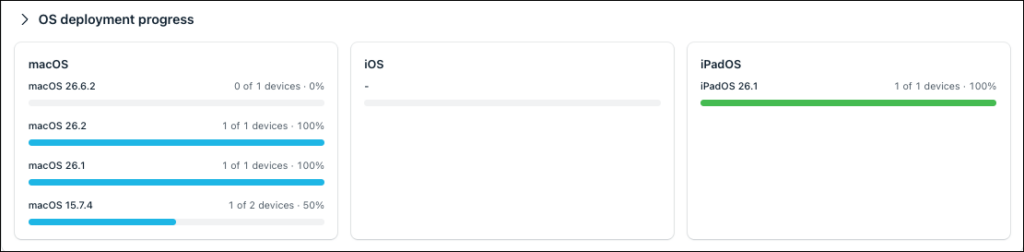
OS Deployment Progress
Shows progress toward OS versions currently targeted by Apple update policies. For each target, the dashboard shows how many targeted devices have reached or exceeded that version.
These are grouped by macOS, iOS, and iPadOS and show the actual effective targets in use. The effective target is the OS version a device is expected to reach based on its active Apple update policy.
Missing Updates by Severity
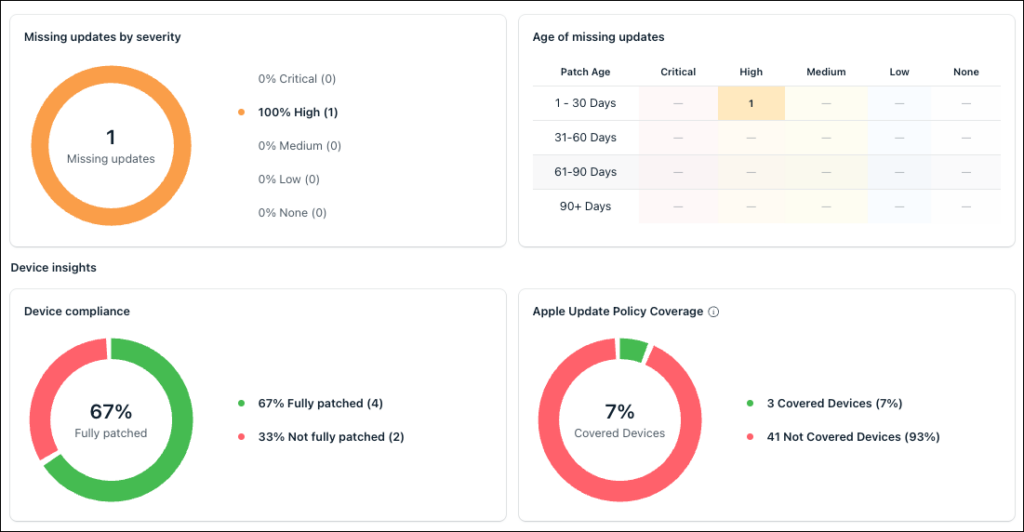
Shows missing updates grouped by the highest CVE severity associated with the target release. Select a severity to view the corresponding updates in the Apple OS Update Listing.
Age of Missing Updates
Shows how long the effective target version has been available, based on its Apple release date, using the same buckets as the Unified Overview: 1 to 30 days, 31 to 60 days, 61 to 90 days, and 90-plus days. As the calculation is based on the target version's release date rather than the date a device became non-compliant, all devices assigned to the same effective target fall into the same bucket. Click a bucket to view the affected devices in the Apple OS Update Listing table.
Device Compliance
Shows target attainment across Apple devices included in the dashboard as a donut chart, split into Fully Patched and Not fully patched. A device is considered compliant when its current OS version has reached or exceeded its effective target. Click either segment to view the affected devices.
Shows target attainment across Apple devices included in the dashboard as a donut chart, split into Fully Patched and Not fully patched. A device is Fully Patched when its current OS version has reached or exceeded its effective target, not necessarily when it's running Apple's latest available release. Click either segment to view the affected devices.
Apple Update Policy Coverage
This dashboard shows Apple update insights for devices covered by an actively supported Apple OS update policy. The center of the donut chart displays the coverage percentage and the label Covered Devices.
Click either legend to open a device list:
- Covered Devices - Devices with an active supported Apple update policy. For example: 205 Covered Devices, 82%.
- Not Covered Devices - Devices with no update policy or devices where update management is not supported For example: 45 Not Covered Devices, 18%.
The Covered Devices list shows the device name, platform, current OS version, effective update policy, and effective target version.
The Not Covered Devices list shows why each device is outside the supported dashboard scope, using one of the following reasons:
- No Policy
- Not Supported
You can filter the Not Covered Devices list by reason.
The widget is calculated across the managed Apple fleet, so its population is intentionally broader than the other target-based widgets. Unsupported BYOD devices can therefore appear under Not Covered devices**.**
Apple OS Version Listing
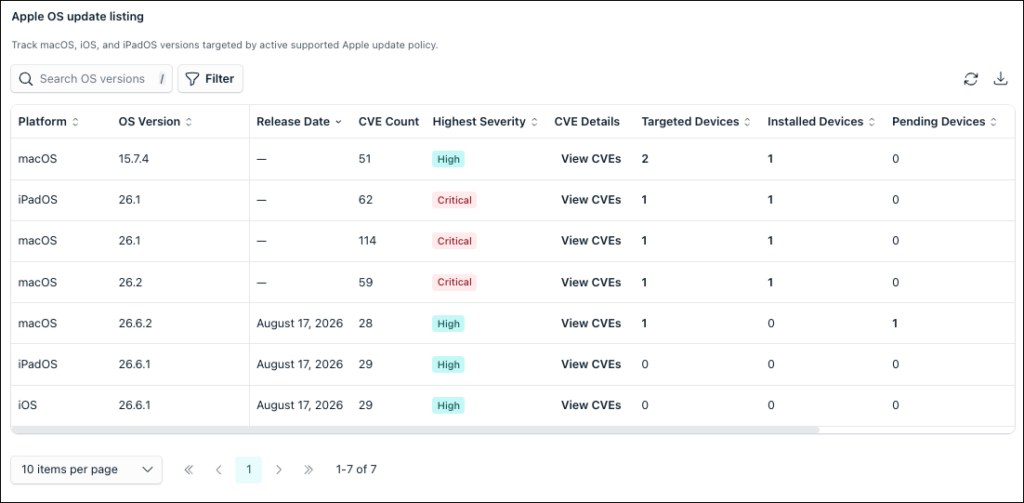
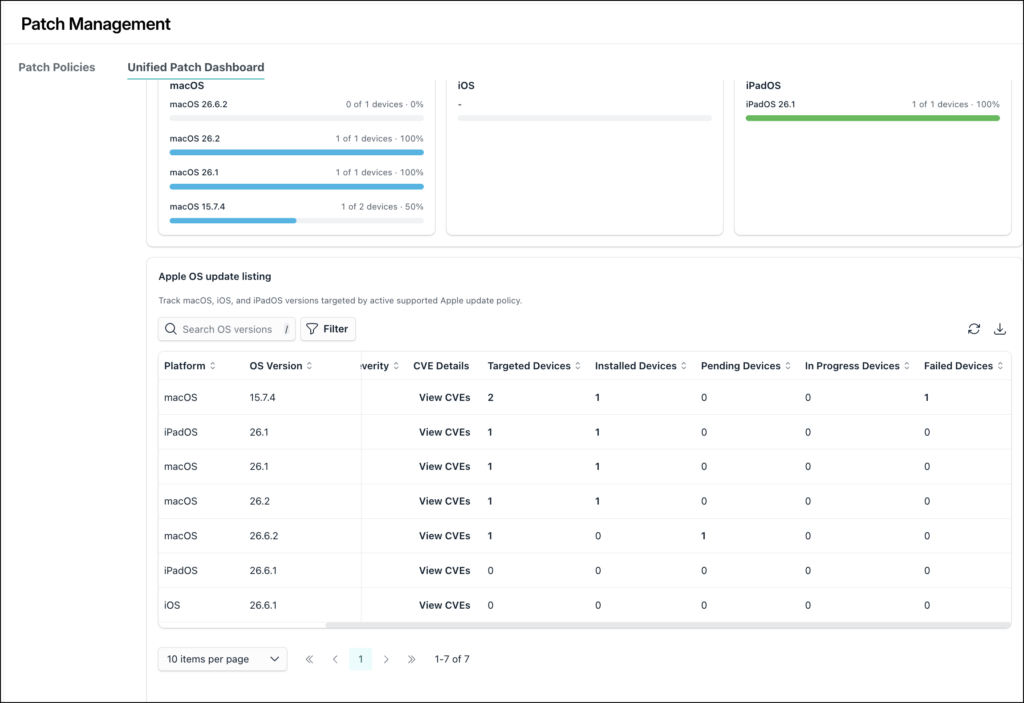
The Apple OS Version Listing is a target-based rollout and security table. It is not a full inventory of every OS version currently installed in your fleet. Rows are generated from the effective target versions currently in use, plus the latest stable release for each platform, even if no policy targets that release yet.
A device only counts under the row that matches its current effective target version. If a device moves ahead of that target on its own, it remains counted under its original target row until its effective target changes.
One latest stable Apple release is shown per platform even when no policy targets it. When no device targets that release, all target-related counts for that row are zero.
The table includes the following columns:
| Column | Description |
|---|---|
| Platform | The Apple platform for the release: macOS, iOS, or iPadOS. |
| OS Version | The Apple OS version for the row, for example macOS 15.6. |
| Release Date | The date Apple released the OS version. |
| CVE Count | The number of Common Vulnerabilities and Exposures (CVEs) associated with the release. |
| Highest Severity | The highest severity among the CVEs addressed by the release. |
| CVE Details | Opens the CVEs associated with the release. |
| Targeted Devices | Targeted devices that have reached or exceeded the effective target. |
| Installed | The number of targeted devices that have been updated. |
| Pending | The number of targeted devices that have not met the target and are not currently updating or failed. |
| In Progress | Targeted devices currently progressing toward the effective target. |
| Failed | Targeted devices where the update toward the effective target has failed. |
Note: A device counts toward only one row. Once a device meets its effective target, later activity toward a newer, non-targeted OS version does not move that device’s original target row to In Progress or Failed.
Filtering the Apple OS Update Listing
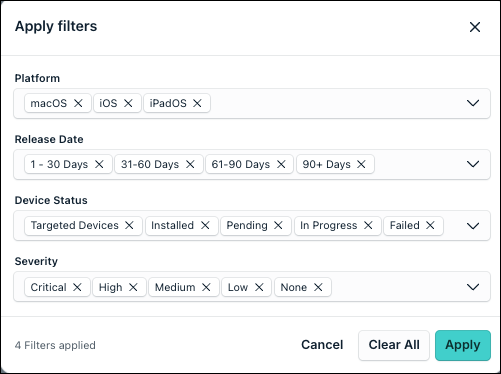
Click the Filter icon to narrow the Apple OS Update Listing by:
- Platform: macOS, iOS, iPadOS
- Release Date: age buckets such as 1-30 days, 31-60 days, 61-90 days, 90+ days
- Highest Severity: Critical, High, Medium, Low, none
- Device Status: Targeted Devices, Installed, Pending, In Progress, Failed
View CVE
To view the CVE details, do the following:
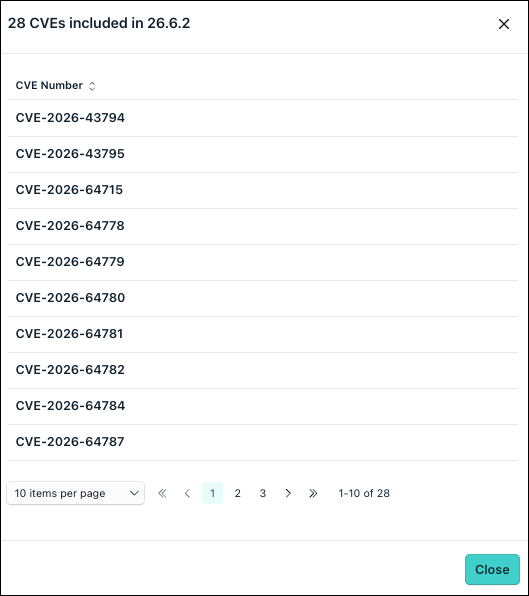
- Click View CVEs on the CVE Details column.
- A list of applicable CVEs is displayed.
- Select a CVE number to view the details.
View Targeted Devices
- Go to the Apple OS Update Listing table.
- Click on the count in the Targeted Devices column.
- A pop up window containing all the target devices is displayed.
View Installed Devices
- Go to the Apple OS Update Listing table.
- Click on the count in the Installed column.
- A pop up window containing all the installed devices is displayed.
View Pending Devices
- Go to the Apple OS Update Listing table.
- Click on the count in the Pending column.
- A pop up window containing all the pending devices is displayed.
View In Progress Devices
- Go to the Apple OS Update Listing table.
- Click on the count in the In Progress column.
- A pop up window containing all the in progress devices is displayed.
View Failed Devices
- Go to the Apple OS Update Listing table.
- Click on the count in the Failed column.
- A pop up window containing all the failed devices is displayed.
Was this information helpful?