Add and Edit Privileged Websites with Web Shield
Web Shield isolates the session to a Privileged Website. The website does not open in the browser of the user. It runs in a container inside the Jump Server, and JumpCloud Privileged Access Management (PAM) streams it to the user as images.
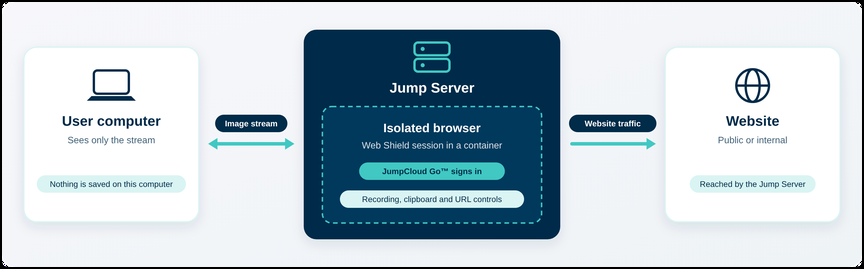
Privileged Websites without Web Shield do not use a Jump Server.
Because of this isolation:
- Nothing is saved on the computer of the user.
- You can record the session and control the clipboard, the file transfers and where the user can navigate.
- For an internal website, the Jump Server only needs access to the website. Users do not need direct access to it.
Prerequisites
- A Jump Server in your organization.
- Network access from the Jump Server to the website.
- The Administrator with Billing role, or being listed as a manager of the Privileged Website. See Privileged Website Managers below.
Add a Privileged Website
- In the JumpCloud Admin Portal, go to Access > PAM > Privileged Resources > Privileged Websites.
- Click Add Privileged Website.
- Configure the website as described below.
- Save the Privileged Website.
Configure the Privileged Website
General
This card has the basic information of the Privileged Website.
| Field | What to enter |
|---|---|
| Name | The name users see for the Privileged Website. |
| Website URL | The URL of the website, with HTTP or HTTPS. |
| Jump Server | The Jump Server that runs the isolated session. It is required when Web Shield is on. When Web Shield is off, you cannot select a Jump Server. |
| Tags and Notes | Optional. Use them to organize and describe the Privileged Website. |
The image that users see in the User Portal comes from the domain of the URL.

Session Control
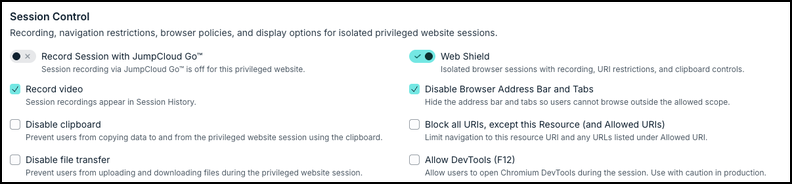
Turn on Web Shield to isolate the session. Then choose the controls that you need:
| Option | What it does |
|---|---|
| Record video | Records the session. Recordings appear in Session History. |
| Disable clipboard | Prevents users from copying data to and from the session. |
| Disable file transfer | Prevents users from uploading and downloading files during the session. |
| Disable Browser Address Bar and Tabs | Hides the address bar and the tabs, so users cannot browse outside the allowed scope. |
| Block all URIs, except this Resource (and Allowed URIs) | Limits navigation to the URL of this Privileged Website and to the URLs in Allowed URI. |
| Allowed URI and Blocked URI | The URLs that users can or cannot open. Enter a URL and click Add. |
| Allow DevTools (F12) | Allows users to open the DevTools during the session. Use with caution in production. |
| Chromium Policies (JSON) | Applies Chromium browser policies to the session. Paste the policy in JSON format. |
| Image Quality, Compression Level and Color Depth | Adjust how the isolated session is streamed to the user. |
| Swap Red/Blue Channels (Color Correction) | Corrects the colors when the remote display shows red and blue swapped. |
| Force Lossless Encoding | Uses lossless encoding for the maximum visual quality, with higher bandwidth. |
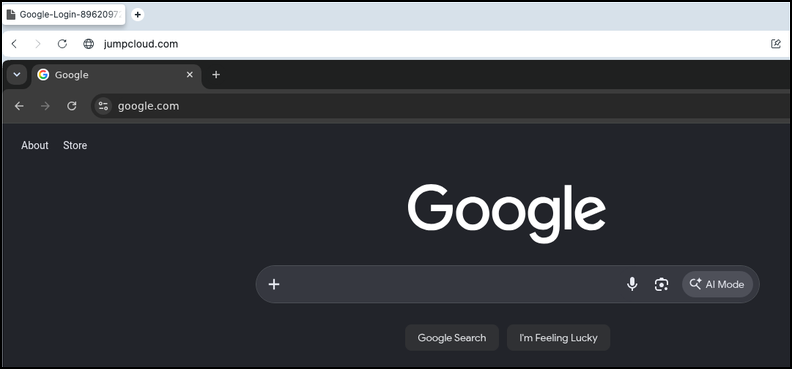
We recommend hiding the address bar and the tabs. Without this option, the user sees the address bar of the isolated browser inside their own browser, as if two browsers were open at the same time.
Example of a session with Browser Address Bar and Tabs enabled. We recommend disabling this option; this will improve the user experience.
Privileged Website Credentials
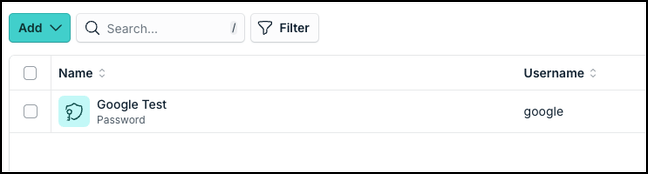
Select the credentials that PAM uses to sign in to the website. Click Add to link an existing privileged credential or to create a new one without leaving the form. A Privileged Website can have more than one credential.
Privileged Website Access
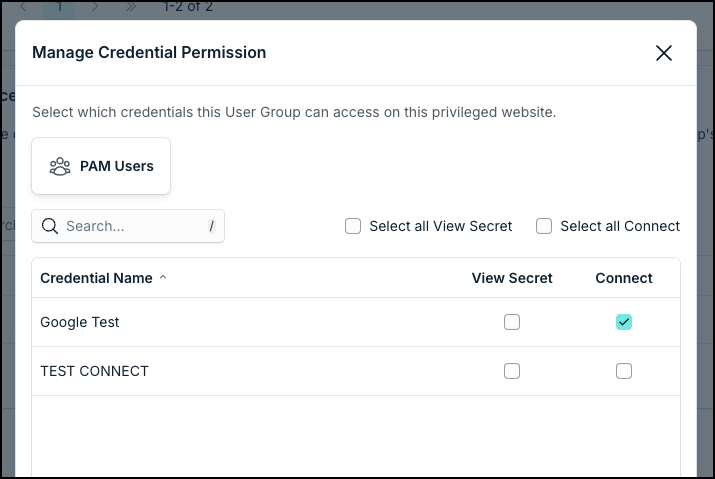
Add the User Groups and Users that can connect to this Privileged Website through the User Portal. Members of a group inherit the access of the group. This card controls access to the website only. The credentials they can use are set in the next card.
Privileged Website Credential Access
This card lists the User Groups and Users added in Privileged Website Access. For each one, click Manage Permissions and choose, for every credential of the website, one or both of these permissions:
- Connect: the user can connect to the website with the credential.
- View Secret: the user can see the secret of the credential.
Privileged Website Managers
Administrators with Billing can manage all resources in PAM. Other admins can see and edit this Privileged Website only if they are listed here, directly in the Admins tab or through a Resource Manager in the Resource Managers tab. If an admin is not listed, the website does not appear in the list for that admin.
Privileged Website Managers is for admins, not for users.
Autofill Parameters
PAM automatically logs the user into the website. When a Web Shield session begins, PAM launches an isolated browser in the Jump Server with JumpCloud Go™ installed to automatically locate and fill in the login fields (username, password, and MFA code).
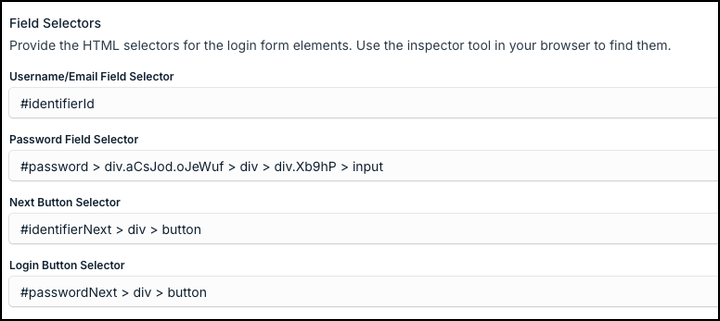
If JumpCloud Go™ cannot detect the login fields, configure the optional Autofill Parameters card:
- Field Selectors: Specify HTML selectors for the username, password, Next, and Login elements (found via browser inspector), or elements to hide.
- Behaviours & Timing: Set delays before or after action steps (up to 15 seconds), enable repeated autofill on page reload, or set automatic form submission.
Edit a Privileged Website
- Go to Access > PAM > Privileged Resources > Privileged Websites.
- Click the name of the Privileged Website.
- Change the cards you need and save.
Only Administrators with Billing and admins listed in Privileged Website Managers can edit a Privileged Website.
Was this information helpful?