Add and Edit Privileged Credentials
A Privileged Credential is registered in JumpCloud Privileged Access Management (PAM) to authenticate users automatically when connecting to resources, though it can also be registered unlinked.
PAM supports seven credential types, including passwords, SSH keys, and 2FA. To assign one to a server, database, or Privileged Website, choose it in the resource's Credentials card.
Adding a Privileged Credential
- In the JumpCloud Admin Portal, go to Access > PAM > Privileged Resources > Privileged Credentials.
- Click Add Privileged Credential.
- Configure the three cards described below.
- Save the Privileged Credential.
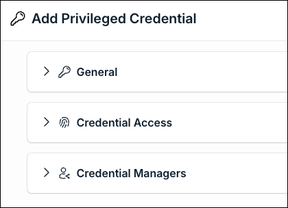
Configuring the Privileged Credential
General
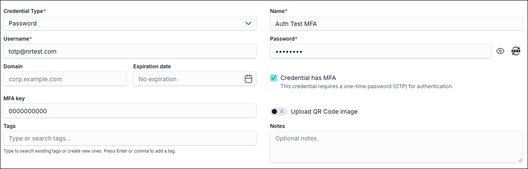
In Credential Type, select the credential type. The fields change with the type. Every type has a required Name, and optional Tags and Notes.
| Type | Use it for | Fields |
|---|---|---|
| Password | A username and password to sign in to a resource. | Username (required), Password (required), Domain, Expiration date, Credential has MFA. |
| Key | A key pair, most often an SSH key. | Username (required), Private key (required), Public key, Passphrase, Domain, Expiration date, Credential has MFA. |
| Payment Card | The data of a payment card. | Card number (required), CVV / CVC (required), Cardholder name, Expiry month, Expiry year. |
| Secure Note | Any text that must be kept secure. | Secured note (required). |
| 2FA | A key that generates one-time passwords (OTP) for multi-factor authentication. | MFA key (required), or turn on Upload QR Code image to upload the QR code instead. |
| ID Card | The data of an identification document. | Name on ID (required), Issuing country, ID type, ID number, Issuance date, Expiration date. |
| Identity | The personal data of an identity. | Title, Gender, First name, Middle name, Last name, Email, Phone, Address line 1 and 2, City, Country, Zip / postal code. |
For the Password and Key types, select Credential has MFA when the credential requires a one-time password (OTP) to authenticate.
Credential Access
Add the User Groups and Users that can use this credential in the User Portal. Use the User Groups and Users tabs, click Add User Groups or Add Users, and select them. Members of a group inherit the access of the group. For each User Group or User, choose one or both of these permissions:
- View Secret: the user can see the secret of the credential in the User Portal.
- Connect: the user can connect to a resource with the credential.
To remove access for a User Group or User, click the X in the Actions column.

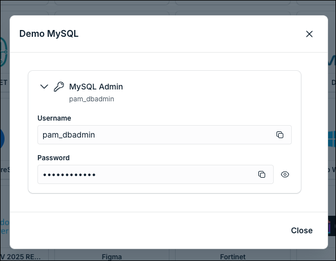
Users with View Secret can click the key icon on the resource card in the User Portal to see the credential in a window, and copy the username and the password.
Credential Managers
Administrators with Billing can manage all resources in PAM. Other Admins can see and edit this credential only if they are listed here, directly or through a Resource Manager. If an Admin is not listed, the credential does not appear in the list for that Admin.
Credential Managers is for Admins, not for Users.
Editing a Privileged Credential
- Go to Access > PAM > Privileged Resources > Privileged Credentials.
- Click the name of the Privileged Credential.
- Change the cards you need and save.
The Actions column of the list has more options for each credential:
- View Secret: shows the secret of the credential.
- View Multifactor Code: shows the current one-time password of the credential.
- View Details: shows the details of the credential.
- History: in the three-dot menu, shows who changed the credential and when. It is available for the Password and Key types.
- Duplicate, Archive, and Delete: in the three-dot menu.
A 2FA credential has no secret to show, so its row only has the View Multifactor Code icon.

Was this information helpful?