Access Server Applications via RemoteApp
RemoteApp lets users open a single application on a Windows Server instead of the full desktop. When the session ends, the user has no access to the rest of the server.
In JumpCloud Privileged Access Management (PAM), a RemoteApp session uses up to two credentials:
- Server Credential: signs in to the Windows Server.
- Remote App Credential: signs in to the application. It is available only for applications that accept arguments.
This article is for IT Admins who manage Windows Servers in PAM.
Prerequisites
- A Windows Server added to PAM with the RDP protocol and an online Jump Server.
- The application installed on the Windows Server.
- A privileged credential for the Windows Server and, if the application accepts arguments, a privileged credential for the application.
Preparing the Windows Server
RemoteApp is a native Windows feature, so you configure it on the Windows Server and not in PAM. Allow the application to start as a RemoteApp in one of two ways:
- Publish the application as a RemoteApp program.
- Enable the Group Policy Allow remote start of unlisted programs (Remote Desktop Session Host > Connections).
Follow the Microsoft documentation for your Windows Server version.
RemoteApp may require Microsoft licenses, depending on your Windows Server setup. Check the Microsoft licensing terms for your environment before you enable it.
Configuring RemoteApp in PAM
- Log in to the JumpCloud Admin Portal.
- Go to Access > PAM > Privileged Resources > Servers, and create or edit the Windows Server. The protocol must be RDP.
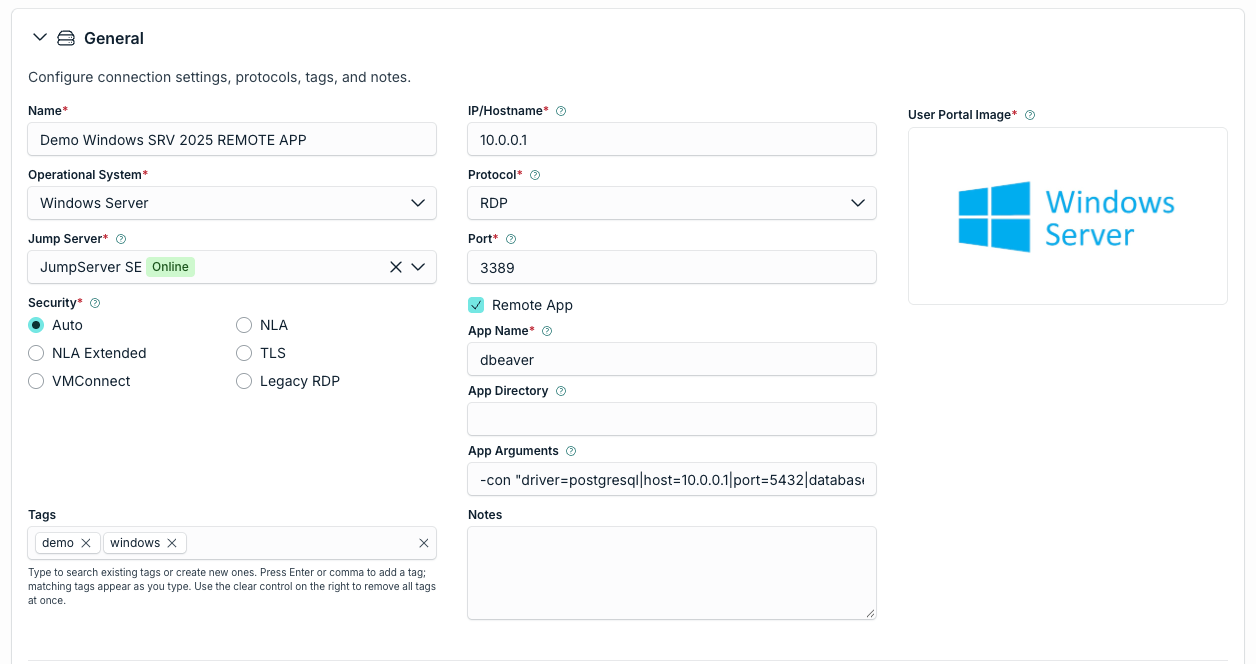
- In General, select Remote App and complete the following fields:
| Field | Description |
|---|---|
| App Name | The application to open, for example dbeaver. Required. |
| App Directory | The working directory of the application. Optional. |
| App Arguments | The parameters sent to the application. Use them to sign in to the application automatically. See Choosing How Users Sign In to the Application. Optional. |
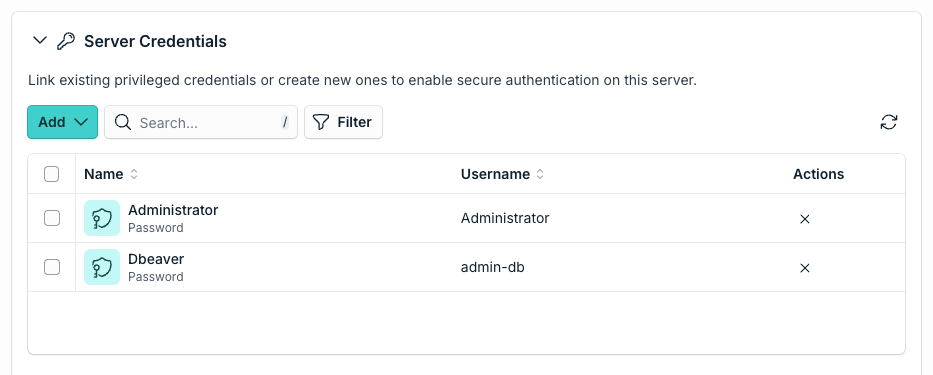
- In Server Credentials, click Add and link the credential of the Windows Server. If the application accepts arguments, also link the credential of the application.
- Click Save.
Choosing How Users Sign In to the Application
What happens inside the application depends on whether it accepts arguments.
| Application | App Arguments | What the user sees |
|---|---|---|
| Accepts arguments for user and password | Include the placeholders {{user}} and {{password}}. | Two credentials: Server Credential and Remote App Credential. The application opens already signed in. |
| Does not accept arguments | Leave the placeholders out. | One credential: Server Credential. The user signs in to the application manually. |
PAM replaces the placeholders with the username and password of the credential selected as Remote App Credential.
This example opens DBeaver with a PostgreSQL connection:
-con "driver=postgresql|openConsole=true|folder=Postgres|user={{user}}|password={{password}}|{{domain}}"
Not every parameter is required. They depend on the application and on your scenario.
Connecting to the Application
- Log in to the JumpCloud User Portal.
- Open the server and click Connect.
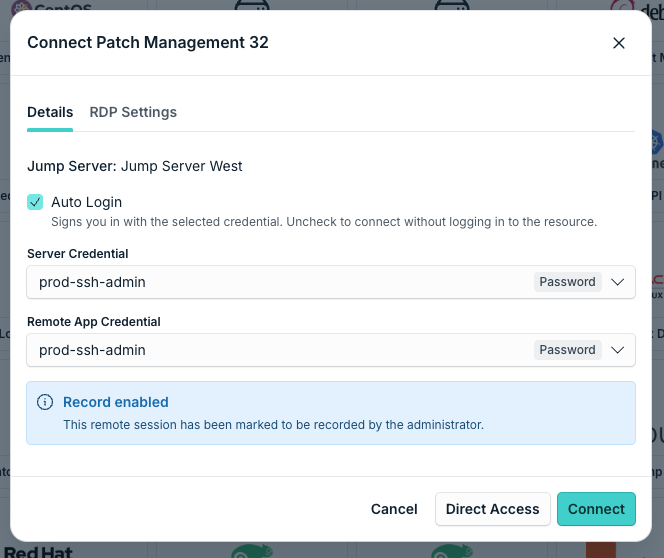
- Select the Server Credential and, if it is shown, the Remote App Credential.
- Click Connect. Only the application opens, not the Windows desktop.
Was this information helpful?