FAQ: Migrating from JumpCloud Password Manager to Password Vault
Migration
Will my sharing permissions across Folders and credentials exist after migration?
Yes. Sharing preferences for folders and credentials are retained.
Where can I access my websites/credentials after migration?
After migrating to Password Vault, you can access your websites/credentials through:
User Portal: Users can view, search, manage, and share their credentials.
JumpCloud Go Browser Extension: Provides browser autofill and quick access to Password Vault websites/credentials. The default extension switches to JumpCloud Go.
JumpCloud Protect Mobile App: Users can view and autofill credentials on supported mobile apps.
Can I still use the Legacy Password Manager?
Yes. Password Vault and Legacy Password Manager can run at the same time. Admins deactivate Legacy Password Manager based on the organization’s migration progress.
Credentials and folder sharing permissions migrate automatically to Password Vault. Use Password Vault for adding, editing, and sharing credentials, and for browser autofill.
Can I add passwords to the Legacy Password Manager after migration?
Yes, but we strongly recommend using Password Vault only.
There is no bi-directional sync between Password Vault and Legacy Password Manager. If users add credentials to Legacy Password Manager after migration, an admin must re-run migration to import them.
What happens to the existing Legacy Password Manager?
The Legacy Password Manager desktop app, mobile app, and browser extension will be deprecated. Support is limited to critical bug fixes and security vulnerabilities. Admins deactivate Legacy Password Manager based on migration progress.
After deactivation in the Admin Portal:
The desktop app, browser extension, and mobile app no longer work.
After migration:
- Users access credentials in the User Portal.
- Admins manage credentials in the Admin Portal.
- Browser autofill is provided by the JumpCloud Go Browser Extension.
I can’t view Secure Notes after migration. How do I view them?
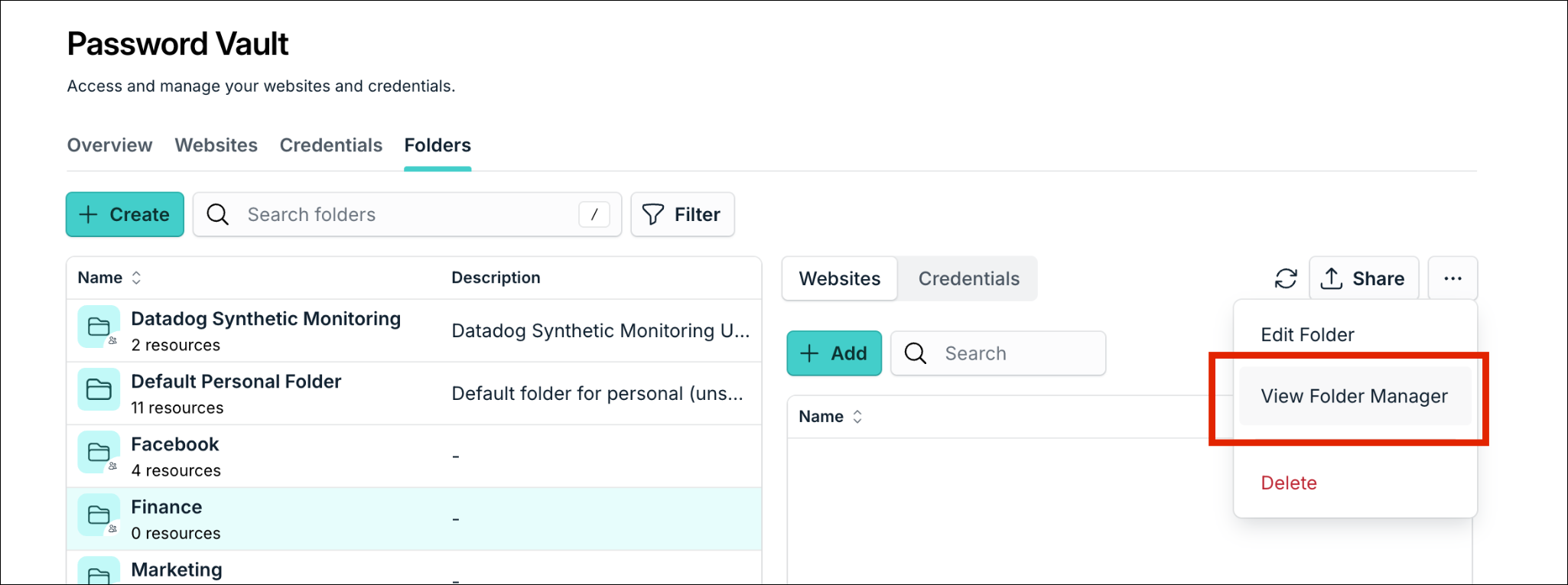
This happens when you’re a folder member of a shared folder that contains Secure Notes in Legacy Password Manager. Request the View permission for that shared folder from the folder manager. If you’re unsure who manages the folder, contact your organization admin.
Password Vault standardizes sharing. The relevant permissions are:
Connect: Autofill without exposing credentials.
View: View secrets for all credential types.
To View Folder Manager, go to Password Vault > Folders > Select Folder > View Folder Manager.
My websites/credentials didn’t migrate to Password Vault. What should I do?
Common causes of failed or partial migration:
- Cloud backup older than 2024
- User got a new device and hasn’t set up the Legacy Password Manager desktop app.
Backups run daily. To create one manually: open the Legacy Password Manager desktop app > Settings > Backup Center > Create a Backup.
Once the backup has been created, reach out to your org admin to re-trigger migration. 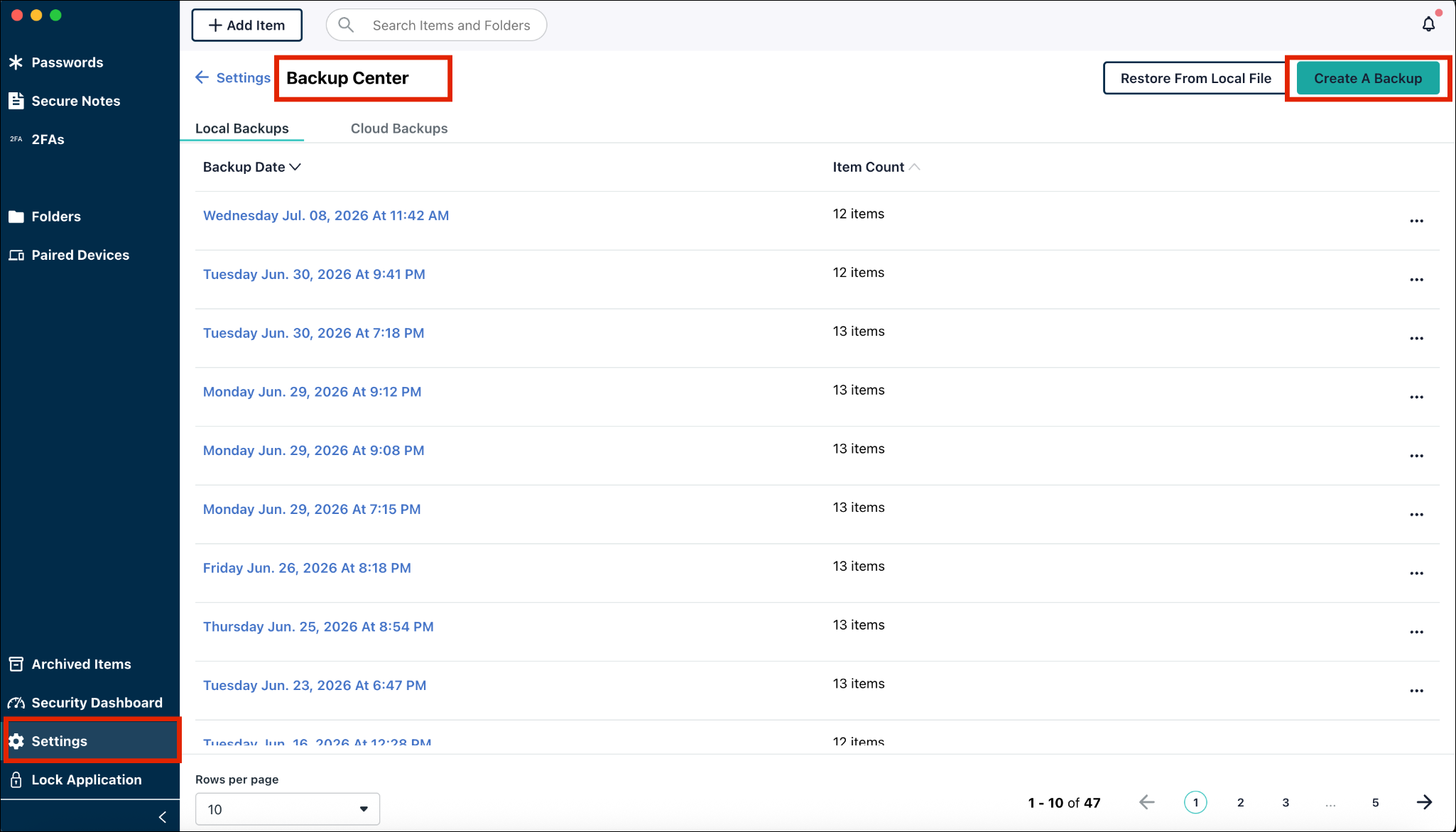
Can I access credentials offline?
No. Users can’t access credentials offline. Password Vault is centralized, so users must sign in to the User Portal.
Are there any functional differences between Password Manager and Password Vault?
Password Vault offers additional functionality compared to the legacy Password Manager. However, there are a few important architectural and functional changes.
Centralized Credential Storage
Password Vault uses a centralized architecture.
Unlike the legacy Password Manager, credentials are not stored locally on end-user devices. Instead, credentials are securely stored in the cloud and accessed as needed.
Mobile App Credential Management
The JumpCloud Protect mobile application currently supports:
- Viewing credentials
- Autofilling credentials
The following actions must be performed through the User Portal or Admin Portal:
- Editing credentials
- Adding credentials
JumpCloud Go Browser Extension
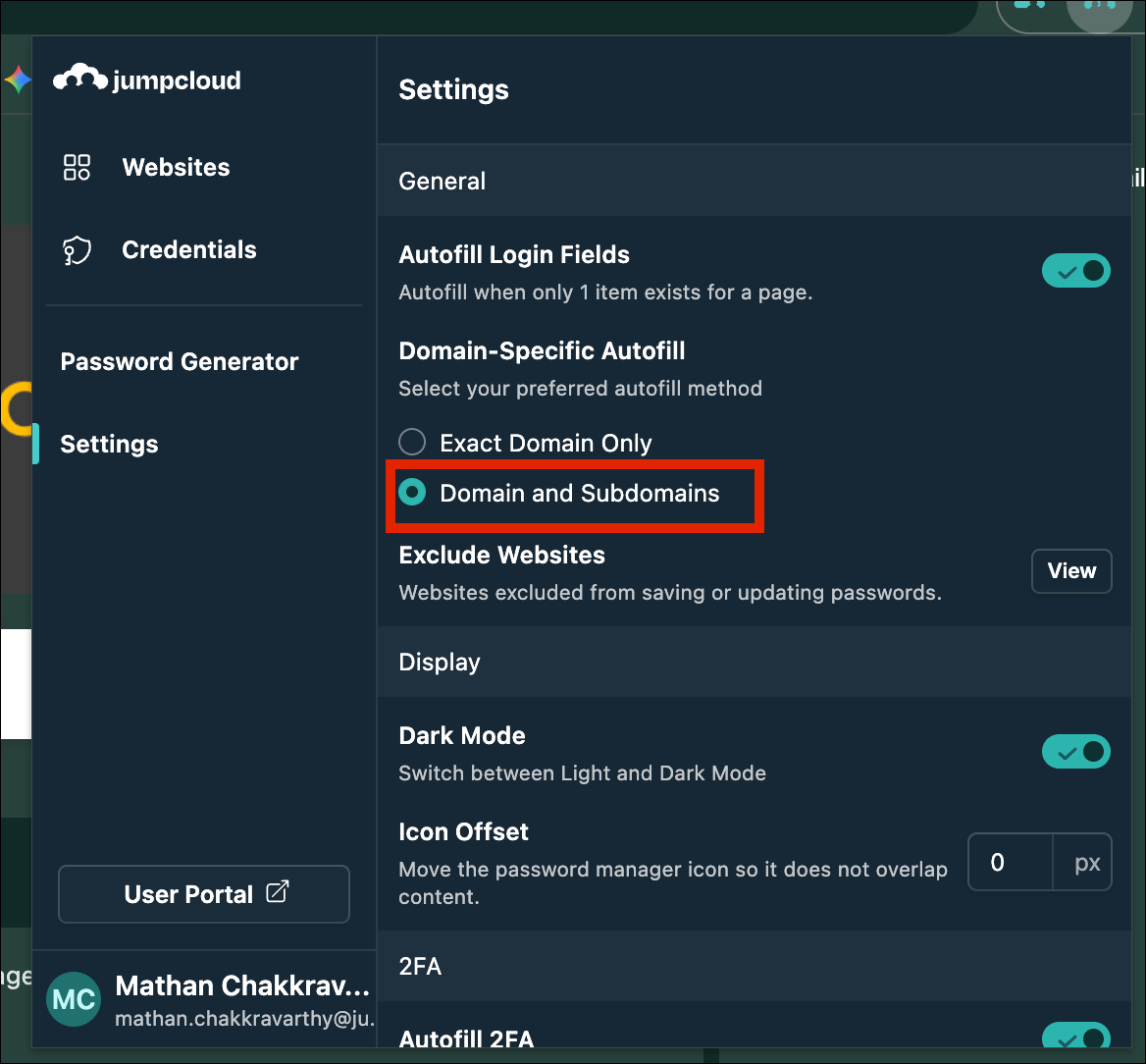
My credentials aren’t available in the credential picker / autofill suggestion popup when I visit a website.
In the JumpCloud Go browser extension, set Domain-Specific Autofill to Domain and Subdomain.
Can an admin disable the browser extension?
Yes. Go to Access > Password Vault > Settings > Platform Access > Browser Extension Management, then turn off the toggle.
If browser extension management or Password Vault is disabled, JumpCloud Go sends users to the User Portal and doesn’t show the extension UI.
Can I add passwords through the browser extension?
Yes. JumpCloud Go can capture passwords during login, update, or sign-up.
To add or edit websites/credentials, JumpCloud Go redirects you to the Password Vault User Portal.
JumpCloud Protect Mobile App
How are credentials stored in the mobile app?
JumpCloud Protect consists of:
- Authenticator: Generates user MFA codes and handles push notifications for User Portal access.
- Password Vault: Websites/credentials are stored on JumpCloud servers and retrieved after the user authenticates.
Can admins prevent users from accessing Password Vault in the mobile app?
Yes. In the Admin Portal, go to Access > Password Vault > Settings > Platform Access > Mobile App Access, then turn off the toggle.
Was this information helpful?